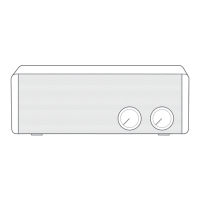
1. Select [Wi-Fi] by turning the [Power/Menu] knob in
front of the device.
2. Select [LS150_xxxxxx] on the Wi-Fi connection list of
the device.
3. Once you enter [10.10.10.254] in the browser’s address
bar, [LS150 Web Setup Menu] will appear.
4. If you select the [Wi-Fi] tab, you will see a list of APs to
which you can connect.
5. Select a desired [AP] to connect to the wireless network.
Additional information such as key index and network
key may be required depending on AP settings.
6. You can change AP settings after selecting [Revise
Network] by pressing the connected AP for a few seconds.
Using the Device
10
User Guide
Wi-Fi
Mode
Downloading IRIVER Live Stream
1.
Please install the [IRIVER Live Stream] app by downloading
it from the device's app store.
Using features such as [IRIVER Live Stream/AirPlay/DLNA/
Multi-room/Windows 10 Cast Media to Device], you can
replay a variety of streaming services in addition to local
music by connecting to Wi-Fi network.
Connecting wireless network manually
Connecting automatically using WPS
1. Select [Wi-Fi] by turning the [Power/Menu] knob in
front of the device.
2. Select [Wi-Fi Setup Wizard] after executing [IRIVER
Live Stream].


 To Next Page