Page
17
of
22
2‐3Customization
2‐3‐1ScanButton
ScanKey
®
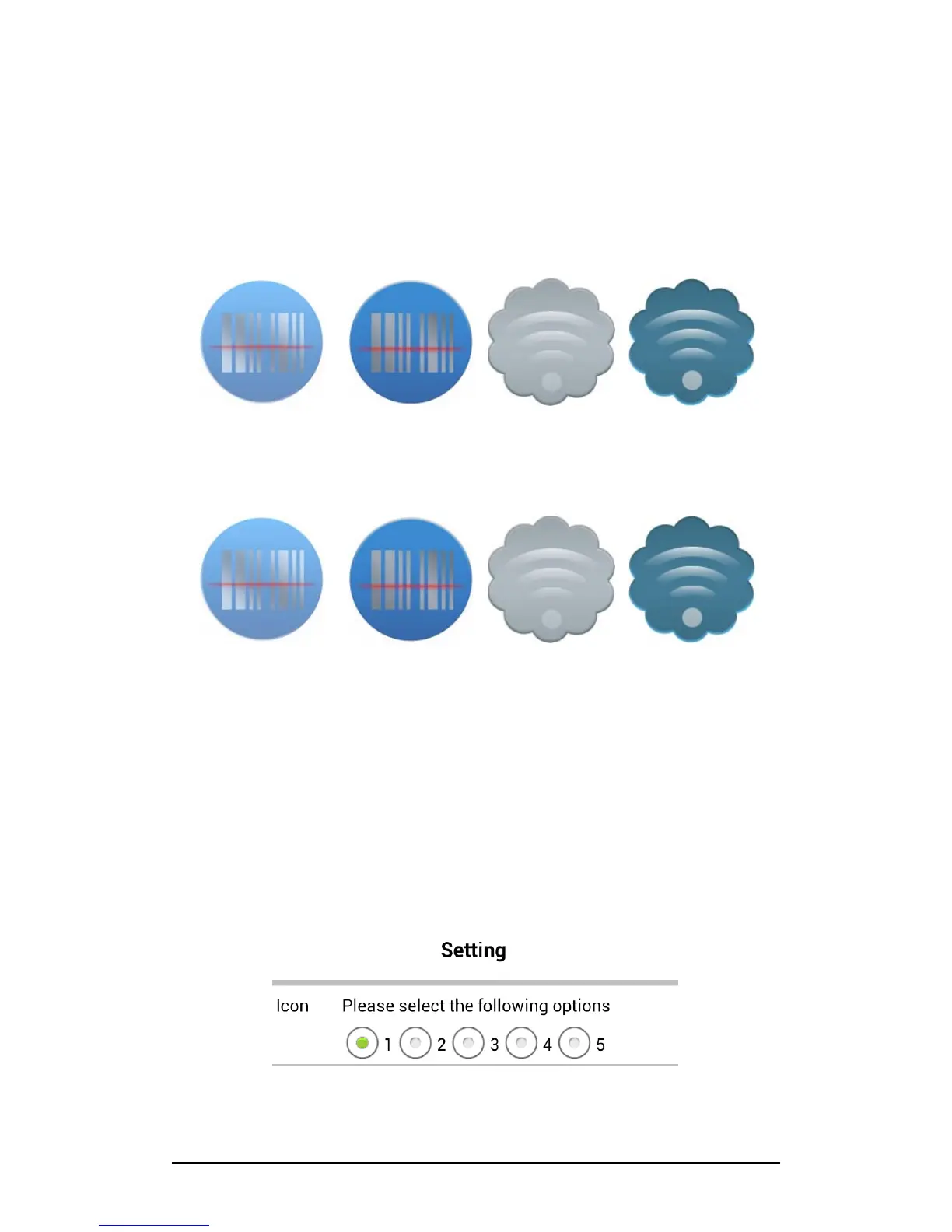
allows users to customize their scan button icons. Please follow below
steps:
1. Create two icons for each style of button, with one brighter than the other. Make
sure you create them in PNG format so that you will be able to make the
surroundings transparent.
2. Name the icons in below rule:
off1.png on1.png off2.png on2.png
The off#.png is what icon appears when it is running on the screen, while the
on#.png icon is what icon looks like when it is tapped by user. It is suggested that
the off#.png icon be the brighter one. You may customize up to 5 styles of scan
button, which means you have to create up to 10 icons.
3. Place all the icons under below folder:
/storage/sdcard0/ScanKey/Icon
4. You may enter the main Setting window of ScanKey
®
and tap on below options to
change the scan button icon to your customized ones.



 To Next Page