23
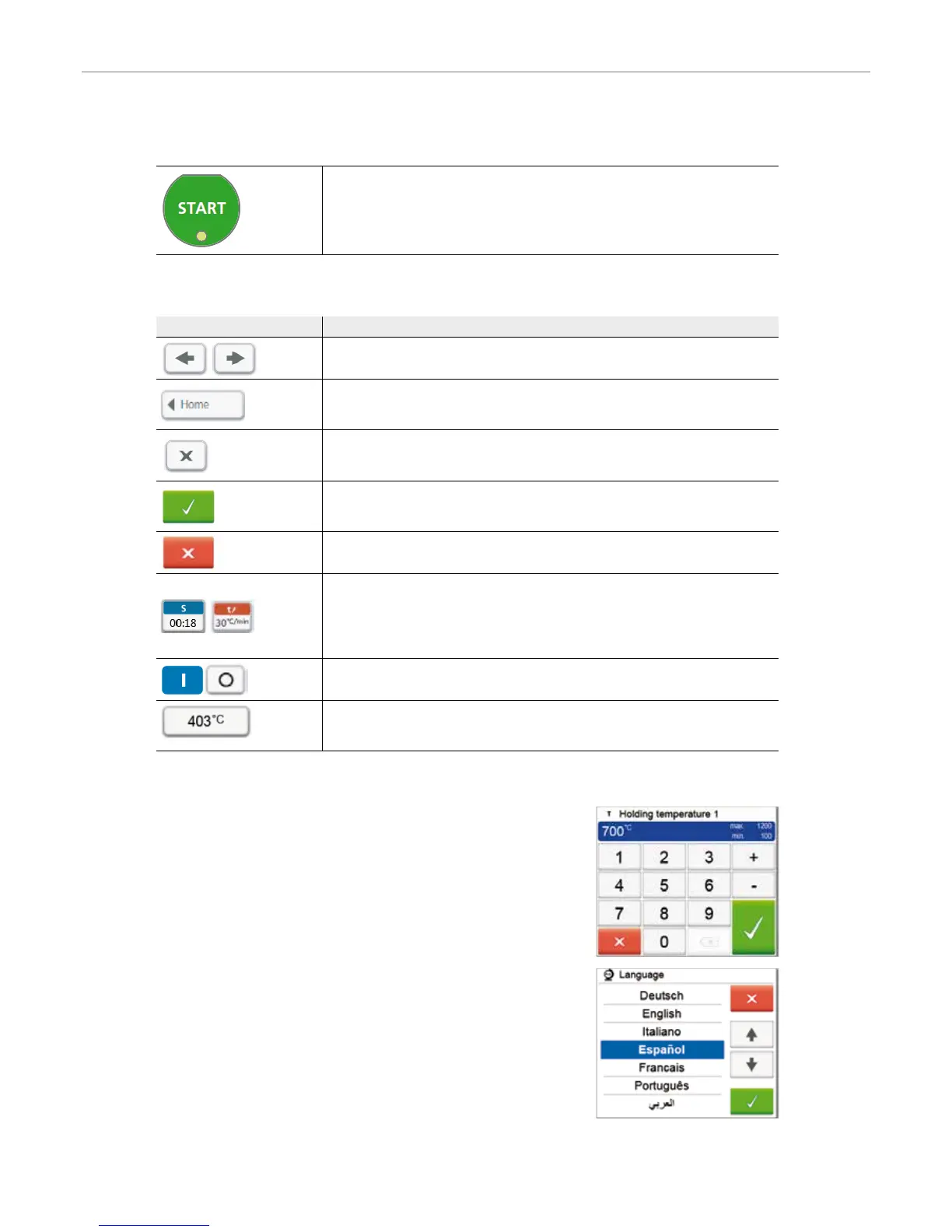
START (LED Start)
Starts the selected program. The green LED indicates that a program is active. If the pro-
gram is paused (1x STOP), the Start LED flashes until renewed pressing of START results
in the program being resumed.
5.1.3 Explanation of the most important touch buttons
Button Function
Scroll left / Scroll right
With these buttons, for example, you can scroll to page 2 of the home screen.
Back with note
With this button, you can change to the “next higher” menu level. The button indicates
to which screen you change, e.g. to the home screen.
Close
With this button, you can leave sub-menus. You change to the “next higher” menu
level.
Confirm your entries
This button is used to confirm an entry. If the button appears pale green, no entry has
been made yet or the value entered is not in the acceptable range.
Cancel entry
The entry can be cancelled with this button; changed values are not saved.
Program parameter buttons
Pressing these buttons allows you to change program parameters. A selection list or
numeric pad for entering the values appears.
The upper half of the button itself shows the parameter in question (e.g. closing time),
while the lower half shows the entered value (e.g. 00:18).
On/Off button
This button is used to switch functions on or off.
Parameter buttons
Pressing these buttons results in a selection list or numeric pad for entering the values to
appear.
5.1.4 Explanation of the numeric pad and selection list
– Numeric pad
The numeric pad enables the entering and changing of parameters, e.g. in firing
programs or set-up menus. Additionally, the currently set value is indicated, as well
as the minimum and maximum values.
An entry must be confirmed with the green button. As soon as the entry has been
confirmed, the numeric pad is closed. If the button appears pale green, the value
is not in the acceptable range.
The numeric pad can be closed with the red button, without any parameters being
changed.
– Selection list
In the selection list, the desired parameter can be selected by using the up/down
arrows. An entry must be confirmed with the green button. After that, the
selection list is closed.
The selection list can be closed with the red button, without any parameters being
changed.
5. Operation and Configuration


 To Next Page