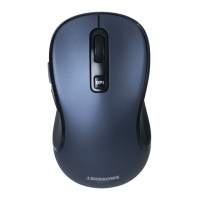
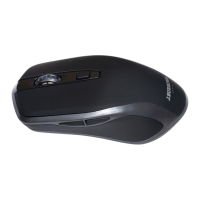
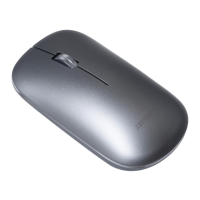
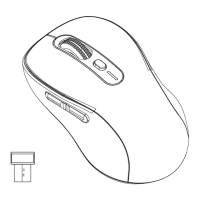
Need help?
Do you have a question about the J.Burrows Elite MS400 and is the answer not in the manual?
Modify mouse sensitivity by pressing the DPI button. Indicator light shows DPI level.
Connect the USB receiver to the computer for 2.4GHz wireless operation.
Pair the mouse with devices using Bluetooth connectivity.
Press mode button, select BT1, hold for 3 seconds for pairing.
Press mode button, select BT2, hold for 3 seconds for pairing.
This document provides an instruction manual for the J.Burrows Elite MS400 Vertical Wireless Mouse. It covers the device's functions, installation, operation, and warranty information.
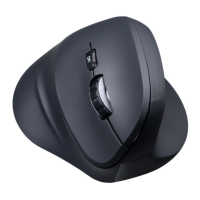
The J.Burrows Elite MS400 is a vertical wireless mouse designed for ergonomic comfort and versatile connectivity. It supports both 2.4 GHz wireless and Bluetooth connections, allowing it to be used with a wide range of devices. The vertical design aims to reduce wrist strain by promoting a more natural hand and wrist posture.
The mouse features a total of six buttons, a scroll wheel, and an optical sensor for precise tracking. It includes dedicated buttons for left-click, right-click, and a scroll wheel for navigation. A DPI button allows users to adjust the mouse sensitivity on the fly. Additionally, there are forward and backward buttons for web browsing or document navigation, enhancing productivity.
Connectivity is a key feature of the Elite MS400. It offers a 2.4 GHz wireless connection via a USB-A receiver, which can be stored magnetically within the mouse when not in use. This ensures a stable and reliable connection for devices that support USB-A. For broader compatibility, the mouse also supports Bluetooth 4.2, enabling connection to up to two separate Bluetooth devices (BT1 and BT2). This dual Bluetooth capability allows for seamless switching between different computers or tablets without needing to re-pair the device each time.
The mouse is powered by a rechargeable lithium battery, eliminating the need for disposable batteries. It comes with a charging cable for convenient recharging. Indicator lights provide visual feedback on various statuses, including DPI settings, low power, charging status, and connection mode.
To begin using the mouse, users first need to retrieve the USB-A receiver from its magnetic storage position on the bottom of the mouse. For 2.4 GHz wireless connection, the USB receiver is plugged into an available USB port on the computer. Drivers are designed to install automatically, making the mouse ready for use once the left white selection light on the top of the mouse starts flashing.
For Bluetooth connectivity, the mouse offers two distinct Bluetooth channels: BT1 and BT2. To connect the first Bluetooth device, the user presses the mode button and selects BT1 (indicated by a white light in the middle on the top of the mouse flashing once). Then, the mode button is held for more than three seconds until the white light flashes quickly, signifying Bluetooth pairing mode. The user can then find and pair "Elite MS400" from their computer's Bluetooth device list. The process is similar for connecting a second Bluetooth device using the BT2 channel (indicated by a white light on the right on the top of the mouse).
The mouse features a DPI button to modify mouse sensitivity. Pressing this button cycles through three DPI settings: 1000 DPI, 1600 DPI, and 2400 DPI. A red LED indicator light provides visual feedback for the current DPI setting: it flashes once for 1000 DPI, twice for 1600 DPI, and three times for 2400 DPI. This allows users to quickly adjust the cursor speed to suit different tasks or preferences.
The standard left and right-click buttons function as expected. The scroll wheel allows for vertical scrolling through documents and web pages. The forward and backward buttons, typically located on the side of the mouse, facilitate quick navigation in web browsers or file explorers, enhancing efficiency.
A dedicated mode button allows users to switch between the 2.4 GHz wireless connection and the two Bluetooth channels (BT1 and BT2). This feature is particularly useful for users who work across multiple devices, enabling them to switch connections seamlessly without re-pairing. The mode indicator light provides visual confirmation of the currently active connection mode.
The mouse includes an On/Off switch on the bottom to conserve battery life when not in use. This helps extend the time between charges.
The J.Burrows Elite MS400 is equipped with a rechargeable lithium battery. It is recommended to fully charge the mouse before its first use. To charge the mouse, the included charging cable is connected to the mouse and a power source. It is important to ensure the wireless mouse is turned off before charging to optimize the charging process.
The mouse provides clear visual indicators for its battery status:
The USB-A receiver can be conveniently stored in a magnetic position on the bottom of the mouse. This secure storage prevents the receiver from being lost when the mouse is being transported or not in use, ensuring that the 2.4 GHz wireless functionality is always available.
The mouse is designed to be compatible with a range of operating systems, including Windows® 10 or later, Mac OS X 10.10 or later, Android™ 10 or later, and iOS systems. This broad compatibility ensures that the mouse can be used with most modern computers, laptops, and mobile devices.
A specific warning is provided regarding the charging cable: "Do not connect this cable to products other than Elite MS400 wireless mouse. Connecting this cable to other devices might cause damage to both cable and the device." This highlights the importance of using the correct cable for charging to prevent potential damage.
Officeworks Ltd provides an 8-year warranty from the date of purchase, covering defects and ensuring the product works as intended. If the product is defective or does not work as specified during the warranty period, Officeworks will, at its discretion and expense, repair or replace it. The warranty does not cover cosmetic damage, damage caused by consumables, misuse, fair wear and tear, unreasonable use, intentional or negligent damage, or customer-attempted repairs. To make a claim, customers should return the product with proof of purchase to an Officeworks store or contact 1300 633 423. This warranty is in addition to rights under the Australian Consumer Law, which entitles consumers to a replacement or refund for major failures and compensation for foreseeable loss or damage, and repair or replacement for goods that fail to be of acceptable quality but do not amount to a major failure.
 General
| Buttons | 3 |
|---|---|
| Connection | Wireless |
| Operating Distance | 10m |
| Interface | USB |
| Color | Black |
| Type | Optical |
| Wireless Technology | 2.4 GHz |

 To Next Page