Need help?
Do you have a question about the J.Burrows MS250 and is the answer not in the manual?
Lists the mouse model as MS250 and Officeworks product code as JBS1123EMS.
Details the mouse dimensions as 108 x 61 x 37 mm and DPI switching options.
Open the battery cover and insert 1 x AA battery into the mouse.
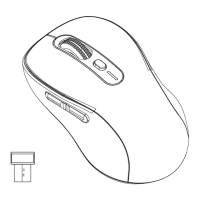
Insert the USB nano receiver (stored inside mouse) into your computer's USB port.
Select Bluetooth mode via device switch; indicator flashes 5 times.
Press and hold device switch to enter pairing mode; indicator flashes.
Click 'Bluetooth devices' in computer settings to initiate pairing.
Click 'Add or remove Bluetooth devices' and select 'MS250' to pair.
Follow OS steps: System Preferences > Bluetooth > select 'MS250' and Pair.
Press button to switch between USB receiver (red light) and Bluetooth (green light flashing).
Press DPI button to cycle between 800/1200/1600 DPI. Buttons may not work on Mac OS.
Mouse enters sleep mode after 8 minutes of inactivity; press any key to wake.
Warrants product free from defects for 3 years; covers repair/replacement for defects.
Excludes cosmetic damage, damage from consumables, misuse, wear and tear, or attempted repair.
Return product with receipt to store or contact 1300 633 423 for warranty claims.
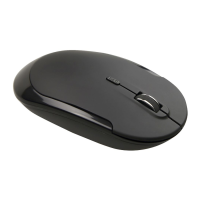
The J.Burrows MS250 is a versatile wireless mouse designed for multi-device connectivity, offering users the flexibility to switch between Bluetooth and a dedicated USB receiver. This allows for seamless operation across various platforms, including Windows, Mac OS, iOS, and Android devices, making it a suitable peripheral for a wide range of computing environments. The mouse is engineered to provide a comfortable and efficient user experience, whether for work, study, or general navigation.
One of the primary functions of the MS250 is its dual-mode connectivity. Users can choose to connect the mouse via Bluetooth, which is ideal for devices with built-in Bluetooth capabilities, or through the included pre-paired USB nano receiver. This dual functionality ensures broad compatibility and ease of use, as it eliminates the need for additional pairing steps when using the USB receiver. The pre-paired nature of the receiver means that once it's plugged into a computer's USB port, the mouse is ready for immediate use, offering a plug-and-play experience. For Bluetooth connections, the mouse provides a straightforward pairing process, guided by clear indicators and system settings.
The mouse incorporates a device switch/Bluetooth connection button, which serves multiple purposes. In addition to powering the mouse on and off, this button allows users to toggle between the USB receiver mode and the Bluetooth mode. When in USB receiver mode, a red light indicator illuminates, signifying that the mouse is connected via the dongle. Conversely, when in Bluetooth mode, a green light indicator flashes, indicating that the mouse is ready for or actively connected via Bluetooth. This visual feedback helps users quickly ascertain the current connection status of their device. The ability to easily switch between these two modes is particularly useful for individuals who work with multiple computers or devices, as it streamlines the process of transitioning their mouse usage without needing to re-pair or re-connect.
Another key feature of the MS250 is its adjustable DPI (Dots Per Inch) settings. The mouse comes with an initial DPI of 1200, but users can adjust this to 800, 1200, or 1600 DPI by pressing a dedicated DPI button. This functionality allows for customization of cursor sensitivity, catering to different user preferences and tasks. For instance, a lower DPI might be preferred for precision tasks like graphic design, while a higher DPI could be beneficial for faster navigation across large screens. This adaptability enhances the overall user experience by providing control over the mouse's responsiveness.
The design of the MS250 also includes forward and back buttons, which are particularly useful for web browsing and file navigation. These buttons, located on the side of the mouse, allow users to quickly move forward or backward through pages or folders, improving efficiency and reducing the need to reach for on-screen navigation controls. It's important to note that while these buttons function seamlessly in Windows systems, their functionality may be limited or non-existent in Mac OS environments, a consideration for users who primarily operate on Apple devices.
For power management, the MS250 is designed with an automatic sleep mode to conserve battery life. If no keys are pressed or movement is detected for a period of 8 minutes, the mouse will automatically enter sleep mode. To wake the mouse from this state, users simply need to press any key on the mouse. This intelligent power-saving feature helps extend the life of the single AA battery required for operation, reducing the frequency of battery replacements. It's worth noting that simply moving the mouse will not wake it from sleep mode; a button press is necessary to reactivate it.
Installation and setup of the MS250 are designed to be straightforward. For initial setup, users need to open the battery cover, insert one AA battery, and then either plug in the USB nano receiver or initiate the Bluetooth pairing process. The USB receiver is conveniently stored inside the mouse itself, ensuring it's always available and reducing the risk of loss. The Bluetooth pairing process involves selecting the Bluetooth mode via the device switch/Bluetooth connection button, which causes the green indicator light to flash, signaling that the mouse is in pairing mode. Users then navigate to their device's Bluetooth settings, select "MS250" from the list of available devices, and click "Pair." Once connected, the mouse is ready for use.
Maintenance of the J.Burrows MS250 is minimal, primarily involving battery replacement. The mouse operates on a single AA battery, and the automatic sleep mode helps prolong its lifespan. When the battery needs to be replaced, users can easily access the battery compartment by opening the cover. Beyond battery changes, general care such as keeping the mouse clean and free from dust will help ensure its longevity and optimal performance. The robust design of the mouse is intended for everyday use, providing a reliable input device for various computing tasks.
In summary, the J.Burrows MS250 wireless mouse offers a blend of flexibility, user-friendliness, and practical features. Its dual-mode connectivity, adjustable DPI settings, navigation buttons, and intelligent power management make it a versatile tool for a wide array of users and devices. The simple installation process and minimal maintenance requirements further enhance its appeal as a convenient and efficient peripheral for modern computing needs.
 General
| Connectivity Technology | Wireless |
|---|---|
| Wireless Technology | 2.4 GHz |
| Operating Distance | Up to 10 meters |
| Number of Buttons | 3 |
| Hand Orientation | Ambidextrous |
| Interface | USB |
| Color | Black |
| Power Source | 1 x AA battery |

 To Next Page