10
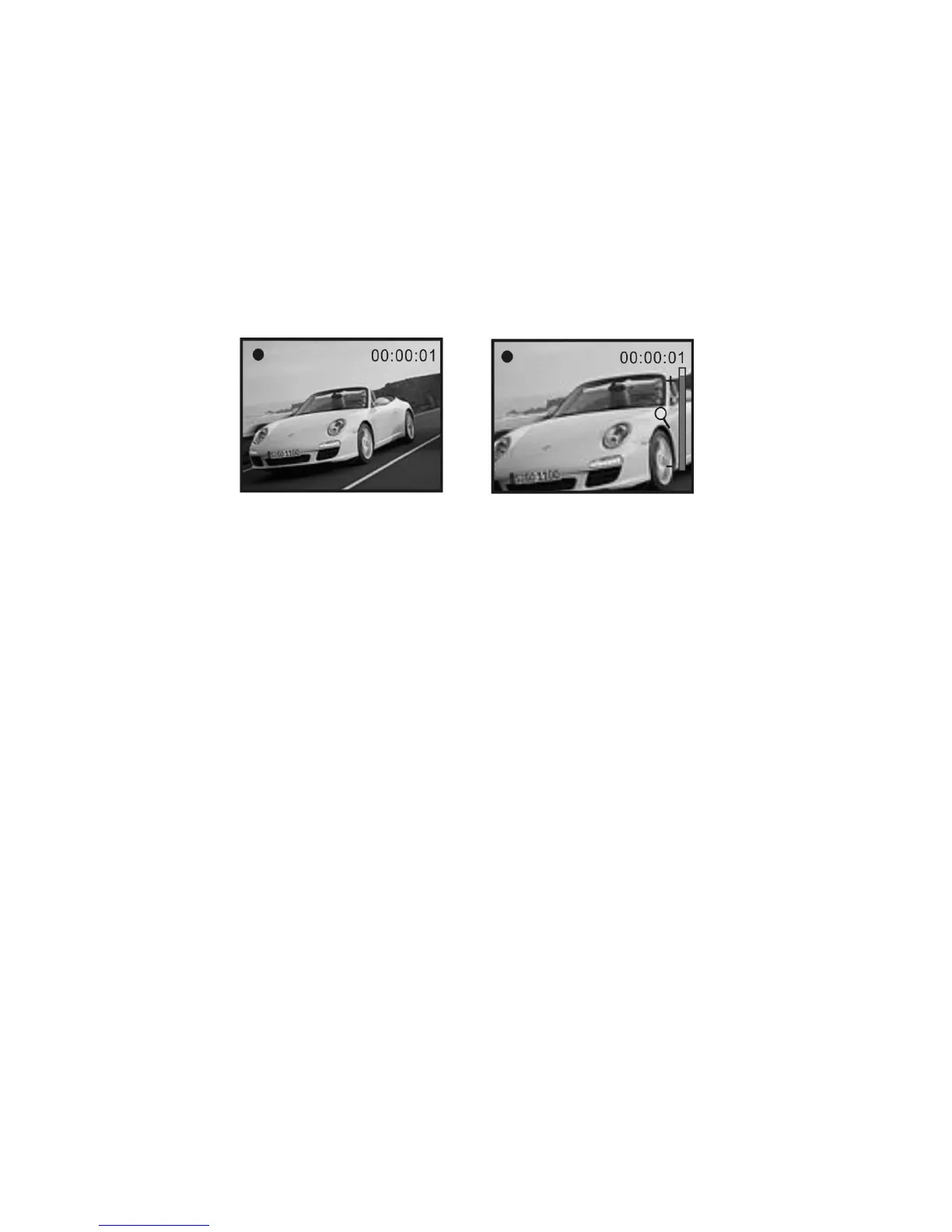
NOTE: Please note that recorded video and images appear slightly narrower on recorder LCD
screen than actual recorded scene.
• The LCD screen acts as a viewfinder to help you more accurately point at and center the
main subject or person while recording.
Changing the resolution setting of video
1. Press OK key to open the menu.
2. Press Up or Down Direction key to select ‘Movie Size’ option.
3. Press Right Direction key.
4. Press Up or Down Direction key to select the required resolution setting: 640 x 480 or
320 x 240.
5. Press OK key to confirm the selection. Then press OK key to exit the menu.


 To Next Page