10
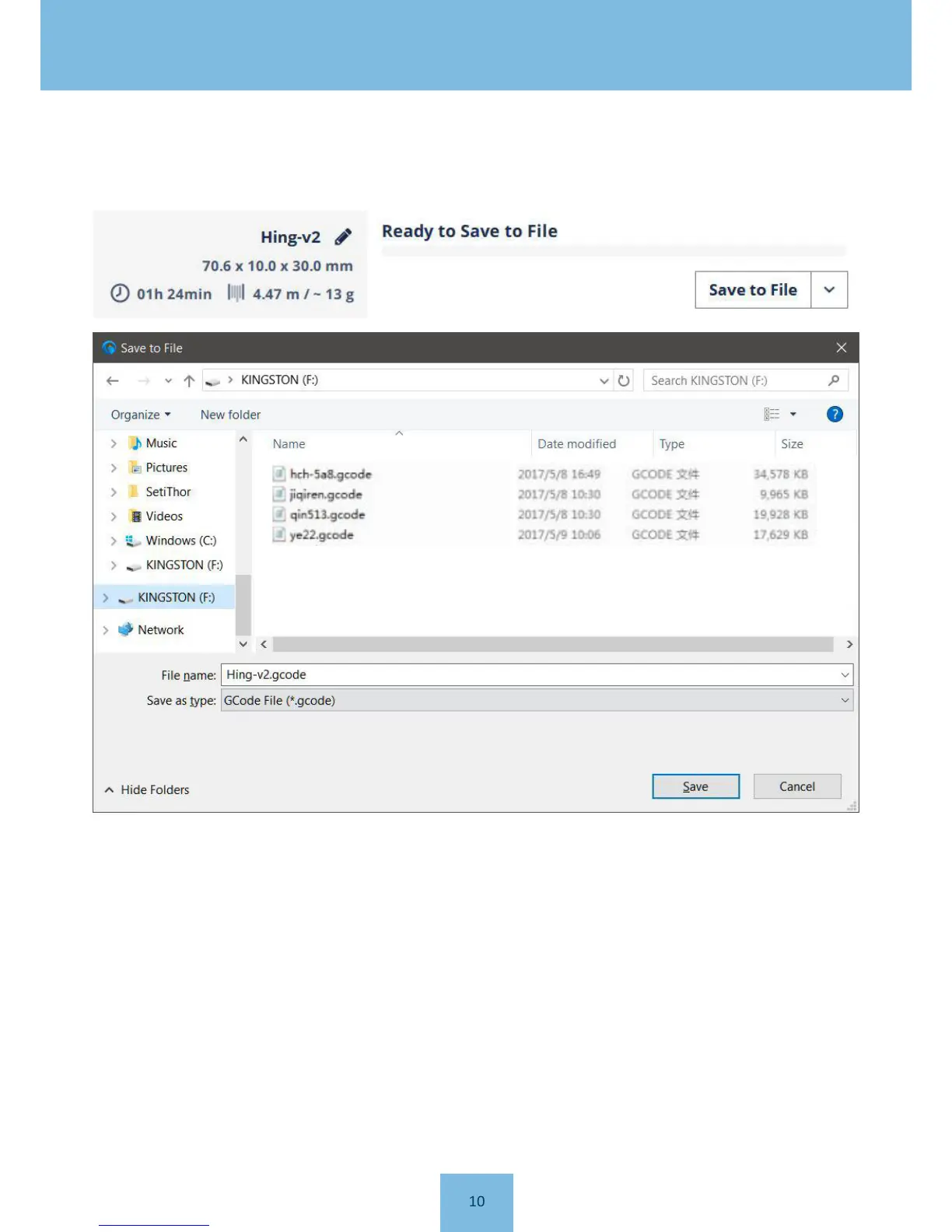
After slicing has finished, the lower right corner of the software shows "Save to file".
5) Copy the G-code to the USB stick, and insert it into the USB port on the A5 printer. Then, select the gcode file to
print through the touch screen interface.
Note: Please refer to the JGcreat instructions document on the USB stick for how to operate the JGcreat software.


 To Next Page