TEC3000 Series On/Off or Floating Fan Coil and Zoning Thermostat Controllers with Dehumidification
Capability Installation Instructions
Using the USB Port
The USB port allows you to quickly and easily load
firmware upgrades, back up settings, and restore
settings to the TEC3000 by using a USB drive.
Configurations are copied except for the
Communication mode. See Choosing the
Communication Mode to configure each device.
Loading the Firmware
1. Ensure the TEC screen is on.
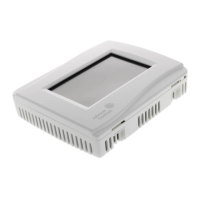
2. Insert the USB drive into the right side of the TEC.
See Figure 1 for the USB port location.
3. Press the Menu icon.
4. Press Update.
5. Press Load Firmware.
6. Select the correct firmware version.
7. Press Confirm if you have the correct firmware
version.
The firmware is loaded from the USB drive.
8. Remove the USB drive from the TEC3000.
Backing Up the Settings
1. Ensure the TEC screen is on.
2. Insert the USB drive into the right side of the TEC.
See Figure 1 for the USB port location.
3. Press the Menu icon.
4. Press Update.
5. Press Backup.
A message appears, stating that the file will be
saved to a USB drive.
6. Press Confirm if you have the correct firmware
version.
The firmware is loaded onto the USB drive.
7. After the firmware is loaded onto the USB drive,
remove the USB drive from the TEC3000.
Restoring the Settings
1. Ensure the TEC screen is on.
2. Insert the USB drive into the right side of the TEC.
See Figure 1 for the USB port location.
3. Press the Menu icon.
4. Press Update.
5. Press Restore.
6. Select the correct configuration file that was
created from a previous backup operation.
Files are named based on the TEC3000 model
name, date, and time stamp (for example,
TEC3311-00_2015-10-08T1.)
7. Press Confirm if you have the correct file name.
The firmware is loaded onto the USB drive.
8. After the firmware is loaded onto the USB drive,
remove the USB drive from the TEC3000.
Choosing the Communication Mode
1. Ensure the TEC screen is on.
2. Press the Menu icon.
3. Press Network Setup.
4. Press FC Comm Mode.
5. Select BACnet or N2 by pressing .
6. Proceed to Step 7 for performing BACnet
communication and Step 15 to perform N2
communication.
7. Press
to return to the previous screen.
8. Press BACnet Instance ID.
Back
Returns to the
previous screen.
Save
Saves the current
configuration and
parameter settings.
Delete
Deletes the scheduled
event.
Clear
Clears the password
entry on the keypad
screen.
Wrench
Indicates that the
value is editable.
Checkmark
Indicates that an event
or schedule is
programmed for a
specific day of the
week.
Exclamation
Point
Indicates that an error
has occurred.
Table 3: Touchscreen Icons (Part 2 of 2)
Icon Icon Name Description




 To Next Page