TEC3000 Series Proportional Fan Coil and Individual Zone Thermostat Controllers with Dehumidification
Capability Installation Instructions
12
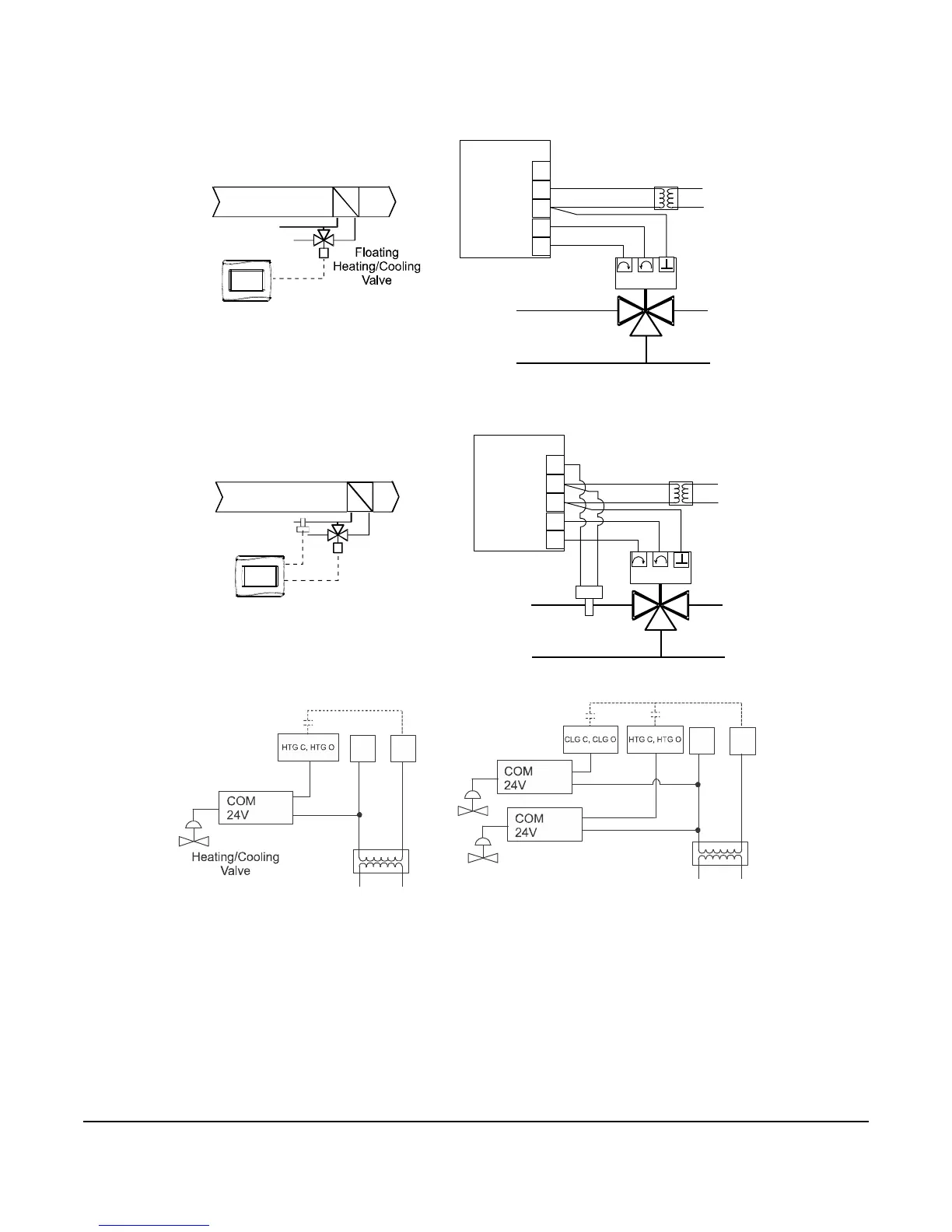
Figure 15: Binary Input Wiring
Setup and Adjustments
Overview
Figure 16 shows the thermostat controller home screen. You can customize it to show or hide various elements
from the occupant. See Table 3 for a listing of the touchscreen icons and Table 10 to identify the home screen
settings under the Display Settings. When screen customization is used in conjunction with a passcode, the
building owner can control which options the occupant can access and adjust.
Figure 16: Thermostat Controller Home Screen
The humidity level appears on the home screen if there is a humidity sensor in the unit, or if the thermostat
controller has a network override written to it.
Customizing the Home Screen
Customizing the Home screen settings include:
You can also show or hide these items on the Home screen:
To customize the Home screen:
1. Press the Menu icon.
2. Press Display Settings.
IMPORTANT: Table 10 provides a full list of TEC3000 menu settings. In the upcoming sections, step-by-step
instructions are included on how to access and adjust the more commonly used menus.
IMPORTANT: If lockout levels are used, some icons are hidden. Table 4 provides details of these levels.
• Brightness • Units • Time Zone • Date
• Enable Backlight • Time • Time Format • Date Format
• Fan Button • Off Button • Alarm Indication • Date/Time
• Space Temperature • Hold Button • Occupancy Status
• Humidity • Setpoint • Unit Status
FIG:Binary Input Wiring
BI1
Dry Contact
Bi2
Dry Contact




 To Next Page