sudo nano /boot/config.txt
Aer opening the file, go to the part in the file that shows [all]. Under the
item [all] you must insert the following
max_usb_current=1
hdmi_group=2
hdmi_mode=1
hdmi_mode=87
hdmi_cvt 1280 800 60 6 0 0 0
In your case, the part under [all] should now look like the following
image.
Attention! Please make sure that there are no spaces on either si-
de of the equal sign.
Save the file with the CTRL+O key combination, confirm with Enter and
exit with the CTRL+X key combination. Aer restarting the system, the
display is ready for use.
You can also use the following command to reboot.
sudo reboot
1
2
2
3
3
4
4
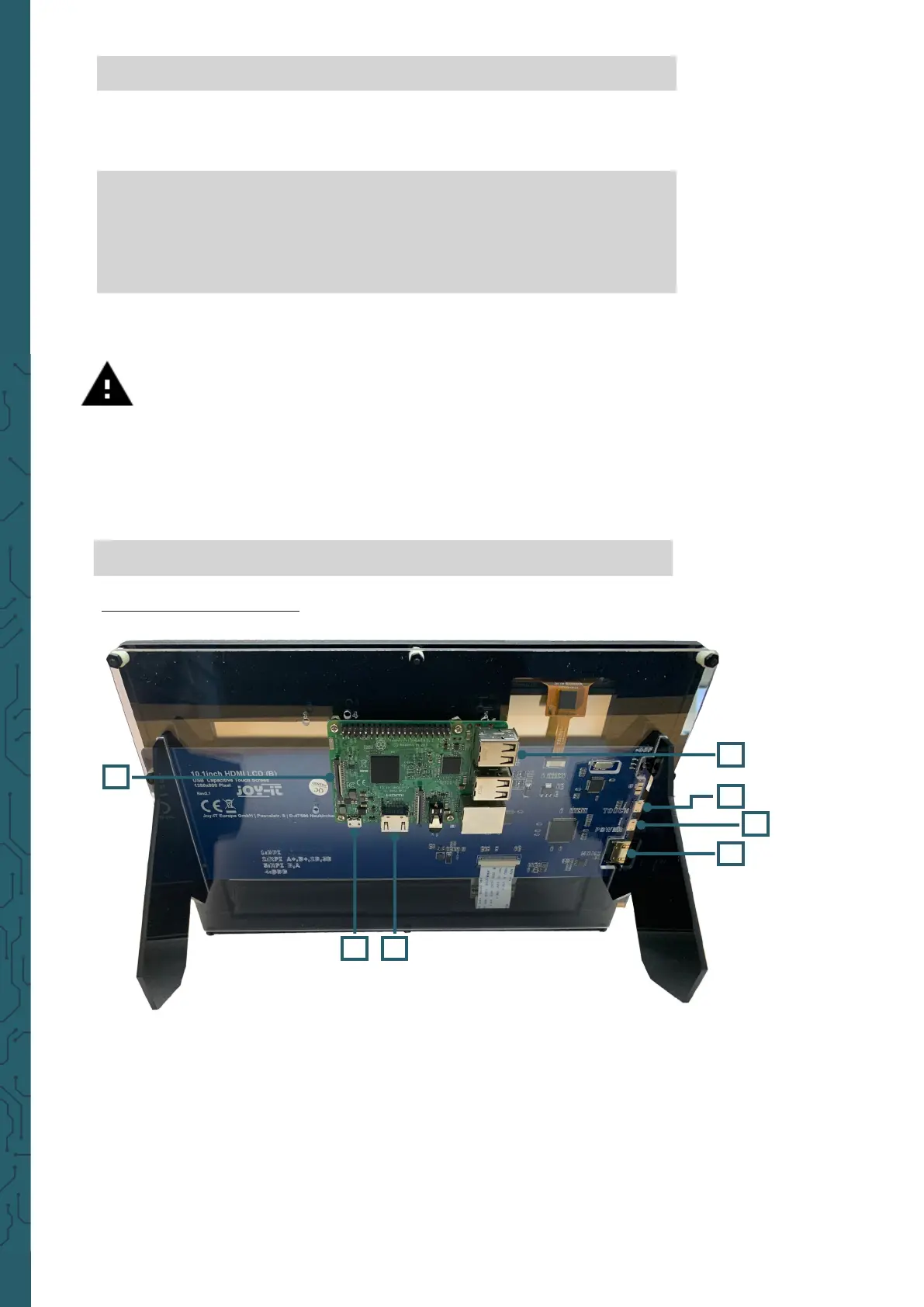
5.2 Device connection
1. Connect the LCD's
power only interface
to a 5 V 2.4 A adapter. This
should be equipped with a type A to microUSB cable.
2. Connect the HDMI interface of the LCD to the HDMI interface of your
Raspberry Pi using an HDMI cable.
3. Connect the touch interface of the LCD to one of the USB interfaces
of your Raspberry Pi.
4. Insert a microSD card into the card socket of the Raspberry Pi,
connect your Raspberry Pi to power and then turn on the Raspberry
Pi.


 To Next Page