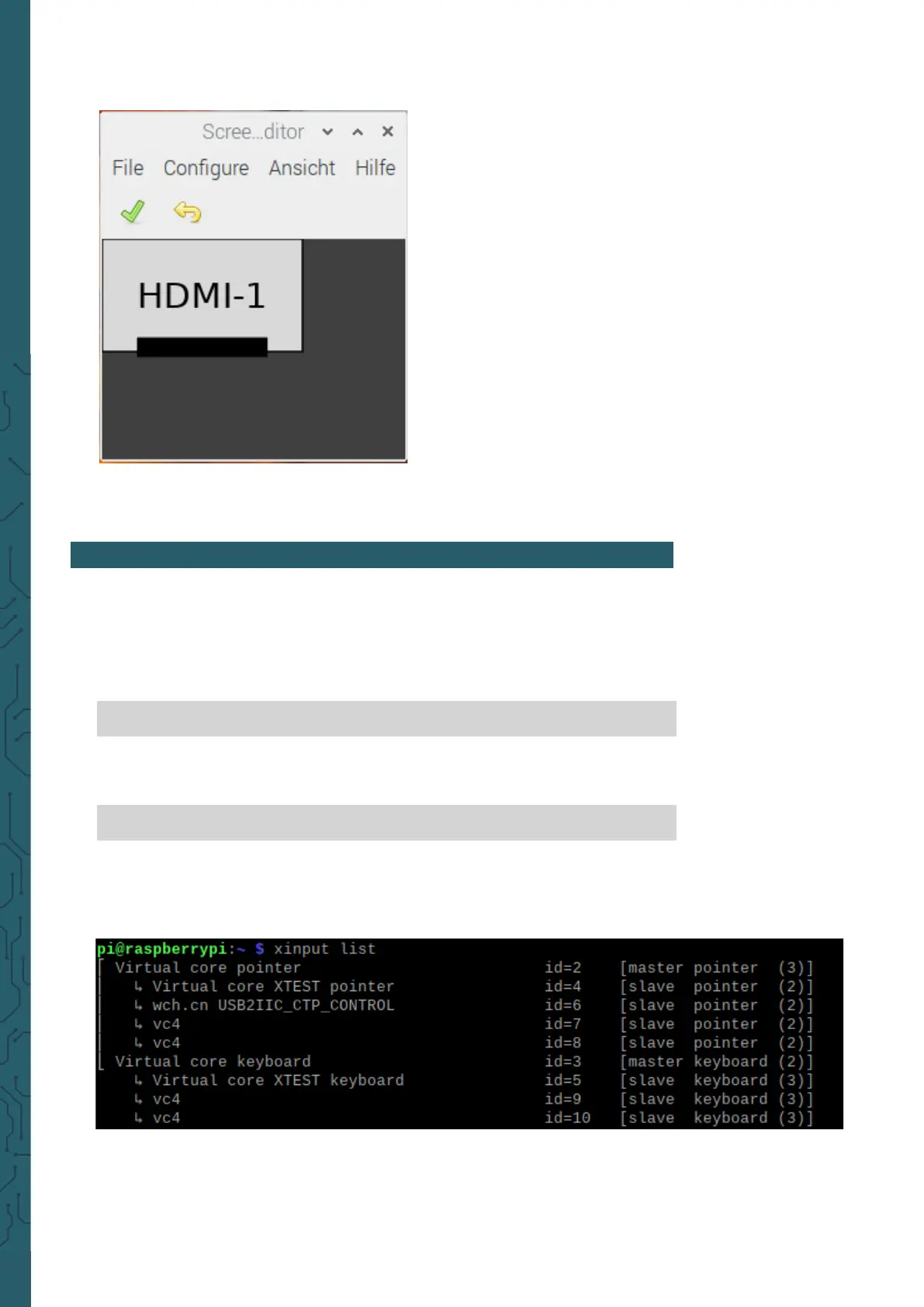
In the following you should see this window open on the "desktop" of
your Raspberry Pi.
In this window, simply go to Configure > Screens > HDMI-1 > Rotation
and select the desired orientation that you want to use for your display.
Aer you have chosen the orientation of your display, you now have to
calibrate the touchscreen, so that the touches are shown and registered
correctly on the display.
Now you need to find out what your display is recognized as on your
Raspberry Pi and xinput is used for that.
7. DISPLAY CALIBRATION
sudo apt-get install xinput
Aer downloading xinput, you can also search for your display directly.
You do this by executing the next command.
xinput list
Aer using this command you should get the following output. (The
output may look dierent for you, but the important thing is that you find
a device in the list that has the ID 6).


 To Next Page