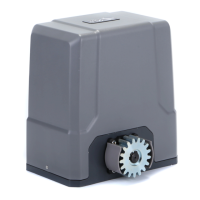
PY500AC SLIDING GATE OPERATOR
9
buttons or three buttons together, but you need repeat the program/learn process if you want to use
more than one button.
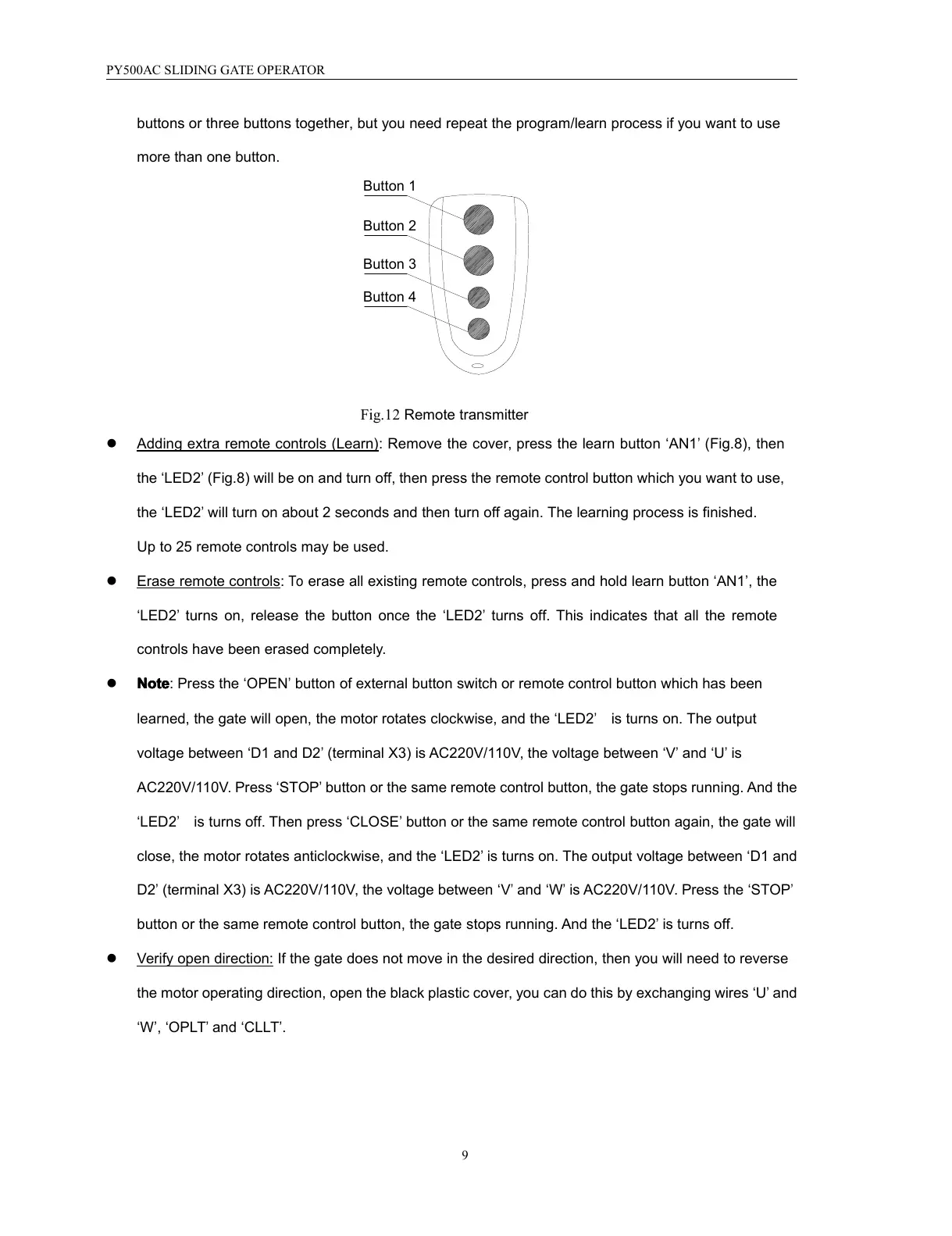
Button 1
Button 2
Button 3
Button 4
Fig.12 Remote transmitter
� Adding extra remote controls (Learn) : Remove the cover, p ress the learn button ‘ AN1
’
(Fig.8) , the n
the ‘ LED 2
’
(Fig.8) will be on and turn off, then press the remote control button which you want to use,
the ‘ LED2
’
will turn on about 2 seconds and then turn off again . The learning process is finished.
Up to 25 remote controls may be used.
� Erase remote controls :
To
erase all existing remote controls, press and hold learn button ‘ AN1 ’ , the
‘ LED2
’
turns on, release the button once the ‘ LED2
’
turns off . This indicates that all the remote
controls have been erased completely .
� Note
Note
Note
Note : Press the ‘ OPEN
’
button of external button switch or remote control button which has been
learned, the gate will open, the motor rotates clockwise, and the ‘ LED2
’
is turns on. The output
voltage between ‘ D1 and D2
’
(terminal X3) is AC220V/110V, the voltage between ‘ V
’
and ‘ U
’
is
AC220V/110V. Press ‘ STOP
’
button or the same remote control button, the gate stops running. And the
‘ LED2
’
is turns off. T hen press ‘ CLOSE
’
button or the same remote control button again, the gate will
close, the motor rotates anticlockwise, and the ‘ LED2
’
is turns on. The output voltage between ‘ D1 and
D2
’
(terminal X3) is AC220V/110V, the voltage between ‘ V
’
and ‘ W
’
is AC220V/110V. Press the ‘ STOP
’
button or the same remote control button, the gate stops running . And the ‘ LED2
’
is turns off.
� Verify open direction: If the gate does not move in the desired direction, then you will need to reverse
the motor operating direction, open the black plastic cover, you can do this by exchanging wires ‘ U
’
and
‘ W ’ , ‘ OPLT
’
and ‘ CLLT ’ .


 To Next Page