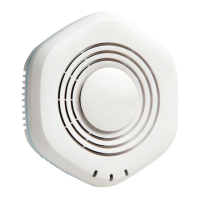
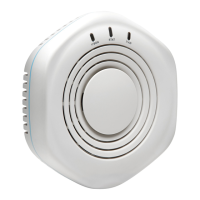
• The AP establishes a HTTPS session with the Juniper Mist cloud for management.
• The Mist cloud then provisions the AP by pushing the required conguraon once the AP is assigned
to a site.
To ensure that your AP has access to the Juniper Mist cloud, ensure that the required ports on your
Internet rewall are open. See Firewall Conguraon.
To connect the AP to the network:
1. Connect an Ethernet cable from a switch to the Eth0+PoE port on the AP.
The AP12 requires 802.3at power only when you use the PoE out funconality. If you don't need to
use PoE out, the AP can operate with full funconality using 802.3af power.
You might need to enable the Link Layer Discovery Protocol (LLDP) on the switch for it to deliver
802.3at power.
NOTE: If you are seng up the AP in a home setup where you have a modem and a wireless
router, do not connect the AP directly to your modem. Connect the Eth0+PoE port on the AP
to one of the LAN ports on the wireless router. The router provides DHCP services, which
enables wired and wireless devices on your local LAN to get IP addresses and connect to the
Mist cloud. An AP connected to a modem port connects to the Mist cloud but does not
provide any services.
The same guideline applies if you have a modem/router combo. Connect the Eth0+PoE port
on the AP to one of the LAN ports.
If the switch or router that you connect to the AP is not PoE capable, use an 802.3at or 802.3bt
injector:
• Connect an Ethernet cable from the switch to the data in port on the power injector.
• Connect an Ethernet cable from the data out port on the power injector to the Eth0+PoE port on
the AP.
2. Wait for a few minutes for the AP to boot completely.
When the AP connects to the Juniper Mist portal, the LED on the AP turns green, indicang that the
AP is connected and onboarded to the Juniper Mist cloud.
Aer you've onboarded the AP, you can congure the AP according to your network and
requirements. See the Juniper Mist Wireless Conguraon Guide to congure your AP.
NOTE: If the AP is unable to connect to the Juniper Mist cloud, you can use the status LED to
troubleshoot. See "Troubleshoot a Juniper Access Point" on page 28.
19


 To Next Page