Need help?
Do you have a question about the Juniper EX2500 and is the answer not in the manual?
Instructions for physically mounting the switch in a 2-post rack using provided hardware and screws.
Procedure for connecting AC power cords to the switch for immediate power-on and verifying status LEDs.
Steps to connect to the switch via serial console and set up basic network management parameters.
Troubleshooting steps for when the SYS and FAN LEDs are not illuminated.
Guidance for resolving temperature warnings by checking airflow and fan status.
Steps to address issues where the switch does not boot, potentially requiring a software upgrade.
Essential safety guidelines for preventing electric shock, injury, and equipment damage.
Specific warnings on grounding, connecting power, and handling equipment during electrical storms.
Precautions for securing devices in racks and safe handling of fiber optic transceivers.
Information and URL for obtaining technical support for Juniper Networks products.
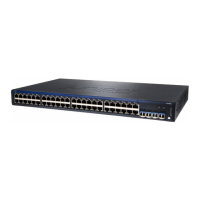
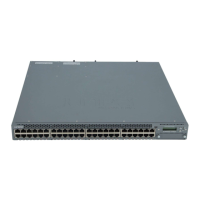
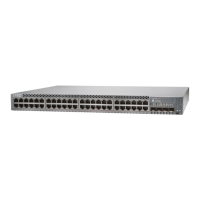
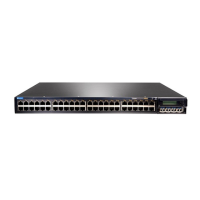
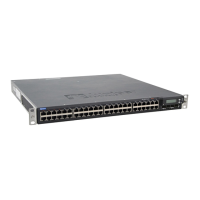
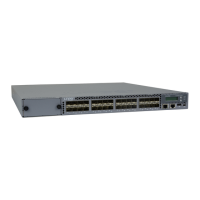
The Juniper Networks EX2500 Ethernet Switch is designed for high-performance network connectivity, offering a robust solution for various deployment scenarios. Its primary function is to provide reliable and efficient data transfer within a network, supporting a range of applications and services. The switch is built to be integrated into standard 2-post racks, ensuring a secure and stable installation within existing data center or network infrastructure.
One of the key usage features of the EX2500 is its straightforward installation process. The device comes with a rack-mount kit, including all necessary screws, washers, and nuts, to facilitate easy mounting. Users are guided to attach mounting brackets to the switch sides and then secure the switch within the rack using additional hardware. This modular approach simplifies physical setup, allowing for quick deployment. The switch's design emphasizes safety during installation, with clear instructions on handling and securing the device. For instance, it recommends having two people for lifting and positioning the switch in the rack, highlighting the importance of safe handling practices.
Power connectivity is another critical aspect of the EX2500's usage. The switch is designed for redundant power, featuring two IEC 320 power connections on its rear panel. This allows for two separate AC power cords to be connected, ensuring continuous operation even if one power source fails. A notable feature is that the EX2500 does not have a physical power switch. Instead, it powers on immediately when connected to an energized AC power outlet. This design choice streamlines startup but also necessitates careful attention to power cord management, as disconnecting both cords is required to power off the device. Users are advised to connect each power cord to a universal grounded power source that is quickly and safely accessible, emphasizing both safety and operational continuity.
Initial configuration of the EX2500 is performed via a serial port, using a management terminal or PC. This method allows for direct interaction with the switch's command-line interface (CLI) to set up essential network parameters. Users are instructed to connect a mini-USB serial console cable to the RS-232 serial (CON) port on the switch's front panel and to a serial port on their management device. The manual provides specific terminal emulation program settings, such as baud rate, character size, and parity, to ensure a successful connection. Once connected, users can configure the management port with an IP address, subnet mask, and gateway, enabling network access to the switch for further management via Telnet. This initial setup is crucial for integrating the switch into the broader network environment.
The EX2500 also incorporates several features for operational monitoring and basic troubleshooting. System LEDs, such as the SYS LED and FAN LED, provide visual cues about the switch's status. A blinking green SYS LED indicates that one power cord is connected, while a solid green light signifies that both cords are connected, confirming redundant power. A solid green FAN LED indicates normal fan operation. These visual indicators allow administrators to quickly assess the switch's health without needing to access the CLI.
Maintenance features are integrated into the EX2500's design and operational guidelines. For instance, in case of a temperature sensor warning, users are guided to verify that air circulation vents are free from obstruction and that all cooling fans are running. The show sys-info command can be used to display fan status, aiding in diagnosing potential fan failures. If a fan stops during operation, contacting technical support is recommended. Additionally, maintaining a cool room temperature or providing greater air circulation are suggested solutions for temperature-related issues, highlighting environmental considerations for optimal device performance.
Safety is a paramount consideration for the EX2500. The manual includes a summary of safety warnings, emphasizing the importance of proper grounding for power cords to reduce the risk of electric shock. It also warns against working on the switch during electrical storms and advises removing jewelry when working with equipment connected to power lines, as metal objects can heat up and cause burns. The design of the switch, which lacks a power switch, reinforces the need for careful power management, as disconnecting both power cords is the only way to ensure the removal of hazardous energy. Furthermore, the use of optical SFP+ transceivers, which are Class 1 laser products, comes with specific warnings about preventing eye injury by not looking directly into fiber-optic transceivers or cables and keeping safety caps on when not in use. These safety guidelines are crucial for protecting both the equipment and the personnel operating it.
The EX2500 is designed to be a reliable component of a network infrastructure, with features that support ease of installation, robust power management, and straightforward initial configuration. Its operational indicators and basic troubleshooting steps contribute to its maintainability, while comprehensive safety warnings ensure secure handling and operation. The emphasis on redundant power and clear setup procedures makes it suitable for environments requiring high availability and controlled network management.
 General
| Model | EX2500 |
|---|---|
| Layer | Layer 2/3 |
| Operating System | Junos OS |
| Type | Switch |
| Uplink Ports | 4 x 10GbE SFP+ |
| Power Supply | AC or DC |

 To Next Page