EasyManua.ls Logo

Juniper EX2300 Series - User Manual

Juniper EX2300 Series
2 pages
Print Icon
To Next Page IconTo Next Page
Loading...
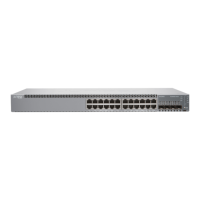
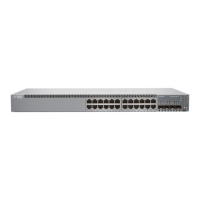
EX2300 (Except EX2300-C) Switch Quick Start
See the complete EX Series documentation at
http://www.juniper.net/documentation/.
To mount the Juniper Networks EX2300 Ethernet Switch on
two posts of a rack, you need:
z Two mounting brackets and eight mounting screws
(provided)
z Screws to secure the chassis to the rack (not provided)
z Phillips (+) screwdriver, number 2 (not provided)
To connect the switch to earth ground, you need:
z A grounding cable (minimum 14 AWG [2 mm²], minimum
90°C wire) with a grounding lug (Panduit LCC10-14BWL
or equivalent) attached, a pair of 10-32x0.25-in. screws with #10 split-lock washer, and
a pair of #10 flat washers—none provided
To connect AC power to the switch, you need:
z Power cord with a plug appropriate for your geographical location (provided) and a
power cord retainer (provided)
To connect DC power to the switch, you need:
z One or two (depending on the number of power sources you will use) DC power cables
(12–14 AWG) with ring lugs (Molex 190700067 or equivalent) attached—none
provided
To perform initial configuration of the switch, you need:
z Ethernet cable with an RJ-45 connector attached (provided)
z RJ-45 to DB-9 serial port adapter (provided)
z Management host, such as a laptop or PC, with an Ethernet port (not provided)
Register product serial numbers on the Juniper Networks website and update the
installation base data if there is any addition or change to the installation base or if the
installation base is moved. Juniper Networks will not be held accountable for not meeting
the hardware replacement service-level agreement for products that do not have
registered serial numbers or accurate installation base data.
Register your product(s) at https://tools.juniper.net/svcreg/SRegSerialNum.jsp.
Update your install base at
https://www.juniper.net/customers/csc/management/updateinstallbase.jsp.
WARNING: Ensure that you understand how to prevent electrostatic discharge
(ESD) damage. Attach the ESD grounding strap to your bare wrist, and connect the
strap to the ESD point on the chassis.
Part 1: Mount the Switch on Two Posts of a Rack
You can mount an EX2300 switch on a desk or a level surface, on two or four posts of a
rack or cabinet, or on a wall. This guide describes the procedure to mount the switch on
two posts of a rack.
Mounting an EX2300 switch on a rack requires one person to lift the switch and a second
person to install the mounting screws.
1. Place the rack in its permanent location, allowing adequate clearance for airflow and
maintenance, and secure it to the building structure.
NOTE: When you mount multiple units on a rack, mount the heaviest unit at the bottom
and mount the other units from bottom to top in decreasing order of weight.
2. Align the mounting brackets along the front of the side panels of the chassis.
3. Attach the brackets to the chassis by using the mounting screws. Tighten the screws.
4. Have one person grasp both sides of the switch, lift the switch, and position it in the
rack, aligning the mounting bracket holes with the threaded holes in the rack rail.
Align the bottom hole in each mounting bracket with a hole in each rail, making sure
that the chassis is level.
5. Have the second person secure the switch to the rack by using the appropriate
screws. Tighten the screws.
Part 2: Connect Power to the Switch
NOTE: Grounding is required for DC systems and recommended for AC systems. An
AC-powered switch gets additional grounding when you plug the power supply in the
switch into a grounded AC power outlet by using the power cord.
To connect earth ground to a switch:
CAUTION: A licensed electrician must attach the lug to the grounding cable.
1. Secure the grounding lug on the grounding cable to the earthing terminal on the rear
panel of the switch by using washers and screws.
2. Connect the other end of the grounding cable to a proper earth ground.
To connect power to an AC-powered switch:
The power cord inlet is on the rear panel of the switch.
1. Squeeze the sides of the power cord retainer clip and insert the L-shaped ends of the
wire clip into the holes in the brackets above and below the power cord inlet.
2. Insert the coupler end of the power cord into the AC power cord inlet.
3. Push the cord into the slot in the adjustment nut of the power cord retainer. Turn the
nut until it is snug against the base of the coupler and the slot in the nut is turned 90°
from the top of the switch.
4. If the power outlet has a power switch, set it to the off (0) position.
5. Insert power cord plug into the power source outlet.
6. If the power source outlet has a power switch, set it to the on (|) position.
To connect power to a DC-powered switch:
The DC power inlet is on the rear panel of the switch. It has four terminals labeled
INPUT1+, INPUT1–, INPUT2+, and INPUT2–. The DC power inlet has a clear plastic
cover.
WARNING: Ensure that the input circuit breaker is open so that the cable leads do
not become active while you are connecting DC power.
1. Grasp the cover in the middle, gently bend it outward, and pull it out. Save the cover.
2. Remove the screws on the terminals. Save the screws.


Other manuals for Juniper EX2300 Series

Question and Answer IconNeed help?

Do you have a question about the Juniper EX2300 Series and is the answer not in the manual?

Summary

Mount the Switch on Two Posts of a Rack

Connect Power to the Switch

Connect Earth Ground to the Switch

Connects the switch to earth ground using a grounding cable and lug.

Connect Power to an AC-Powered Switch

Connects the AC power cord to the switch and the power outlet.

Connect Power to a DC-Powered Switch

Connects DC power cables to the switch's DC power inlet.

Perform Initial Configuration

Connect and Configure from Management Host

Guides connecting a management host via console port and performing initial setup using EZSetup.

Management Options for Configuration

Explains In-band (default VLAN or new VLAN) and Out-of-band management configurations.

Safety Warnings and Support

Safety Warnings Summary

Provides a summary of critical safety warnings for installation and operation.

Power Cable Warning (Japanese)

Specific warning regarding the use of the provided power cord.

Contacting Juniper Networks

Information on how to obtain technical support from Juniper Networks.

Overview

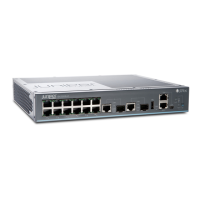
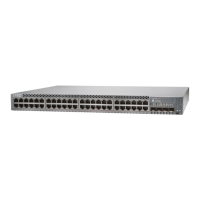
The Juniper Networks EX2300 Ethernet Switch is a networking device designed for rack mounting, offering various power and management options. It can be mounted on two posts of a rack, a desk, a level surface, or a wall. For rack mounting, it requires two mounting brackets, eight mounting screws (provided), and additional screws to secure the chassis to the rack (not provided). A Phillips (+) screwdriver (number 2) is also needed for installation.

Function Description

The EX2300 switch facilitates network connectivity and management. It supports both AC and DC power inputs, allowing for flexible deployment in different environments. The device is designed for initial configuration through a management host, enabling users to set up network parameters, including hostname, root password, and management interfaces. It also supports SNMP for network monitoring and system date/time configuration.

Usage Features

  • Mounting Flexibility: The switch can be mounted in various ways: on two posts of a rack, on a desk, on a level surface, or on a wall. When mounting multiple units in a rack, it is recommended to place the heaviest unit at the bottom and lighter units above, in decreasing order of weight.
  • Grounding: For AC-powered switches, additional grounding is provided when the power supply is plugged into a grounded AC power outlet. For DC systems, grounding is required, and a licensed electrician must attach the lug to the grounding cable. The grounding lug is secured to the earthing terminal on the rear panel of the switch.
  • AC Power Connection: The AC power cord connects to an inlet on the rear panel. A power cord retainer is used to secure the cord, preventing accidental disconnections. Users should ensure the power source outlet's switch is in the off (0) position before inserting the plug and then set it to on (1) after connection.
  • DC Power Connection: The DC power inlet, also on the rear panel, has four terminals labeled INPUT1+, INPUT1-, INPUT2+, and INPUT2-. A clear plastic cover protects these terminals. Users must ensure the input circuit breaker is open before connecting DC power cables. The power cables, with ring lugs, are screwed onto the appropriate terminals. The switch supports connecting to one or two DC power sources.
  • Initial Configuration: The switch can be configured using an EZSetup script, which requires the factory-default configuration to be active. If the switch has been configured previously, it must be reverted to the factory-default configuration. Configuration is performed from a management host connected to the console port using an Ethernet cable with an RJ-45 connector and an RJ-45 to DB-9 serial port adapter. A mini-USB port can also be used for connection.
  • Management Options: During initial configuration, users can choose from three management scenarios:
    • In-band Management (automatically created VLAN): Configures all data interfaces as members of the default VLAN, specifying the management IP address and default gateway.
    • In-band Management (new VLAN): Creates a new management VLAN, allowing users to specify the VLAN name, VLAN ID, management IP address, default gateway, and the ports that will be part of this VLAN.
    • Out-of-band Management: Configures only the management interface, specifying its IP address and default gateway.
  • SNMP and System Settings: The configuration process allows for optional specification of SNMP read community, location, and contact, as well as setting the system date, time, and time zone.

Maintenance Features

  • ESD Protection: Users are warned to prevent electrostatic discharge (ESD) damage by attaching an ESD grounding strap to their bare wrist and connecting it to the ESD point on the chassis.
  • Documentation and Support: Comprehensive documentation for the EX Series is available online, covering planning instructions, installation, and safety warnings. Juniper Networks provides technical support through their website.
  • Serial Number Registration: Users are encouraged to register product serial numbers and update installation base data on the Juniper Networks website. This ensures proper service-level agreement support for hardware replacement.
  • Safety Guidelines: The manual emphasizes several safety warnings, including:
    • Only trained and qualified personnel should install or replace components.
    • Only procedures described in the quick start and EX Series documentation should be performed.
    • Before mounting, users should read planning instructions to ensure site requirements are met.
    • Before connecting to power, installation instructions should be reviewed.
    • If the rack has stabilizing devices, they should be installed before mounting or servicing the switch.
    • Electrical components should always be placed component-side up on an antistatic mat or in an antistatic bag.
    • Working on the switch or connecting/disconnecting cables during electrical storms is prohibited.
    • Jewelry should be removed when working on equipment connected to power lines, as metal objects can heat up and cause burns or become welded to terminals.

Juniper EX2300 Series Specifications

General IconGeneral
SoftwareJunos OS
ModelEX2300
Ports24 or 48 10/100/1000BASE-T ports
Uplinks4 x 1GbE/10GbE SFP+/SFP uplinks
Power SupplyInternal or external power supply options
Rack Units1U
PoE/PoE+ PortsAvailable on some models (EX2300-C and EX2300)
Operating Temperature0° to 45°C
Input Voltage100 to 240 VAC
Layer 3 FeaturesRIP, OSPF, VRRP
Layer 2 FeaturesVLAN, STP, RSTP, MSTP, LACP
Security Features802.1X, DHCP snooping
ManagementCLI, Web UI, SNMP

Related product manuals