38
POWER
RM-C394G
123
DISPLAY
789
456
SLEEP TIMER
0
TV RETURN
LIGHT
TV
CATV
PAUSE/STILL
OPEN/CLOSE
TV / DVD
RETURN
AUDIO
REPEATA-B
CANCEL
SLOW
ZOOM
TITLE
AUDIO
ANGLE
SUBTITLE
INPUT
C.C.
DVD SETUP
SELECT
/ENTER
TV MENU
MUTING
DVD
CONTROL
PLAY MODE
PREV NEXT
TV/DVD
DVD MENU
F.SEARCH
PLAY
B.SEARCH
STOP
+
CH
VOL
VOL
+
CH
Tv Screen
Display
On
4:3
/Enter/Setup/Return
Language Picture Parental OtherLanguage Picture Parental Other
/Enter/Setup/Return
Language Picture Parental Other
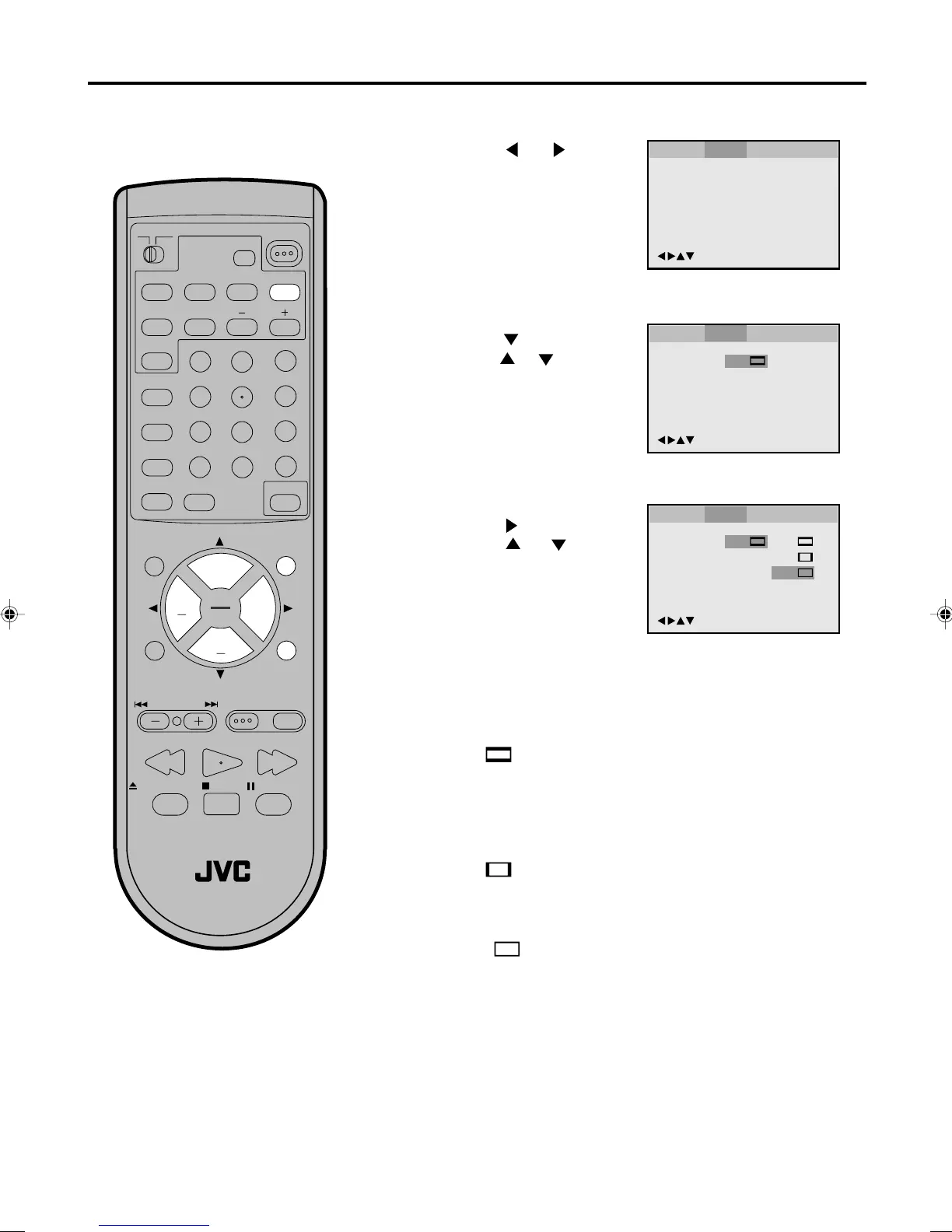
Setting the aspect ratio of TV screen
Press or ENTER.
Press
or to select
your desired screen type,
then press ENTER.
1
Press DVD SETUP in the stop mode or No Disc.
2
Press or to select
Picture.
3
To make SETUP screen disappear, press DVD SETUP or
RETURN while the SETUP screen is being displayed.
4
Note:
If the DVD disc is not formatted in the pan
& scan style, it displays 4:3 style.
You can select the aspect ratio for
your TV.
4:3
Select this mode when connecting to a conventional TV.
When playing back a wide screen-DVD disc, it displays
the wide picture with black bands at the top and bottom of
screen.
4:3
PAN SCAN
It displays the wide picture on the whole screen with left
and right edges automatically cut off.
16:9 WIDE SCREEN
Select this mode when connecting to a wide-screen TV.
A wide screen picture is displayed full size.
Press or ENTER, then
press
or to select Tv
Screen.
You have the following screen sizes to choose from:
Tv Screen
Display
On
4:3
4:3
16:9
4:3
/Enter/Setup/Return
Language Picture Parental Other
5870201AE(38-45) 5/4/01, 5:35 PM38


 To Next Page