EasyManua.ls Logo

JVC CA-C55BK - Recording Procedures; Auto Edit, Program Edit, and Dubbing Methods

JVC CA-C55BK
144 pages
Print Icon
To Next Page IconTo Next Page
To Previous Page IconTo Previous Page
Loading...
LL-L
(yZv0Z°ON)
Bins
ne
Auto
Edit
Recording:
Introduction
Auto
Edit
Recording:
Step
by
step
cor
(oO
FeCSTAR
Program
Edit
Recording:
Step
by
step
EDT
oa
nN
Auto
Edit
Recording
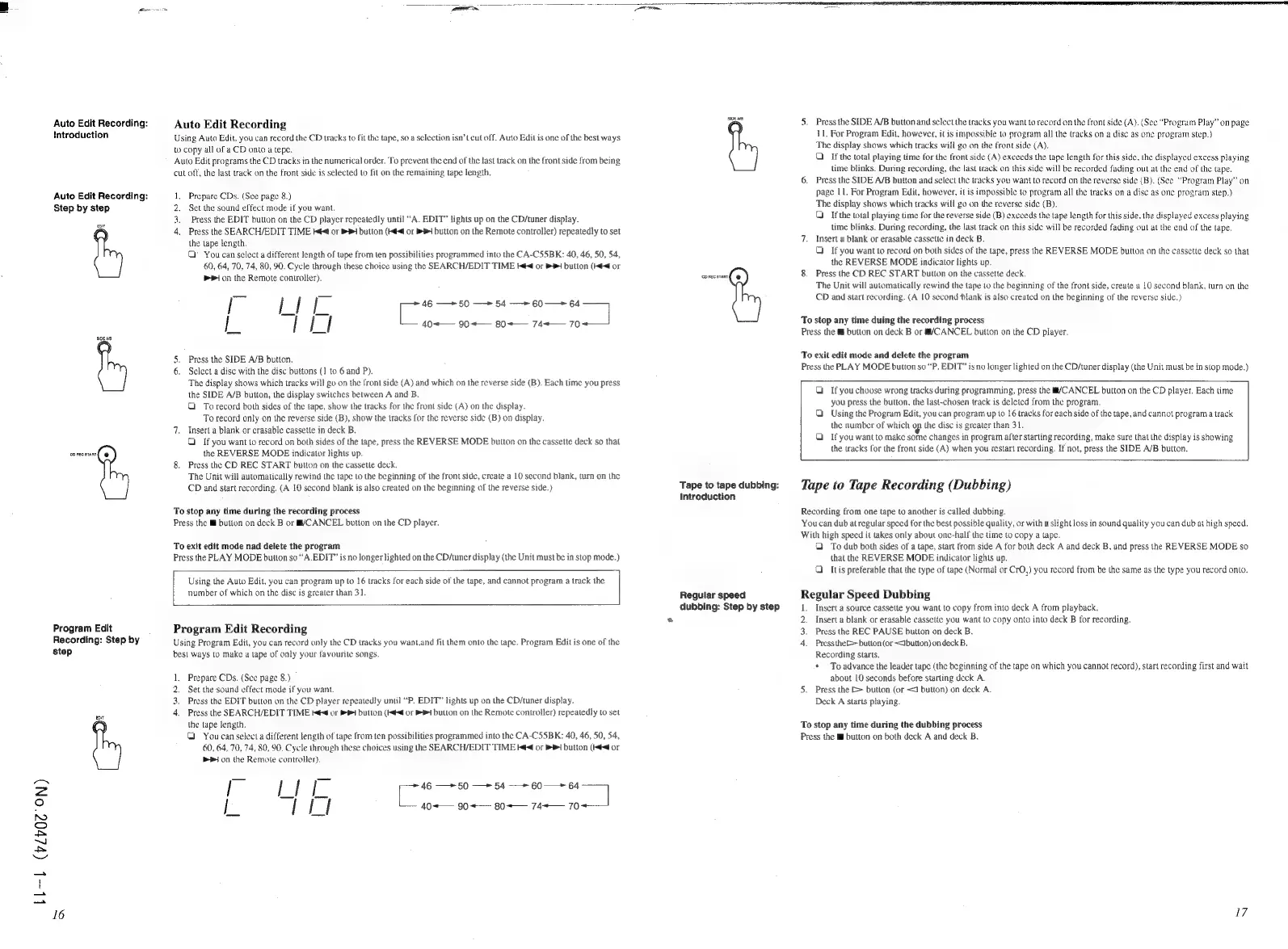
Using
Auto
Edit,
you
can
record
the
CD
tracks
to
fit
the
tape,
so
a
selection
isn’Lcul
off.
Auto
Edit
is
one
of
the
best
ways
to
copy
all
of
a
CD
onto
a
tepe.
Auto
Edit
programs
the
CD
tracks
in
the
numerical
order.
To
prevent
the
end
of
the
last
track
on
the
front
side
from
being
cut
off,
the
last
track
on
the
front
side
is
selected
to
fit
on
the
remaining
tape
length.
Prepare
CDs.
(See
page
8.)
Set
the
sound
effect
mode
if
you
want,
Press
the
EDIT
button
on
the
CD
player
repeatedly
until
“A.
EDIT”
lights
up
on
the
CD/tuner
display.
Press
the
SEARCH/EDIT
TIME
Hé<@
or
1
button
(<4
or
Pi
button
on
the
Remote
controller)
repeatedly
to
set
the
tape
length.
Q
>
You
can
select
a
different
length
of
tape
from
ten
possibilities
programmed
into
the
CA-CS55BK:
40,
46,
50,
54,
60, 64,
70,
74,
80,
90.
Cycle
through
these
choice
using
the
SEARCH/EDIT
TIME
t€<4
or
4
button
(€
or
1
on
the
Remote
controller).
ae
2
|
I
|
|
40+—
90<—
80-—
74<—
70
aed
~
46
*
50
—>
54
—-»
60
—~
64
5.
Press
the
SIDE
A/B
button.
6.
Select
a
disc
with
the
dise
buttons
(1
to
6
and
P).
The
display
shows
which
tracks
will
go
on
the
front
side
(A)
and
which
on
the
reverse
side
(B).
Each
time
you
press
the
SIDE
A/B
button,
the
display
switches
between
A
and
B.
Q
To
record
both
sides
of
the
tape,
show
the
tracks
for
the
front
side
(A)
on
the
display.
To
record
only
on
the
reverse
side
(B),
show
the
tracks
for
the
reverse
side
(B)
on
display.
7.
Insert
a
blank
or
crasable
cassette
in
deck
B.
QO
If
you
want
to
record
on
both
sides
of
the
tape,
press
the
REVERSE
MODE
button
on
the
cassette
deck
so
that
the
REVERSE
MODE
indicator
lights
up.
8.
Press
the
CD
REC
START
button
on
the
cassette
deck.
The
Unit
will
automatically
rewind
the
tape
to
the
beginning
of
the
front
side,
creaie
a
10
second
blank,
turn
on
the
CD
and
start
recording.
(A
LO
second
blank
is
also
created
on
the
beginning
of
the
reverse
side.)
To
stop
any
time
during
the
recording
process
Press
the
ll
button
on
deck
B
or
§/CANCEL
button
on
the
CD
player.
To
exit
edit
mode
nad
delete
the
program
Press
the
PLAY
MODE
button
so
“A.EDIT’
is
no
longer
lighted
on
the
CD/tuner
display
(the
Unit
must
be
in
stop
mode.)
Using
the
Auto
Edit,
you
can
program
up
to
16
tracks
for
each
side
of
the
tape,
and
cannot
program
a
track
the
number
of
which
on
the
disc
is
greater
than
31.
Program
Edit
Recording
Using
Program
Edit,
you
can
record
only
the
CD
tracks
you
wantand
fit
them
onto
the
tape.
Program
Edit
is
one
of
the
best
ways
to
make
a
tape
of
only
your
favourite
songs.
1.
Prepare
CDs.
(See
page
8.)
2.
Set
the-sound
effect
mode
if
you
want.
3.
Press
the
EDIT
button
on
the
CD
player
repeatedly
until
“P.
EDIT”
lights
up
on
the
CD/tuner
display.
4.
Press
the
SEARCH/EDIT
TIME
@4
or
i
button
(€or
PH
button
on
the
Remote
controller)
repeatedly
to
set
the
tape
length.
G
You
can
select
a
different
length
of
tape
from
ten
possibilities
programmed
into
the
CA-C5SBK:
40,
46,
SO, 54,
60,
64,
70, 74,
80,
90.
Cycle
through
these
choices
using
the
SEARCH/EDIT
TIME
Ié¢
or
4
button
(#4
or
mr
on
the
Remote
controller).
i
ee
|
i
Ll
40+—
90~+—-
80=—
74+—
70+
p>
46
=
50
=
54
=
60
-
64
]
‘CD
REC
START.
Tape
to
tape
dubbing:
Introduction
Regular
speed
dubbing:
Step
by
step
5.
Press
the
SIDE
A/B
button
and
select
the
tracks
you
want
to
record
on
the
front
side
(A).
(See
“Program
Play”
on
page
11.
For
Program
Edit,
however,
it
is
impossible
to
program
all
the
tracks
on
a
disc
as
onc
program
step.)
The
display
shows
which
tracks
will
go
on
the
front
side
(A).
Q_
If
the
total
playing
time
for the
front
side
(A)
exceeds
the
tape
length
for
this
side.
the
displayed
excess
playing
time
blinks.
During
recording,
the
last
track
on
this
side
will
be
recorded
fading
out
at
the
end
of
the
tape.
6.
Press
the
SIDE
A/B
button
and
select
the
tracks
you
want
to
record
on
the
reverse
side
(B).
(See
“Program
Play”
on
page
11.
For
Program
Edit,
however,
it
is
impossible
to
program
all
the
tracks
on
a
disc
as
one
program
step.)
The
display
shows
which
tracks
will
go
on
the
reverse
side
(B).
Q1
Ifthe
total
playing
time
for
the
reverse
side
(B)
exceeds
the
tape
length
for
this
side,
the
displayed
excess
playing
lime
blinks.
During
recording,
the
last
track
on
this
side
will
be
recorded
fading
out
at
the
end
of
the
tape.
7.
Insert
a
blank
or
erasable
cassette
in
deck
B.
O
If
you
want
to
record
on
both
sides
of
the
tape,
press
the
REVERSE
MODE
button
on
the
cassette
deck
so
that
the
REVERSE
MODE
indicator
lights
up.
8.
Press
the
CD
REC
START
button
on
the
cassette
deck.
The
Unit
will
automatically
rewind
the
tape
to
the
beginning
of
the
front
side,
create
a
10
second
blank,
turn
on
the
CD
and
start
recording.
(A
10
second
blank
is
also
created
on
the
beginning
of
the
reverse
side.)
To
stop
any
time
duing
the
recording
process
Press
the
@
button
on
deck
B
or
@/CANCEL
button
on
the
CD
player.
To
exit
edit
mode
and
delete
the
program
Press
the
PLAY
MODE
button
so
“P.
EDIT”
is
no
longer
lighted
on
the
CD/tuner
display
(the
Unit
must
be
in
stop
mode.)
Q
If
you
choose
wrong
tracks
during
programming,
press
the
@/CANCEL
button
on
the
CD
player.
Each
time
you
press
the
button,
the
last-chosen
track
is
deleted
from
the
program.
GO
Using
the
Program
Edit,
you
can
program
up
lo
16
tracks
for
cach
side
of
the
tape,
and
cannot
program
a
track
the
number
of
which
op
the
disc
is
greater
than
31.
Q
Ifyou
want
to
make
some
changes
in
program
after
starting
recording,
make
sure
that
the
display
is
showing
the
tracks
for
the
front
side
(A)
when
you
restart
recording.
If
not,
press
the
SIDE
A/B
button.
Tape
to
Tape
Recording
(Dubbing)
Recording
from
one
tape
to
another
is
called
dubbing.
You
can
dub
at
regular
speed
for the
best
possible
quality,
or
with
a
slight
loss
in
sound
quality
you
can
dub
at
high
speed,
With
high
speed
it
takes
only
about
one-half
the
time
to
copy
a
tape.
4
To
dub
both
sides
of
a
tape,
start
from
side
A
for
both
deck
A
and
deck
B,
and
press
the
REVERSE
MODE
so
that
the
REVERSE
MODE
indicator
lights
up.
Q
Itis
preferable
that
the
type
of
tape
(Normal
or
CrO,)
you
record
from
be
the
same
as
the
type
you
record
onto.
Regular
Speed
Dubbing
1.
Insert
a
source
cassette
you
want
to
copy
from
into
deck
A
from
playback.
2.
Insert
a
blank
or
erasable
cassette
you
want
to
copy
onto
into
deck
B
for
recording.
3.
Press
the
REC
PAUSE
button
on
deck
B.
4.
Pressthel>button(or<Jbution)on
deck
B.
Recording
Starts.
*
Toadvance
the
leader
tape
(the
beginning
of
the
tape
on
which
you
cannot
record),
start
recording
first
and
wait
about
10
seconds
before
starting
deck
A.
5.
Press
the
&
button
(or
<J
button)
on
deck
A.
Deck
A
starts
playing.
To
stop
any
time
during
the
dubbing
process
Press
the
MJ
button
on
both
deck
A
and
deck
B.
17

Related product manuals