EasyManua.ls Logo

JVC CA-C55BK - High Speed Dubbing, Timer Recording, and Tuner Operation; Dubbing, Timer Setup, and Radio Reception

JVC CA-C55BK
144 pages
Print Icon
To Next Page IconTo Next Page
To Previous Page IconTo Previous Page
Loading...
(vZv07
ON)
ZL-L
High
speed
dubbing:
Step
by
step
igh
SPEED
DUBBING
18
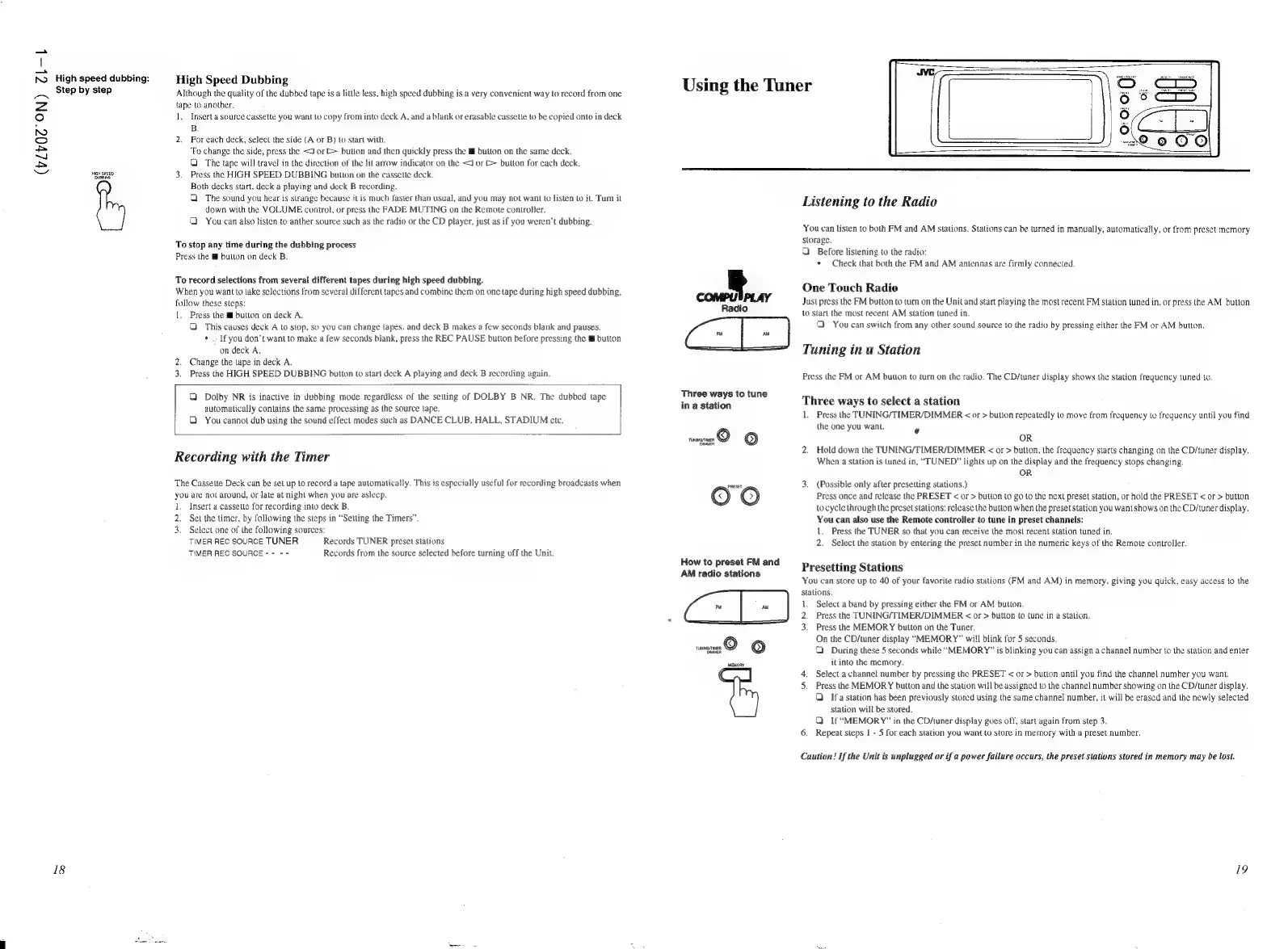
High
Speed
Dubbing
Although
the
quality
of
the
dubbed
tape
is
a
little
less,
high
speed
dubbing
is
a
very
convenient
way
to
record
from
one
tape
lo
another.
1.
Inserta
source
cassette
you
want
to
copy
from
into
deck
A,
and
a
blank
or
erasable
cassette
to
be
copied
onto
in
deck
B.
2.
For
each
deck,
select
the
side
(A
or
B)
to
start
with.
To
change
the
side,
press
the
<J
or
>
button
and
then
quickly
press
the
M™
button
on
the
same
deck.
QO
The
tape
will
travel
in
the
direction
of
the
lit
arrow
indicator
on
the
<J
or
>
button
for
cach
deck.
3.
Press
the
HIGH
SPEED
DUBBING
button
on
the
cassette
deck.
Both
decks
start,
deck
a
playing
and
deck
B
recording.
J
The
sound
you
hear
is
strange
because
it
is
much
faster
than
usual,
and
you
may
not
want
to
listen
to
it.
Turn
it
down
with
the
VOLUME
control,
or
press
the
FADE
MUTING
on
the
Remote
controler.
OG
You
can
also
listen
to
anther
source
such
as
the
radio
or
the
CD
player,
just
as
if
you
weren't
dubbing.
To
stop
any
time
during
the
dubbing
process
Press
the
@
button
on
deck
B.
To
record
selections
from
several
different
tapes
during
high
speed
dubbing.
When
you
wantto
lake
selections
from
several
different
tapes
and
combine
them
on
one
tape
during
high
speed
dubbing,
follow
these
steps:
1.
Press
the
Mf
button
on
deck
A.
This
causes
deck
A
to
stop,
so
you
can
change
tapes,
and
deck
B
makes
a
few
seconds
blank
and
pauses.
¢
If
you
don’t
want
to
make
a
few
seconds
blank,
press
the
REC
PAUSE
button
before
pressing
the
ll
button
on
deck
A,
2.
Change
the
tape
in
deck
A.
3.
Press
the
HIGH
SPEED
DUBBING
bution
to
start
deck
A
playing
and
deck
B
recording
again
Q
Dolby
NR
is
inactive
in
dubbing
mode
regardless
of
the
setting
of
DOLBY
B
NR. The
dubbed
tape
automatically
contains
the
same
processing
as
the
source
tape.
G
You
cannot
dub
using
the
sound
effect
modes
such
as
DANCE
CLUB,
HALL,
STADIUM
ete.
Recording
with
the
Timer
The
Cassette
Deck
can
be
set
up
to
record
a
tape
automatically.
This
is
especially
useful
for
recording
broadcasts
when
you
are
not
around,
or
late
at
night
when
you
are
asleep.
1.
Insert
a
cassette
for
recording
into
deck
B.
2.
Set
the
timer,
by
following
the
steps
in
“Setting
the
Timers”.
3.
Select
one
of
the
following
sources:
TIMER
REC
SOURCE
TUNER
Records
TUNER
preset
stations
TIMER
REC
SOURCE
-
-
- -
Records
from
the
source
selected
before
turning
off
the
Unit.
Using
the
Tuner
Three
ways
to
tune
in
a
station
~maez®
©
OO
How
to
preset
FM
and
AM
radio
stations
*
o>
|
=)
ee
a
©
wawory
Listening
to
the
Radio
You
can
listen
to
both
FM
and
AM
stations.
Stations
can
be
turned
in
manually,
automatically,
or
from
preset
memory
storage.
a
Before
listening
to
the
radio:
*
Check
that
both
the
FM
and
AM
antennas
are
firmly
connected.
One
Touch
Radio
Just
press
the
FM
button
to
turn
on
the
Unit
and
start
playing
the
most
recent
FM
station
tuned
in,
or
press
the
AM
button
to
start
the
most
recent
AM
station
tuned
in.
2
You
can
switch
from
any
other
sound
source
to
the
radio
by
pressing
either
the
FM
or
AM
button.
Tuning
in
a
Station
Press
the
FM
or
AM
bution
to
turn
on
the
radio,
The
CD/tuner
display
shows
the
station
frequency
tuned
to.
Three
ways
to
select
a
station
1.
Press
the
TUNING/TIMER/DIMMER
<
or
>
bution
repeatedly
to
move
from
frequency
to
frequency
until
you
find
the
one
you
want.
Py
OR
2.
Hold
down
the
TUNING/TIMER/DIMMER
<
or
>
button,
the
frequency
starts
changing
on
the
CD/tuner
display.
When
a
Station
is
tuned
in,
“TUNED”
lights
up
on
the
display
and
the
frequency
stops
changing.
OR
3.
(Possible
only
after
presetting
stations.)
Press
once
and
release
the
PRESET
<
or
>
button
to
go
(o
the
next
preset
station,
or
hold
the
PRESET
<
or
>
button
tocycle
through
the
preset
stations:
release
the
button
when
the
preset
station
you
want
shows
on
the
CD/tuner
display.
You
can
also
use
the
Remote
controller
to
tune
in
preset
channels:
1.
Press
the
TUNER
so
that
you
can
receive
the
most
recent
station
tuned
in.
2.
Select
the
station
by
entering
the
preset
number
in
the
numeric
keys
of
the
Remote
controller.
Presetting
Stations
You
can
store
up
to
40
of
your
favorite
radio
stations
(FM
and
AM)
in
memory,
giving
you
quick,
easy
access
to
the
stations.
1.
Select
a
band
by
pressing
either
the
FM
or
AM
button.
2.
Press
the
TUNING/TIMER/DIMMER
<
or
>
button
to
tune
in
a
station.
3.
Press
the
MEMORY
button
on
the
Tuner.
On
the
CD/tuner
display
“MEMORY”
will
blink
for
5
seconds.
Q
During
these
5
seconds
while
“MEMORY”
is
blinking
you
can
assign
a
channel
number
to
the
station
and
enter
it
into
the
memory.
4.
Select
a
channel
number
by
pressing
the
PRESET
<
or
>
button
until
you
find
the
channel
number
you
want.
5.
Press
the
MEMORY
button
and
the
station
will
be
assigned
to
the
channel
number
showing
on
the
CD/tuner
display.
Q
Ifa
station
has
been
previously
stored
using
the
same
channel
number,
it
will
be
erased
and
the
newly
selected
station
will
be
stored.
QO
If
“MEMORY”
in
the
CD/tuner
display
goes
off,
start
again
from
step
3.
6.
Repeat
steps
|
-
5
for
each
station
you
want
to
store
in
memory
with
a
preset
number.
Caution!
If
the
Unit
is
unplugged
or
if
a
power
failure
occurs,
the
preset
stations
stored
in
memory
may
be
lost.
19

Related product manuals