EasyManua.ls Logo

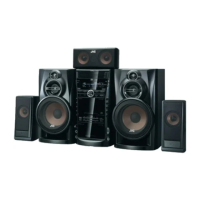
JVC CA-DXU6 - User Manual

JVC CA-DXU6
104 pages
Print Icon
To Next Page IconTo Next Page
Loading...
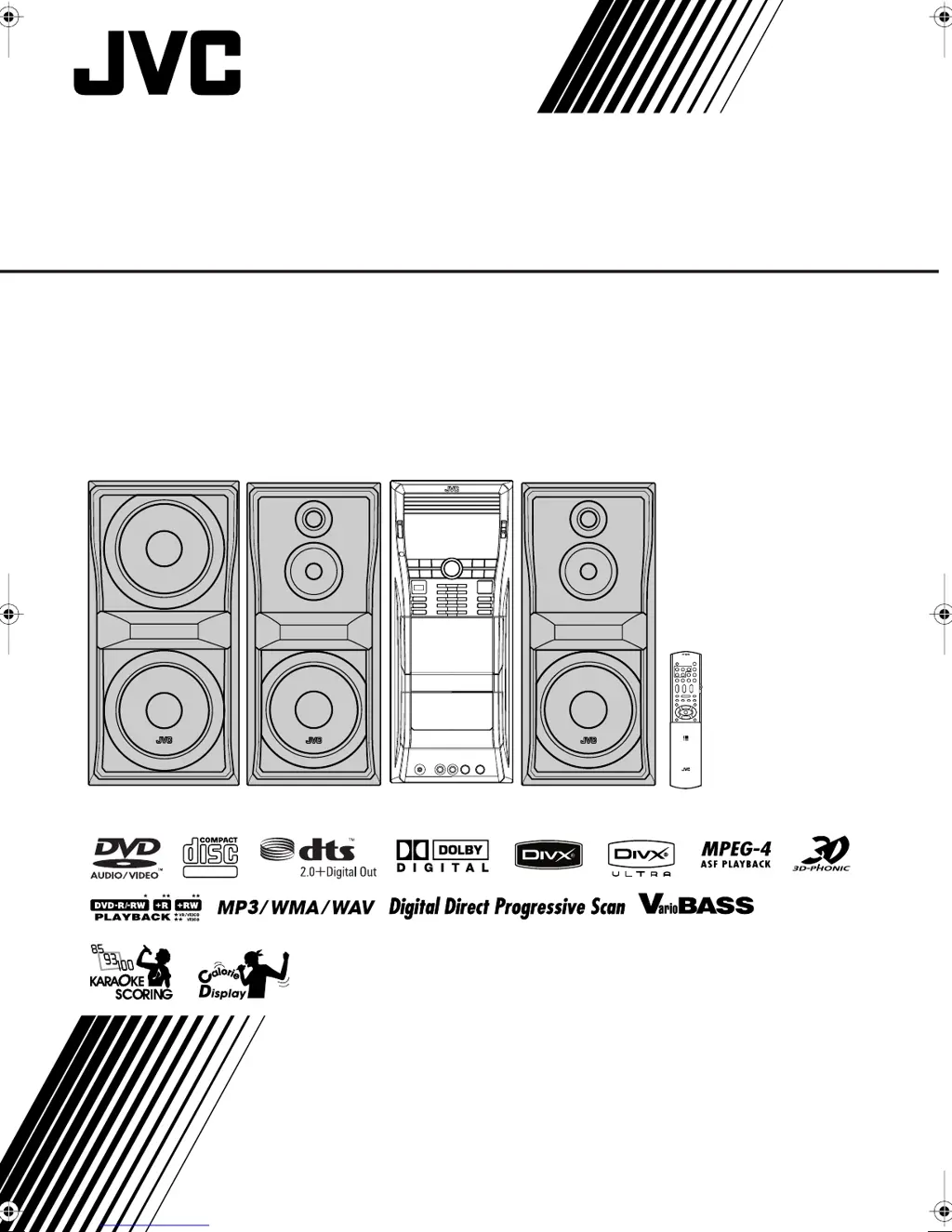
COMPACT COMPONENT SYSTEM
INSTRUCTIONS
GVT0209-001A
[US, UN, UG, UX, A, UW]
SUPER VIDEO
CA-DXU6
CA-DXU6
DX-U6[U]c&s.book Page 1 Friday, March 2, 2007 12:42 PM

Table of Contents

Other manuals for JVC CA-DXU6

Questions and Answers

  • C
    clintonortizSep 10, 2025
    Why audio language is different from the one selected on JVC CA-DXU6?
    • M
      Michael BaileySep 10, 2025
      If the audio language is different from the one you selected as the initial audio language on your JVC Speaker System, some discs are programmed to always use the original language initially. If this happens, press AUDIO/MPX after starting play.
  • J
    johnsonmichaelAug 22, 2025
    What to do if no sound is heard from JVC CA-DXU6 Speaker System?
    • B
      Beverly WashingtonAug 22, 2025
      If no sound is coming from your JVC Speaker System, check if the speaker connections are incorrect or loose. Also, make sure headphones are not connected.
  • M
    martindanaAug 25, 2025
    What to do if the disc does not play on my JVC CA-DXU6?
    • M
      Michael BakerAug 25, 2025
      If a disc doesn't play on your JVC Speaker System, and “REGION ERR” appears on the display, it means you have inserted a DVD Video whose Region Code is not correct. If not, ensure the disc is placed with the label side up.
  • J
    James GlennAug 26, 2025
    What to do if no picture appears on the screen when using JVC Speaker System?
    • S
      Stephanie EvansAug 26, 2025
      If no picture appears on the screen when using your JVC Speaker System, verify that the video cord connections are correct and securely connected.
  • L
    Lori SnyderAug 28, 2025
    Why is the disc sound discontinuous on my JVC Speaker System?
    • A
      andersenshannonAug 28, 2025
      The disc sound may be discontinuous because the disc is scratched or dirty.
  • M
    Mr. Johnny BartlettAug 29, 2025
    What to do if AV files are not played back on JVC CA-DXU6?
    • K
      kgarciaAug 29, 2025
      If AV files are not playing back on your JVC Speaker System, it may be because the disc or USB mass storage device includes different types of files (Audio file, Video file and Still picture file). In this case, you can play back the files selected only by the “FILE TYPE” setting. Also, if you have changed the “FILE TYPE” setting after the System read the disc or the USB mass storage class device, reload the disc or disconnect the USB mass storage class device and connect it again.
  • M
    Mario StoneSep 18, 2025
    Why Daily Timer or Recording Timer does not work on JVC Speaker System?
    • B
      Brandon GonzalesSep 18, 2025
      If the Daily Timer or Recording Timer does not work on your JVC Speaker System, the timer starts working only when the System is turned off. It will not work if the System has been turned on when the on-time comes.
  • A
    Anthony LeeSep 12, 2025
    What to do if the disc tray does not open or close on JVC Speaker System?
    • S
      Stephanie AbbottSep 12, 2025
      If the disc tray on your JVC Speaker System doesn't open or close, it could be because the AC power cord is not plugged in, Child Lock is in use (“LOCKED” appears on the display window), or Program Play is in use. Cancel Program Play.
  • R
    Rebecca GriffinSep 8, 2025
    Why no subtitle appears on TV screen with JVC CA-DXU6?
    • J
      jamesclarkSep 8, 2025
      If no subtitle appears on the TV screen of your JVC Speaker System, even after selecting the initial subtitle language, it could be that some discs are programmed to always display no subtitle initially. If this happens, press SUB TITLE after starting play.
  • M
    Margaret MontoyaSep 5, 2025
    What to do if the left and right edges of the picture are missing on the screen of JVC Speaker System?
    • D
      dustin27Sep 5, 2025
      If the left and right edges of the picture are missing on the screen of your JVC Speaker System, select “4:3 LB /4:3 MULTI LB” for “MONITOR TYPE”.

Summary

INSTRUCTIONS

Warnings, Cautions and Others

Safety precautions, warnings, and important notes for product use.

Proper Ventilation

Guidelines for ensuring adequate airflow around the apparatus.

Introduction

About Color System and Region Code

Information on NTSC/PAL compatibility and DVD region codes.

How to Read This Manual

Explanation of symbols and icons used throughout the manual.

Precautions

Installation and Environmental Precautions

Guidance on placing the system and environmental considerations.

Power Sources and Moisture Condensation

Handling power cords and precautions against moisture.

Connections

Supplied Accessories

List of items included for setting up the system.

Initial Setup Procedures

Connecting a USB Device

Instructions for connecting USB mass storage devices.

Preparing the Remote Control

Guidance on using the remote control effectively.

Display Indication

Daily Operations: Playback

Power On, Source Selection, and Volume

Basic steps for powering on, selecting sources, and adjusting volume.

Listening to the Radio

Tuning Stations and Presets

Procedures for tuning radio stations and saving them as presets.

Playing Back Discs and USB Devices

Inserting Discs and Basic Playback

Instructions for inserting discs and starting playback.

Sound and Other Adjustments

Speaker Output and Bass Reinforcement

Fine-tuning speaker volume and enhancing bass sound.

Sound Modes

Preset and Custom Sound Mode Selection

Choosing from various sound effects or creating custom audio profiles.

Unique Video Disc;File Operations

Selecting Audio Tracks and Subtitles

Changing audio languages and subtitle options during playback.

Advanced Playback Operations

Programming Playback Order

Arranging custom playback sequences for tracks or files.

Recording Operations

Recording Onto a Tape

Step-by-step guide for recording audio to cassette tapes.

Enjoying Karaoke

Singing Along and Microphone Setup

Getting started with karaoke by connecting microphones.

Timer Operations

Setting Recording and Daily Timers

Configuring automatic recording or playback schedules.

Setup Menu Operations

Basic Procedure and Language Settings

Navigating the setup menu and configuring language preferences.

Operating the TV

Additional Information

Learning More About the System

In-depth details on system features, file compatibility, and operations.

Troubleshooting

General, Radio, and Disc;File Issues

Common problems and solutions for system operation and media playback.

Maintenance and Cleaning

Disc, Tape, and System Care

Guidelines for maintaining discs, tapes, and the system unit.

Specifications

Amplifier, Cassette Deck, and General Specs

Technical data for amplifier, cassette deck, power, and dimensions.

Parts Index

Remote Control and Main Unit Buttons

Index of buttons and their corresponding page numbers for reference.

JVC CA-DXU6 Specifications

General IconGeneral
TypeMini Hi-Fi System
CD PlayerYes
ConnectivityAuxiliary input
TunerAM/FM
Supported formatsCD, CD-R, CD-RW

Related product manuals