Setting Auto Tone Mapping
* This item is not available when “Picture Mode” is set to “Frame Adapt HDR”.
1
Press the [GAMMA SETTINGS] button to display the gamma
menu
2
Set “Auto Tone Mapping” to “On”
0
The “Auto Tone Mapping” menu is displayed when “Gamma” is set to “HDR(PQ)”
during playback of HDR contents, or when “Correction Value” of Gamma is set to
“HDR(PQ)”.
0
The information may not be displayed depending on the player and contents.
0
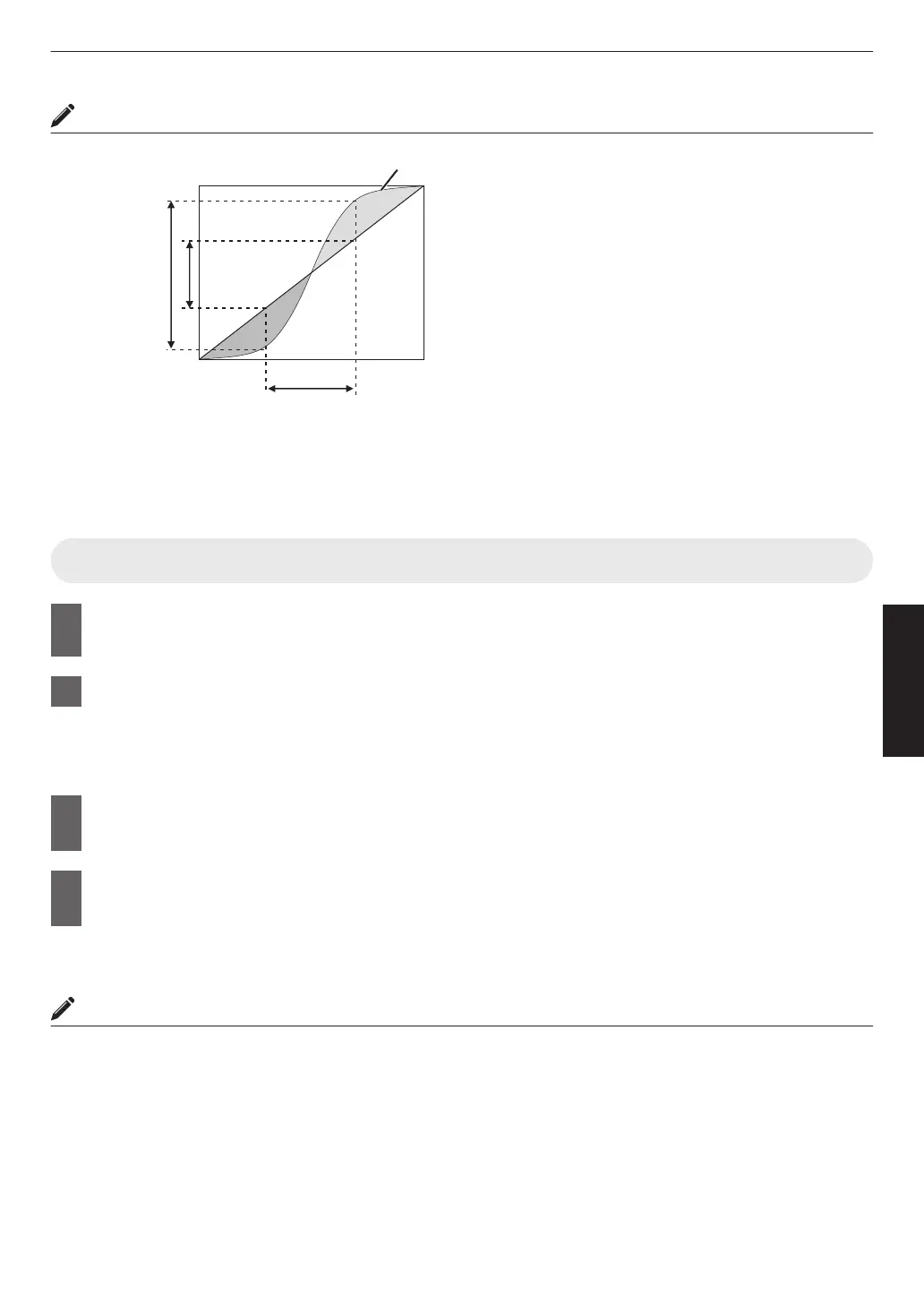
While the parameters can be adjusted when “Auto Tone Mapping” is set to “On”,
the adjusted parameters will not be saved (software version v2.00 and later
versions). To fine-tune the settings, configure “Auto Tone Mapping” to “Off” and
set manually.
Æ “Using Tone Mapping for Manual Adjustments” (P. 44)
3
Configure the base brightness in “Mapping Level”
0
The “Auto Tone Mapping” setting is configured based on a 100" screen with a gain
of 1.0 in total darkness.
0
Adjust it in the positive direction if there is insufficient brightness in the viewing
environment, and in the negative direction if it is too bright.
0
0
0
0
White
On
HDR(PQ)
Bright Level
Dark Level
Picture Tone
Mapping Level
Color Selection
---
Correction Value
Auto Tone Mapping
Gamma
Gamma
Reset
Max CLL/Max FALL
1000 / 400 nits
43
Adjust/Set



 To Next Page