Gamma Adjustment
0
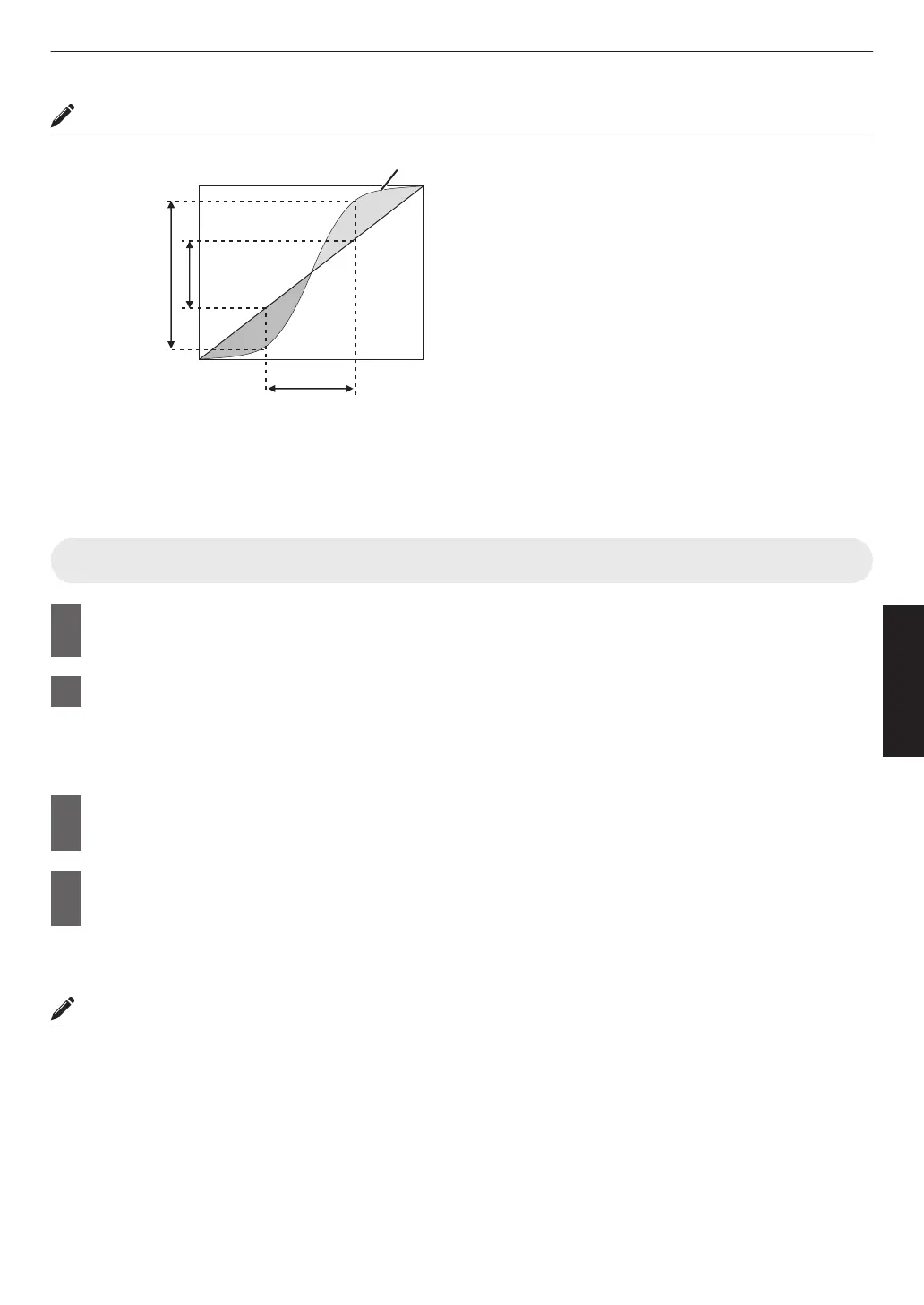
When the gamma curve is a straight line:
The brightness and contrast of the video input will be
the same as that of the video output.
0
Area for which the gamma curve is above the straight
line (A):
Video output appears brighter than the input.
0
Area for which the gamma curve is below the straight
line (B):
Video output appears darker than the input.
0
Area for which the slope of the gamma curve is steep
(midtone) (C):
The grayscale range of the video output becomes
wider, and the contrast increases (D"D’).
C
B
A
D
0 255
0
255
D”
Gamma Curve
Input Value
Output Value
Dark
Dark
Bright
Bright
Setting Frame Adapt HDR
1
Press the [MENU] button to display the menu, and set “Content Type” to “Auto” or
“HDR10” in the “Picture Adjust” menu.
2
Configure “Picture Mode” to “Frame Adapt HDR” in the “Picture Adjust” menu.
0
You can also press the [PICTURE MODE] button and use the ↑↓ keys “Frame Adapt HDR” to select and
configure a setting. (P. 28)
0
Enter the HDR10 content when “Picture Mode” is configured to “Auto”.
3
Configure to “HDR Processing” in the “Picture Adjust” menu.
(“HDR Processing”P. 55)
*
4
Configure to “HDR Level” in the “Picture Adjust” menu.
(“HDR Level”P. 56)
*
* This can be configured only when “Picture Mode” is configured to “Frame Adapt HDR”.
MEMO
0
If you wish to watch HDR10 content in the “Frame Adapt HDR” picture mode, we recommend that you enable
automatic switching to “Frame Adapt HDR” in “Input Signal”"“Auto Pic.Mode Select”"“HDR10”. (
“Auto Pic.Mode
Select”P.
59)
0
Configuring “Theater
Optimizer” to “On” enables “HDR Level” to be configured automatically according to the screen
size and state of the projector. (“Theater Optimizer”P. 56)
43
Adjust/Set


 To Next Page
 Loading...