EasyManua.ls Logo

JVC GR-DV3000A - User Manual

JVC GR-DV3000A
96 pages
Print Icon
To Next Page IconTo Next Page
Loading...
LYT0972-001A
EN
Please visit our Homepage on the World Wide Web
and answer our Consumer Survey (in English only):
http://www.jvc-victor.co.jp/english/index-e.html
For Accessories:
http://www.jvc-victor.co.jp/english/accessory/
ENGLISH
CONTENTS
AUTOMATIC DEMONSTRATION
7
GETTING STARTED
8 – 17
BASIC RECORDING
18 – 24
Recording On Tape ...............................
18
Recording On Memory Card ...................
21
Recording On Tape And Memory Card ......
22
BASIC PLAYBACK
25 – 27
Playback From Tape ..............................
25
Playback From Memory Card ..................
26
USING MENUS FOR
DETAILED ADJUSTMENT
28 – 33
ADVANCED FEATURES
34 – 53
CONNECTIONS
54 – 57
Basic Connections ................................
54
Advanced Connections ..........................
56
DUBBING
58 – 61
Dubbing To A VCR ................................
58
Dubbing From A VCR ............................
59
Dubbing To Or From A Video Unit
Equipped With A DV Connector .............
60
Dubbing Still Images Recorded
On A Tape To A Memory Card ...............
61
USING THE REMOTE
CONTROL UNIT
62 – 73
Slow-Motion Playback, Frame-By-Frame
Playback and Playback Zoom ...............
64
Playback Special Effects ........................
65
Random Assemble Editing .....................
66
For More Accurate Editing ......................
70
Insert Editing .......................................
71
Audio Dubbing .....................................
72
TROUBLESHOOTING
74 – 79
USER MAINTENANCE
80
INDEX
81 – 88
Jack Box ............................................
81
Controls, Connectors And Indicators .......
82
Indications .........................................
84
CAUTIONS
89 – 91
TERMS
92 – 93
SPECIFICATIONS
94 – 95
INSTRUCTIONS
GR-DV3000
DIGITAL VIDEO CAMERA

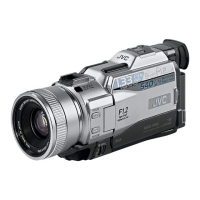
Table of Contents

Questions and Answers

  • H
    hernandezgarySep 9, 2025
    What to do if picture does not appear on the LCD monitor of JVC GR-DV3000A Camcorder?
    • H
      Holly MyersSep 10, 2025
      To get a picture on the LCD monitor of your JVC Camcorder, push the viewfinder back in. If the picture is still not visible, adjust the brightness of the LCD monitor.
  • S
    Scott JohnsonSep 8, 2025
    Why the rear of the LCD monitor is hot on JVC Camcorder?
    • T
      Todd OrtizSep 8, 2025
      If the rear of the LCD monitor of your JVC Camcorder is hot, close the LCD monitor to turn it off or set the Power Switch to “OFF”, and let the unit cool down. The light used to illuminate the LCD monitor causes it to become hot.
  • M
    Micheal HarrisSep 7, 2025
    Why images on the LCD monitor appear dark or whitish on JVC GR-DV3000A?
    • R
      Roberto RiversSep 7, 2025
      If images on the LCD monitor of your JVC Camcorder appear dark or whitish, adjust the brightness and angle of the LCD monitor. This issue can occur in low-temperature environments due to the characteristics of the LCD monitor or when the LCD monitor's fluorescent light reaches the end of its service life.
  • R
    Rhonda MillerAug 22, 2025
    What to do if my JVC GR-DV3000A is not recording?
    • A
      Andrew MathewsAug 23, 2025
      If your JVC Camcorder is not recording, ensure that the tape’s erase protection tab is set to “REC.” Also, check that the Power Switch is set to “ ” or “ ”. Make sure the VIDEO/MEMORY Switch is set to “VIDEO.” If “TAPE END” appears, replace the cassette. Finally, ensure the cassette holder cover is closed. If the VIDEO/MEMORY Switch is set to “VIDEO” set it to “MEMORY.”
  • J
    Jose WilliamsSep 5, 2025
    Why white balance cannot be activated on JVC GR-DV3000A?
    • J
      Joseph HerringSep 5, 2025
      To activate White Balance on your JVC Camcorder, turn off Sepia or Monotone before setting White Balance.
  • S
    Stacey MartinSep 3, 2025
    Why during R.A.Edit, the picture wipe and dissolve functions do not work on JVC GR-DV3000A Camcorder?
    • D
      Danielle Parker DDSSep 4, 2025
      To ensure Picture Wipe and Dissolve functions work during R.A.Edit on your JVC Camcorder, select Picture Wipe or Dissolve before beginning editing, so the effects are automatically activated. Also, do not turn off the camcorder’s power after setting Edit-In and Edit-Out points, as they will all be erased. Make sure you continue operations within 5 minutes after engaging Pause mode.
  • J
    James RodriguezSep 2, 2025
    Why during R.A.Edit, the dissolve function does not work on JVC Camcorder?
    • J
      James DuncanSep 2, 2025
      To fix the issue of the Dissolve function not working during R.A.Edit on your JVC Camcorder, turn off Sepia or Monotone before adding Dissolve to a scene transition. Also, ensure that you have selected the mode of Programme AE with special effects you want before starting editing.
  • N
    Nathan HudsonSep 1, 2025
    Why the black & white fader does not work on JVC GR-DV3000A?
    • T
      Terry WardSep 1, 2025
      To resolve the issue of the Black & White Fader not working on your JVC Camcorder, turn off Sepia and Monotone modes.
  • J
    Justin ValdezAug 31, 2025
    Why does recording end before 5 seconds have elapsed in 5-second mode on JVC Camcorder?
    • M
      molinashaunAug 31, 2025
      If the 5-Second mode recording ends before 5 seconds have elapsed on your JVC Camcorder, it's possible that the 5-Second mode is set to “Anim.” in the Menu Screen. Change the setting to “5S” in the Menu Screen.
  • L
    Leah PerryAug 30, 2025
    Why does the color of snapshot look strange on JVC Camcorder?
    • M
      Mary MannAug 30, 2025
      If the colors in your JVC Camcorder's Snapshot mode look strange, it could be due to the light source or subject lacking white, or various light sources behind the subject. Try to find a white subject and compose your shot so that it also appears in the frame. Also, check if the Sepia or Monotone mode is activated and turn them off if they are.

JVC GR-DV3000A Specifications

General IconGeneral
Recording MediaMiniDV
Optical Sensor Size1/4 inch
Optical Sensor TypeCCD
Optical Zoom10x
Digital Zoom200x
Display TypeLCD
Display Size2.5 inch
Image StabilizerElectronic
Focus AdjustmentAutomatic/Manual
MicrophoneStereo
Battery TypeLithium-Ion
ViewfinderColor
Image StabilizationElectronic
BatteryBN-V408U
Video Resolution720 x 480
Connector TypeUSB, AV, S-Video
Video FormatDV
InterfaceIEEE 1394 (FireWire)

Related product manuals