EasyManua.ls Logo

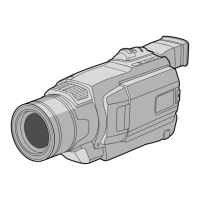
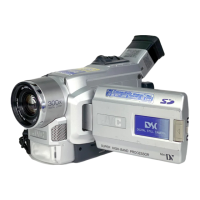
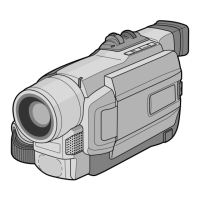
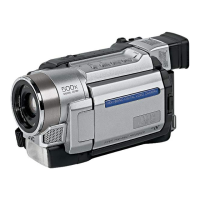
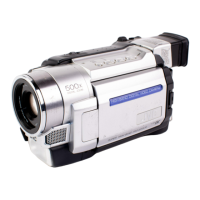
JVC GR-DVL120 - User Manual

JVC GR-DVL120
64 pages
Print Icon
To Next Page IconTo Next Page
Loading...
Please visit our Homepage on the World Wide Web and
answer our Consumer Survey (in English only):
http://www.jvc-victor.co.jp/english/index-e.html
For Accessories:
http://www.jvc-victor.co.jp/english/accessory/
ENGLISH
CONTENTS
AUTOMATIC DEMONSTRATION
6
GETTING STARTED
7 – 13
RECORDING & PLAYBACK
14 – 22
RECORDING ................................ 15 – 18
PLAYBACK .................................. 19 – 22
ADVANCED FEATURES
23 – 45
FOR RECORDING .......................... 24 – 31
USING MENUS FOR
DETAILED ADJUSTMENT ............. 32 – 37
DUBBING .................................... 38 – 39
USING THE OPTIONAL REMOTE
CONTROL UNIT .......................... 40 – 44
SYSTEM CONNECTIONS ........................ 45
REFERENCES
46
– Back Cover
DETAILS ............................................ 47
TROUBLESHOOTING ..................... 48 – 52
USER MAINTENANCE ........................... 53
CAUTIONS ................................... 54 – 56
SPECIFICATIONS ................................. 57
INDEX ......................................... 58– 62
TERMS ............................ 63
Back Cover
For Customer Use:
Enter below the Model No. and Serial
No. which is located on the bottom of the
camcorder. Retain this information for
future reference.
Model No.
Serial No.
INSTRUCTIONS
EN
LYT0944-001A
GR-DVL120
DIGITAL VIDEO CAMERA

Questions and Answers

  • C
    Christina SaundersSep 23, 2025
    What to do if An error indication (E03 or E04) appears on JVC GR-DVL120 Camcorder?
    • S
      Stephanie DominguezSep 23, 2025
      A malfunction of some kind has occurred. Eject the cassette once and re- insert it, then check if the indication clears. When it does, you can resume using the camcorder. If the indication remains even though you repeat the above two or three times, please consult your nearest JVC dealer.
  • R
    Richard GarciaAug 23, 2025
    How to clean The LCD monitor, the viewfinder and the lens that have become dirty on JVC GR-DVL120?
    • M
      mikaylajohnsonAug 25, 2025
      Wipe them gently with soft cloth. Wiping strongly can cause damage.
  • M
    Monica CohenAug 25, 2025
    Why does The LCD monitor or viewfinder indications blink on JVC GR-DVL120 Camcorder?
    • A
      Alice OwensAug 26, 2025
      Certain Fade/Wipe effects, certain modes of Program AE with special effects, “DIS” and other functions that cannot be used together are selected at the same time. Re-read the sections covering Fade/Wipe effects, Program AE with special effects and “DIS”.
  • G
    Garrett SmithAug 26, 2025
    Why does The LCD monitor image is distorted on JVC GR-DVL120?
    • N
      Nathan TaylorAug 27, 2025
      During playback of the unrecorded portion, High-speed Search and still playback, LCD monitor indications appear distorted. This is not a defect.
  • A
    aparksAug 27, 2025
    Why is there no power supplied to my JVC GR-DVL120 Camcorder?
    • L
      Laura CookAug 27, 2025
      Your JVC Camcorder might not be getting power because the AC adapter isn't securely connected. Make sure it's properly connected. Also, the battery might be dead. Try replacing it with a fully charged battery.
  • G
    Gregory EstesSep 15, 2025
    Why does During recording, the date/ time does not appear on JVC GR-DVL120?
    • R
      Rebecca GreenSep 15, 2025
      If the date/time doesn't appear during recording on your JVC Camcorder, “DATE/TIME” is set to “OFF” in the Menu Screen. Set “DATE/TIME” to “ON” in the Menu Screen.
  • M
    Mrs. Nicole BarnesSep 12, 2025
    What causes the cassette will not load properly on JVC GR-DVL120?
    • B
      Brenda JacobsSep 12, 2025
      If the cassette won't load properly in your JVC Camcorder, the cassette might be in the wrong position, so set it in the right position. Also, the battery’s charge might be low, so install a fully charged battery.
  • R
    Rebecca JonesSep 14, 2025
    Why does Time code does not appear on JVC GR-DVL120?
    • J
      Justin ReyesSep 14, 2025
      If the time code doesn't appear on your JVC Camcorder, “TIME CODE” is set to “OFF” in the Menu Screen. Set “TIME CODE” to “ON” in the Menu Screen.
  • R
    Robert JacksonSep 5, 2025
    Why is the image taken using Snapshot too dark on JVC Camcorder?
    • D
      Deanna HopkinsSep 5, 2025
      If the snapshot image on your JVC Camcorder is too dark, it might be because shooting was performed under backlit conditions. Press the BACKLIGHT Button.
  • E
    Elizabeth LangSep 2, 2025
    Why is there no picture on my JVC GR-DVL120?
    • K
      Kirk HillSep 3, 2025
      If there is no picture on your JVC Camcorder, the camcorder is not getting power, or some other malfunction exists. Turn the camcorder’s power off and on again.

Summary

SAFETY AND GENERAL INFORMATION

CAUTIONS

General warnings about electrical shock and product safety.

IMPORTANT PRODUCT SAFETY INSTRUCTIONS

Key guidelines for safe operation and product care.

PROVIDED ACCESSORIES

Essential components included with the camcorder.

GETTING STARTED

Powering and Charging the Battery

How to connect the AC adapter and charge the battery.

Basic Setup and Adjustments

Grip, viewfinder, strap, and tripod mounting.

Cassette Handling and Recording Modes

Loading tapes and selecting recording settings.

RECORDING & PLAYBACK

Basic Recording and Shooting Modes

Steps for starting and stopping recording.

Playback Operations and Search Functions

Normal, still, shuttle, and frame-by-frame playback.

Connections for Playback

Diagrams for connecting to TVs and VCRs.

ADVANCED FEATURES

Special Shooting Modes and Effects

Night-Alive, Program AE, special effects.

Focus, Exposure, and White Balance

Adjusting focus, exposure, and color balance.

USING MENUS FOR DETAILED ADJUSTMENT

Recording Menu Navigation

How to access and set recording parameters.

Playback Menu Navigation

How to access and set playback parameters.

DUBBING

Dubbing To A VCR

Transferring footage to a VCR.

Digital Dubbing via DV Connector

Copying footage using a DV cable.

USING THE OPTIONAL REMOTE CONTROL UNIT

Remote Control Operation and Features

Installing battery and using remote functions.

SYSTEM CONNECTIONS

Connecting to a Personal Computer

Transferring images via DV cable.

DETAILS

Power and Recording Notes

Important operational details and tips.

TROUBLESHOOTING

USER MAINTENANCE

Cleaning The Camcorder

Exterior, LCD monitor, and lens cleaning.

CAUTIONS

Battery Pack and Cassette Cautions

Safety guidelines for batteries and tapes.

LCD Monitor and Main Unit Safety

Precautions for handling the device.

Environmental and Malfunction Cautions

Warnings about moisture and serious issues.

SPECIFICATIONS

LCD Monitor;Viewfinder Indications During Recording

LCD Monitor;Viewfinder Indications During Playback

Warning Indications

JVC GR-DVL120 Specifications

General IconGeneral
Recording MediaMiniDV
Optical Zoom10x
Digital Zoom200x
LCD Screen Size2.5 inches
Effective Pixels680, 000 pixels
Still Image FormatJPEG
TypeCamcorder
Image SensorCCD
Zoom10x optical
LCD ScreenColor LCD
ViewfinderColor viewfinder
Video Recording FormatDV
InterfaceIEEE 1394 (FireWire), USB, A/V output

Related product manuals