EasyManua.ls Logo

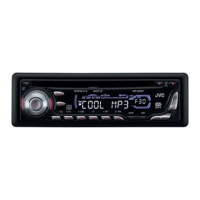
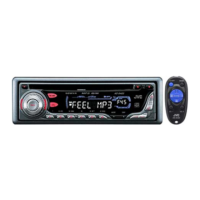
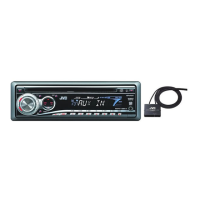
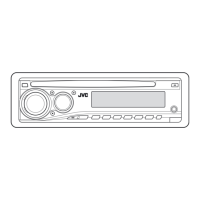
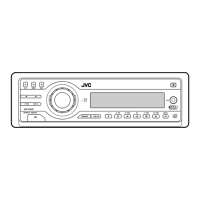
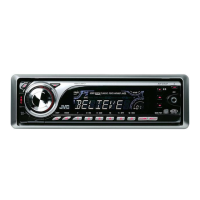
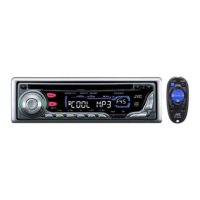
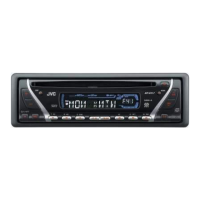
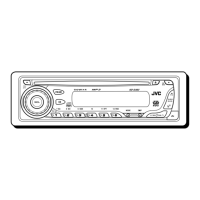
JVC KD-G401 - User Manual

JVC KD-G401
39 pages
Print Icon
To Next Page IconTo Next Page
Loading...
GET0195-001B
[E/EX]
KD-G402/KD-G401
CD RECEIVER
CD-RECEIVER
RECEPTEUR CD
CD-RECEIVER
ENGLISH
DEUTSCH
NEDERLANDS
FRANÇAIS
For installation and connections, refer to the separate manual.
Für den Einbau und die Anschlüsse siehe das eigenständige Handbuch.
Pour l’installation et les raccordements, se référer au manuel séparé.
Bijzonderheden over de installatie en aansluiting van het apparaat vindt u in de
desbetreffende handleiding.
INSTRUCTIONS
BEDIENUNGSANLEITUNG
MANUEL DINSTRUCTIONS
GEBRUIKSAANWIJZING
This unit is equipped with the display demonstration. To cancel it, see page 6.
Dieses Gerät ist mit einer Demonstrationsfunktion für das Display ausgestattet. Auf
Seite 6 wird beschrieben, wie Sie diese Demonstrationsfunktion deaktivieren können.
Cet appareil est équipé d’une fonction de démonstration des affichages. Pour l’annuler,
référez-vous à la page 6.
Dit toestel heeft een display-demonstratiefunctie. Zie bladzijde 6 voor het annuleren van
deze functie.
Cover001B_KD-G401_ff.p65 2/16/04, 5:17 PM3

Other manuals for JVC KD-G401

Questions and Answers

  • D
    Drew BennettNov 23, 2025
    What to do if my JVC Car Receiver CD automatically ejects?
    • D
      Dennis MartinezNov 23, 2025
      If your CD automatically ejects, consider the following possibilities: * The CD might be inserted upside down or incorrectly. Ensure it's inserted correctly. * If it's a CD-R/CD-RW, it may not be finalized. Use a finalized CD or finalize the CD-R/CD-RW with the component you used for recording. * The CD might be locked. Unlock the CD. * The CD player may have a malfunction. Try holding the (standby/on attenuator) button and pressing the 0 (eject) button for more than 2 seconds to eject the CD. Be careful not to drop the CD. * Driving on rough roads can cause this issue. Stop playback while driving on rough roads. * The CD might be scratched. Try a different CD. * Incorrect connections can cause issues. Check all cords and connections. * There might be no CD in the loading ...
  • M
    Megan WalkerAug 25, 2025
    How to fix no sound from JVC KD-G401 Car Receiver speakers?
    • D
      David BarrAug 26, 2025
      If you're not getting any sound from the speakers of your JVC Car Receiver, first, make sure the volume isn't set too low; adjust it to a higher, more audible level. Also, verify that all the cords and connections are correctly and securely connected.
  • H
    Harold CunninghamAug 27, 2025
    What to do if 'NO DISC' appears on JVC Car Receiver display?
    • G
      Gary BrownAug 27, 2025
      If your JVC Car Receiver displays “NO DISC”, ensure that a CD is properly inserted into the loading slot. If a CD is already inserted, make sure it's inserted correctly.
  • Z
    zachary23Aug 27, 2025
    Why does my JVC KD-G401 Car Receiver CD automatically eject?
    • M
      Michael FuentesAug 27, 2025
      If your JVC Car Receiver ejects CDs automatically, it might be because the CD is inserted upside down. Make sure to insert the CD correctly.
  • B
    Brent HawkinsAug 28, 2025
    What to do if there is no 5V at IC501 pin 20 on my JVC Other?
    • J
      johnprattAug 28, 2025
      If there is no 5V present at IC501 pin 20, check IC501.
  • M
    Melissa ReynoldsSep 15, 2025
    Why JVC KD-G401 won't play CD-R/CD-RW?
    • C
      carterwilliamSep 15, 2025
      If your JVC Car Receiver is not playing back CD-R/CD-RW discs, it may be because the CD-R/CD-RW has not been finalized. Insert a finalized CD-R/CD-RW, or finalize the CD-R/CD-RW with the component you used for recording.
  • A
    Adriana SinghSep 12, 2025
    What to do if CD cannot be played back or ejected from JVC KD-G401 Car Receiver?
    • H
      Heidi GreeneSep 12, 2025
      If your JVC Car Receiver can't play or eject a CD, the CD might be locked. Unlock the CD. Alternatively, the CD player may have malfunctioned. While holding the (standby/on attenuator) button, press the 0 (eject) button for more than 2 seconds, being careful not to drop the CD when it ejects.
  • W
    whaynesSep 13, 2025
    Why does 'NO FILES' appear on JVC Car Receiver display?
    • C
      Christina RobertsSep 13, 2025
      If your JVC Car Receiver displays “NO FILES”, it means the current disc does not contain any MP3 files.
  • B
    brentschultzSep 5, 2025
    Why is the elapsed playing time incorrect on my JVC Car Receiver?
    • L
      Lisa PerezSep 5, 2025
      This sometimes occurs during play. This is caused by how the files are recorded on the disc.
  • O
    ofieldsSep 3, 2025
    Why does my JVC Car Receiver show “CHECK” for a long time?
    • N
      Neil SteeleSep 3, 2025
      Readout time varies due to the complexity of the folder/file configuration.

Summary

Important Laser Product Safety

Laser Product Safety Cautions

Warns about laser radiation, internal non-serviceable parts, and direct beam exposure.

Caution Label Information

Refers to the caution label placed outside the unit.

How to Reset Your Unit

How to Use the MODE Button

Location of Buttons

Control Panel Overview

Identifies buttons and indicators on the main unit's control panel.

Display Window Indicators

Explains the various indicators shown on the unit's display.

Basic Operations

Turning On and Off the Unit

Instructions for powering the unit on and off.

Selecting the Source

How to choose between FM/AM tuner and CD player sources.

Adjusting the Volume

Steps to increase or decrease the audio volume level.

Canceling Display Demonstration

Procedure to disable the unit's display demonstration feature.

Setting the Clock

How to set the clock system to 12 or 24-hour format.

Radio Operations

Listening to the Radio

Basic steps for tuning into radio stations.

Auto Station Search

Instructions for automatically finding radio stations.

Manual Station Search

How to manually tune into specific radio stations.

Storing Stations in Memory

Methods for saving radio stations for quick access.

Tuning to Preset Stations

How to recall stored radio stations using preset numbers.

RDS Operations

RDS Features Overview

Explains what RDS can do, like station names and program types.

Network-Tracking Reception

How the unit automatically tunes to stronger signals for continuous reception.

Using TA Standby Reception

Allows switching to traffic announcements from other sources.

Using PTY Standby Reception

Switches to favorite program types during playback.

Searching for Favorite Programmes

How to search for programs by PTY code and store them.

Other RDS Functions and Adjustments

Covers automatic station selection, TA volume, and clock adjustment.

CD Operations

Playing a CD

Instructions for inserting and playing a standard CD.

Stopping and Ejecting a CD

How to stop CD playback and eject the disc.

Locating Tracks on a CD

Fast-forwarding, reversing, and skipping tracks on a CD.

Selecting CD Playback Modes

Options for Disc Random Play and Track Repeat Play.

Playing CD Text Information

How to view text information recorded on a CD Text disc.

Prohibiting Disc Ejection

How to lock a CD in the loading slot to prevent ejection.

MP3 Introduction

What is MP3?

Explains the MP3 audio file format and its compression.

MP3 File Compatibility

Details compatibility with ID3 Tag and file formats.

MP3 Recording and Playback

How MP3 files and folders are structured and played back.

MP3 Operations

Playing an MP3 Disc

Instructions for inserting and playing MP3 discs.

Stopping and Ejecting an MP3 Disc

How to stop MP3 playback and eject the disc.

Changing MP3 Display Information

How to switch between tag, file name, and elapsed time displays.

Locating Files on an MP3 Disc

Fast-forwarding, reversing, and skipping files on an MP3 disc.

Navigating MP3 Files and Folders

How to quickly select files and folders on an MP3 disc.

Skipping Folders on MP3 Discs

How to move to the next or previous folder on an MP3 disc.

Selecting MP3 Playback Modes

Options for Folder Random, Disc Random, Track Repeat, and Folder Repeat.

Sound Adjustments

Selecting Preset Sound Modes (C-EQ)

How to choose equalizer modes like ROCK, POP, JAZZ.

Adjusting Bass, Treble, Fader, Balance, and Loudness

Detailed steps for fine-tuning sound characteristics.

Other Main Functions

Display Dimmer Mode (DIMMER)

Adjusts display brightness for night viewing.

Telephone Muting (TEL)

Mutes audio when a cellular phone is connected.

Scroll Mode Selection (SCROLL)

Controls how text information scrolls on the display.

Tag Display On;Off (TAG DISP)

Controls the display of MP3 ID3 tag information.

Amplifier Gain Control (AMP GAIN)

Adjusts maximum volume output to match speaker power.

Control Panel Handling

Detaching the Control Panel

How to safely remove the control panel from the unit.

Attaching the Control Panel

How to reattach the control panel to the unit.

Using the Remote Controller

Installing the Remote Control Battery

Instructions for inserting and replacing the battery in the remote controller.

Remote Controller Button Layout

Identifies the functions of each button on the remote controller.

Troubleshooting

General Troubleshooting

Common issues like no sound or unit not working.

FM;AM Radio Troubleshooting

Issues related to radio reception and presets.

CD Playback Troubleshooting

Problems encountered during CD playback, including errors and skipping.

MP3 Playback Troubleshooting

Issues specific to playing MP3 files, like noise or incorrect characters.

Maintenance

Handling Discs

Proper care and handling of CDs, CD-Rs, CD-RWs, and MP3 discs.

Specifications

JVC KD-G401 Specifications

Audio Amplifier IconAudio Amplifier
maximum power output (front)50 W per channel
maximum power output (rear)50 W per channel
continuous power output (RMS) (front)19 W per channel into 4 Ω, 40 Hz to 20 000 Hz at no more than 0.8% total harmonic distortion
continuous power output (RMS) (rear)19 W per channel into 4 Ω, 40 Hz to 20 000 Hz at no more than 0.8% total harmonic distortion
load impedance4 Ω (4 Ω to 8 Ω allowance)
tone control range (bass)±10 dB at 100 Hz
tone control range (treble)±10 dB at 10 kHz
frequency response40 Hz to 20 000 Hz
signal-to-noise ratio70 dB
line-out level/impedance2.0 V/20 kΩ load (full scale)
output impedance1 kΩ
CD Player IconCD Player
operating voltageDC 14.4 V (11 V to 16 V allowance)
allowable operating temperature0°C to +40°C
dimensions (W × H × D)182 mm × 52 mm × 150 mm
panel size188 mm × 58 mm × 11 mm
mass1.3 kg (excluding accessories)
frequency response5 Hz to 20 000 Hz
dynamic range96 dB
signal-to-noise ratio98 dB
max. bit rate320 Kbps
Tuner IconTuner
frequency range (FM)87.5 MHz to 108.0 MHz
frequency range (AM MW)522 kHz to 1 620 kHz
frequency range (AM LW)144 kHz to 279 kHz
usable sensitivity11.3 dBf (1.0 µV/75 Ω)
50 dB quieting sensitivity16.3 dBf (1.8 µV/75 Ω)
alternate channel selectivity (400 kHz)65 dB
frequency response40 Hz to 15 000 Hz
stereo separation30 dB
capture ratio1.5 dB
sensitivity (MW)20 µV
selectivity (MW)35 dB
sensitivity (LW)50 µV

Related product manuals