56
Year Month Day Hour Minute Second
Network remote control
STREAMCAPTURE (Playing back video/audio using a PC and saving to file)
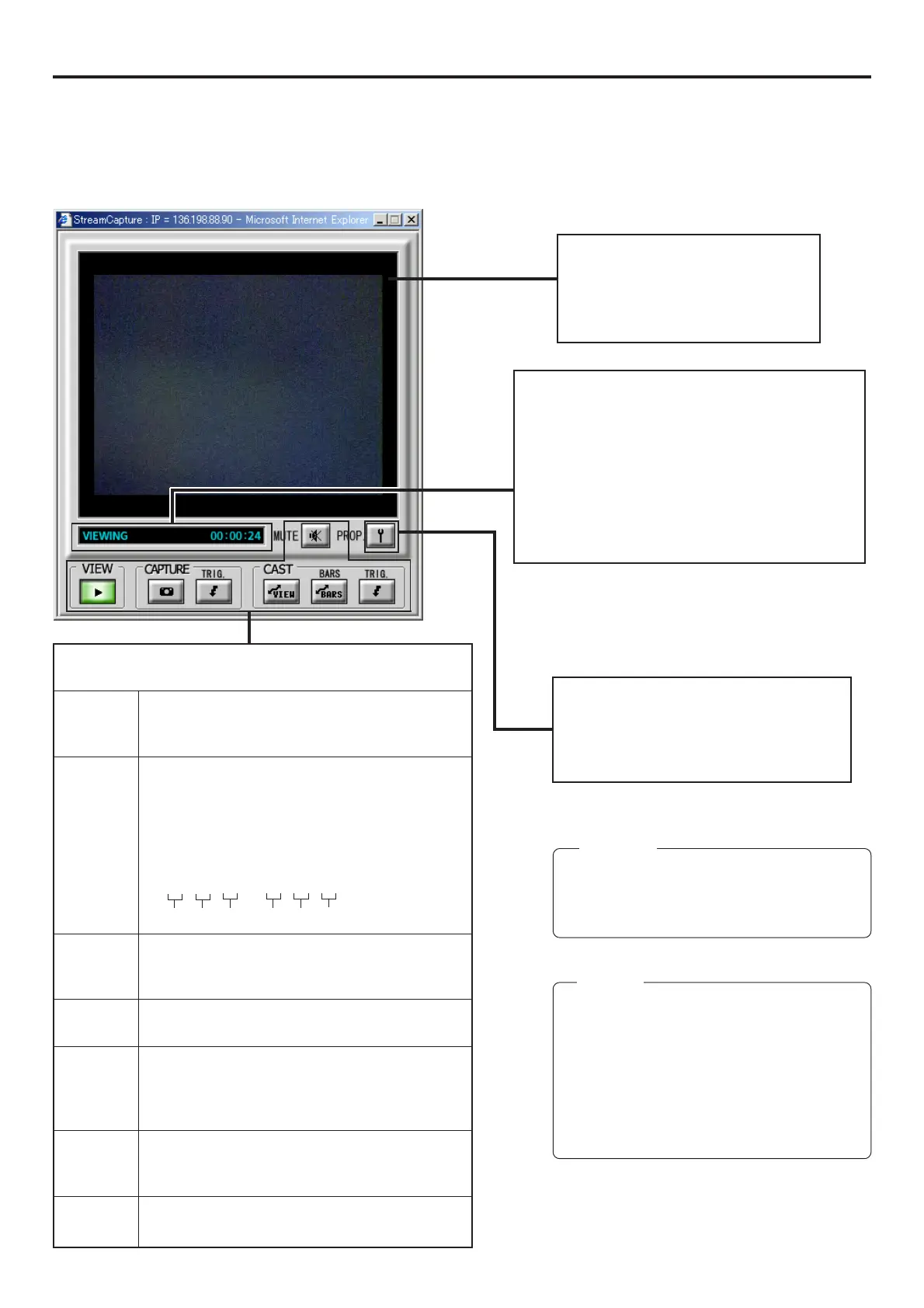
Video display
The display size can be changed in the
Property dialog box.
(☞ page 59)
Clicking the button will display the Property
dialog box.
Video display size and the save destination
folder can be changed. (☞ page 59)
Status/Time elapsed display
● The current status is displayed.
VIEWING
: Video or audio from SA-DV6000 is being
played back in realtime (live display).
CAPTURING
: Video or audio is being saved in your PC.
STOP: Playback is stopped.
WAITING: TRIG recording standby.
Click the characters “STREAMCAPTURE” on the left of the Streamcorder screen to display the Streamcapture screen shown below.
Video and audio sent from SA-DV6000 via LAN can be played back on your PC in the Streamcapture screen or data can be saved to files.
It can be used on a PC that has Streamproducer installed.
* Since video on the STREAMCAPTURE screen is converted video data, images will take more time to appear than the actual
video of the BR-DV6000.
→
OVER
Operation buttons ........ Clicking will start operation. When on, the
button will light.
VIEW Click to play back or stop video/audio from SA-
DV6000 on your PC. (ON when the Streamcapture
screen is opened.)
CAPTURE Click to save video or audio to a PC.
Default destination
My Document\Streamcorder (\IPAddress)
Saved file name:
The file name based on the capture start time
will be used.
020304 – 153000.asf
CAPTURE-TRIG.
Click when saving the video/audio from
SA-DV6000 to your PC when starting recording
with BR-DV6000. (☞ page 57)
CAST-VIEW
Click when sending the video/audio from
SA-DV6000 to another PC. (☞ page 57)
CAST-BARS
Click when transmitting color bars rather than video
from SA-DV6000. (Video from SA-DV6000 will be
displayed in the video display of the Streamcapture
screen. Color bars will not be displayed.)
CAST-TRIG. Click when sending the video/audio from SA-
DV6000 to another PC when starting recording
with BR-DV6000. (☞ page 57)
MUTE Click to turn on/off the mute setting.
When on, the playback sound will be muted.
Caution
●
Set the stream type to “for WMP”. (☞ page 55)
● Click the CAPTURE button after the image is
displayed on the screen.
Memo
Depending on the network or operational envi-
ronment, network connection may be discon-
nected. Since Streamcapture is for the easy
checking of streaming data on the Web, it is not
built with a reconnection feature. When
reconnection is required, please use Stream-
producer.


 To Next Page