7
Indicator light
Indicator Status Description
Status Indicator
(Red)
On F4 PRO has connected to the cloud
Off Disconnected from router
Flash fast and continuously
Configure network by router. When the
router turns on AP isolation, this mode
cannot be used, and you need to switch
to AP network configuration mode
Slowly flashing (on for 0.2
seconds and off for 2 seconds)
Configure network by AP
Slowly flashing (on for 2
seconds and off for 2 seconds)
F4 PRO has disconnected from the cloud
Power Indicator
(Green)
On Powered on
Off No power supply or power failure
Note: Devices of version 1.1.05 and above support AP network configuration. For devices
below version 1.1.05, please upgrade the firmware to the latest version.
Connect F4 PRO to the cloud
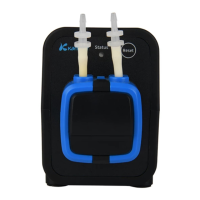
Power on F4 PRO for the first time after unpacking, the status indicator (red) flashes slowly. At
this time, you need to use the App to connect the dosing pump to the cloud through the
wireless router. The specific steps are as follows:
1. Ensure that the wireless router has connected to the Internet. The mobile phone is
connected to the 2.4G Wi-Fi hotspot of the wireless router (the device does not support
5G Wi-Fi, and 5G Wi-Fi hotspots cannot be used)
2. Open the Kamoer Remote App, log in with the registered account, click the "+" icon in
the upper right corner, select "Add Device", select "F4 PRO Dosing Pump" in the list of
supported devices to add.
3. After entering the router Wi-Fi password, click the "Next" button, press and hold the
Reset button on the right side of the device for more than 6 seconds and then release it,
click the "Next" button, and wait for the red status indicator to flash;
4. If the indicator light continues to flash rapidly (configure network by router), select the


 To Next Page