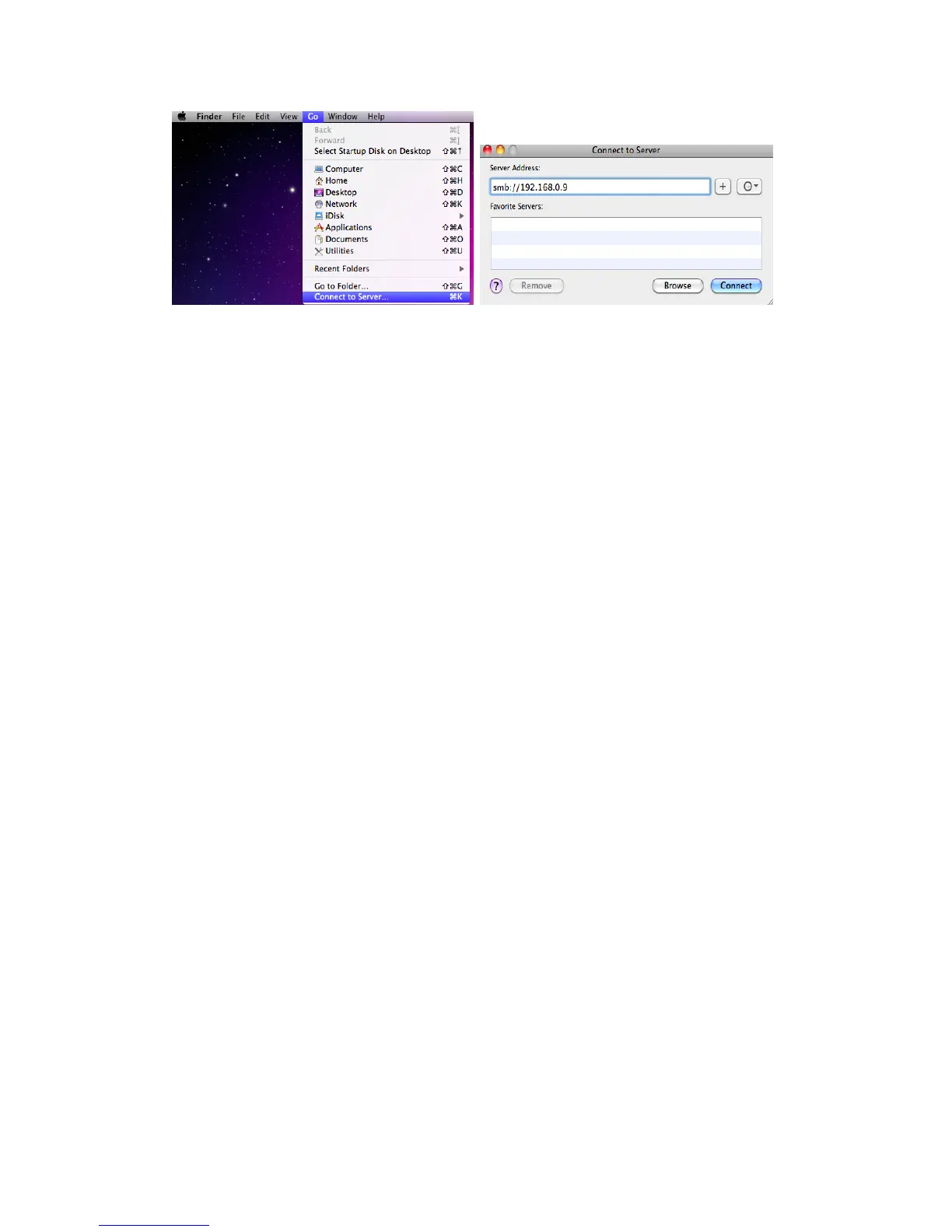
You can then manage the files stored on hard disk and USB drive that connected to the player.
3.14 Transmission
Transmission is a free, open-source and cross-platform BitTorrent client. To use this function,
Step 1, Enter into SetupNetworkmenu,
connect your player to internet.
Step 2, Enter into SetupNetworkmenu, turn on transmission.
Step 2, Launch a web browser such as Internet Explorer or Firefox, and at the address bar,
key in http://192.168.50.196:9091 where 192.168.50.196 is the IP address of your product.
You need format the external hard disk on the player to use transmission.
3.15 FTP Server
This product can also function as a FTP Server when it is attached to your home network via
wired or wireless connection.
Step 1, Enter into SetupNetworkmenu,
connect your player to home network.
Step 2, Enter into SetupNetworkmenu, configure the login User Name and Password.
Step 3, Enter into SetupNetworkmenu, turn on FTP.
Step 4, Open the FTP application and login on your PC. After login is successful, you will be
able to upload/download files via FTP Server.
3.16 Firmware upgrade
The firmware is the operating system (OS) installed on the device. Firmware upgrades can
bring new features, improvements and bug fixes.
Method 1:
Step 1, Copy ‘install.img’ to the root directory of a USB stick, and connect it to the USB HOST
port of the player.
Step 2, Press and hold the POWER button on the back panel, and do not loosen.
Step 3, Plug the power cable into the DC IN jack, wait for about 5 seconds or more, and then
loosen your finger on the POWER button; Firmware installation will start.
Method 2:
Step 1, Copy ‘install.img’ to the root directory of a USB stick, and connect it to the USB HOST
port of the player.
Step 2, EnterSetupMiscmenu,selectUSBUpgrade,firmware installation will start.


 To Next Page