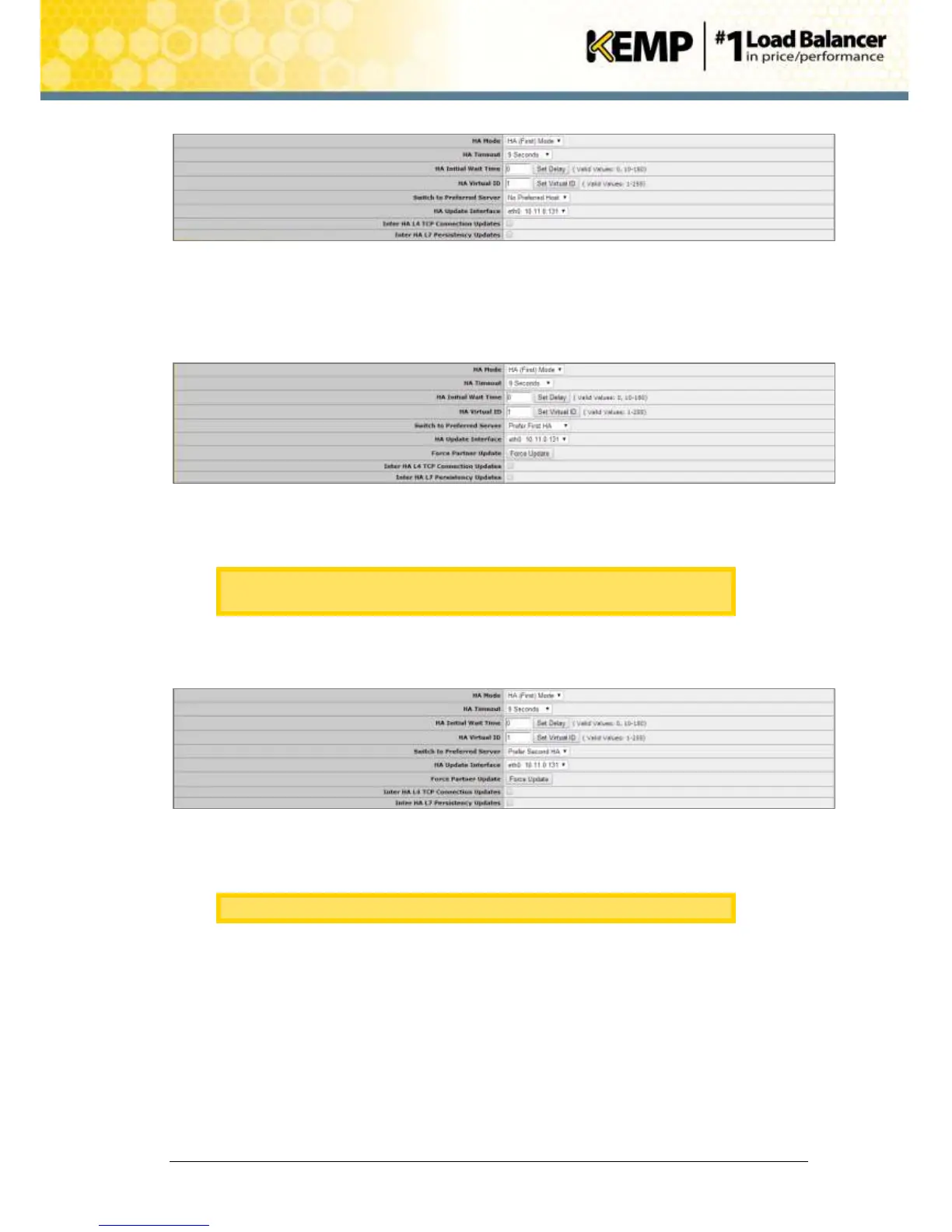
Figure 10-5: HA Virtual ID
18. Ensure that the HA Virtual ID is correct.
19. When the new unit 2 (D) is connected, open the WUI of the shared IP address and in the
main menu, go to System Configuration > Miscellaneous Options > HA Parameters.
Figure 10-6: Force Update
20. Click Force Update.
This will copy the configuration from the old unit 1 (A) (Master) to the new
unit 2 (D) (standby). This will take approximately 15 seconds.
21. When the update has completed, in the main menu, go to System Configuration >
Miscellaneous Options > HA Parameters.
Figure 10-7: Prefer Second HA
22. Select Prefer Second HA in the Switch to Preferred Server drop-down list.
This will drop all connections while the second unit takes over as master.


 To Next Page