EasyManua.ls Logo

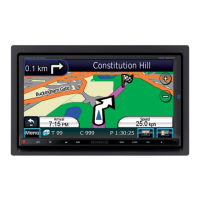
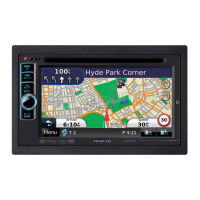
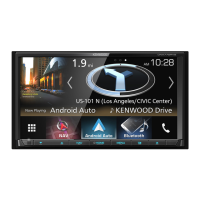
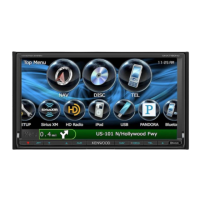
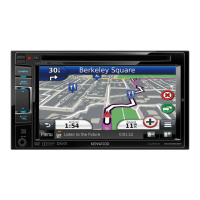
Kenwood DNX7380BT - User Manual

Kenwood DNX7380BT
107 pages
Print Icon
To Next Page IconTo Next Page
Loading...
11DNXMid_IM324_Ref_M_En_02 (M)© 2010 Kenwood Corporation All Rights Reserved.
DNX7380BT
DNX7380BTM
DNX5380BT
DNX5380
DNX5380M
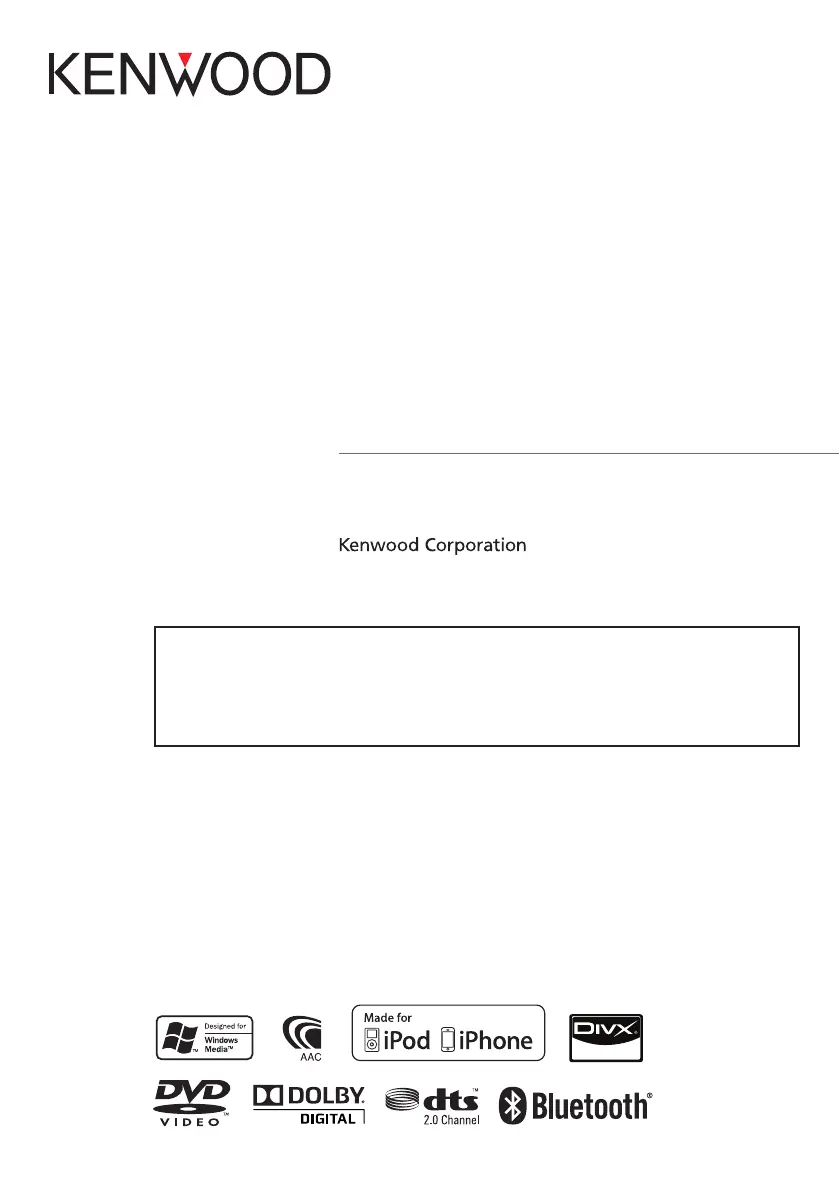
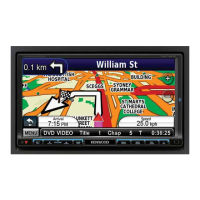
GPS NAVIGATION SYSTEM
INSTRUCTION MANUAL
Before reading this manual, click the button below to check the latest edition and the
modified pages.
Check the latest edition

Table of Contents

Other manuals for Kenwood DNX7380BT

Questions and Answers

  • G
    Gregory GuerraJul 31, 2025
    Why is Kenwood DNX7380BT GPS radio reception poor?
    • M
      marymckinneyAug 1, 2025
      If your Kenwood GPS radio reception is poor, first, ensure the car antenna is fully extended. If the issue persists, check that the antenna control wire is correctly connected, referring to the 'Connection' section in the Quick Start Guide.
  • R
    Renee WilliamsAug 7, 2025
    What to do if I cannot select the output destination of the subsource in the dual zone on my Kenwood DNX7380BT?
    • B
      Brenda OwensAug 7, 2025
      If you cannot select the output destination of the subsource in the dual zone of your Kenwood GPS, it might be because the dual zone function is disabled. To solve this, turn the dual zone function on. See Zone Control (P.86).
  • A
    Angela BerryAug 15, 2025
    Why I cannot adjust the volume of the rear speakers on my Kenwood DNX7380BT GPS?
    • T
      Timothy DiazAug 15, 2025
      If you cannot adjust the volume of the rear speakers on your Kenwood GPS, it's likely because the dual zone function is disabled. Enable the dual zone function to resolve this. See Zone Control (P.86).
  • M
    Mr. Kurt MckinneyAug 23, 2025
    What to do if there is no output from the subwoofer on Kenwood DNX7380BT?
    • H
      Hannah RichardsonAug 23, 2025
      If there's no output from the subwoofer on your Kenwood GPS, the subwoofer might not be enabled. Turn on the subwoofer. See Speaker setup (P.80).

Summary

Before Use

Safety Precautions

Essential precautions to prevent injury, fire, and ensure proper unit operation.

Handling Discs

Guidelines for handling discs to ensure optimal playback and prevent damage.

How To Read This Manual

Understanding Manual Elements

Explains key manual components like headers, notes, and screen shots for clarity.

Basic Operations

Front Panel Button Functions

Detailed description of each button on the unit's front panel and its function.

Turning On The Unit

Step-by-step guide to powering the unit on and off for different models.

Initial Setup

Configure initial settings like language, iPod interface, and color.

DVD;VCD Operation

DVD;VCD Basic Operation

Controls and displays for DVD and VCD playback modes.

DVD Setup

Configure DVD playback settings including language, screen ratio, and parental controls.

CD;Audio And Visual Files;iPod Operation

Music;Video;Picture Basic Operation

Basic playback controls for music CDs, disc media, USB, and iPods.

Search Operation

Organize and search files hierarchically or by other methods.

Radio And TV Operation

Radio Basic Operation

Controls for radio tuning, band selection, and preset management.

TV Basic Operation

Controls for TV channel tuning, band selection, and presets.

Bluetooth Operation

Bluetooth Control

Manage Bluetooth functions for audio streaming and hands-free calls.

Using Hands-Free Unit

Connect and use the hands-free phone system, including calls and phonebook.

Setting Up

Monitor Screen Setup

Adjust image quality settings like brightness, contrast, and display mode.

System Setup

Configure interface parameters like beep tone, remote sensor, and language.

Navigation Setup

Configure navigation parameters like voice guidance volume and speaker output.

Camera Setup

Set rear and front camera parameters, including interruption and image adjustments.

Audio Setting Up

Controlling Audio

Configure speaker settings, car type, and DSP for optimal audio.

Equalizer Control

Adjust audio equalization curves and manually fine-tune sound settings.

Remote Controller Operation

Remote Controller

Information about the remote controller and battery installation.

Functions Of The Remote Controller Buttons

Details remote controller button functions based on mode switch position.

Troubleshooting

Problems And Solutions

Table listing common problems, their causes, and solutions.

Error Messages

Lists unit error messages, their causes, and corresponding solutions.

Appendix

Playable Media And Files

Lists supported disc types and audio, video, picture file formats.

Specifications

Technical specifications for monitor, DVD, USB, and Bluetooth sections.

Kenwood DNX7380BT Specifications

General IconGeneral
BrandKenwood
ModelDNX7380BT
CategoryGPS
LanguageEnglish

Related product manuals