EasyManua.ls Logo

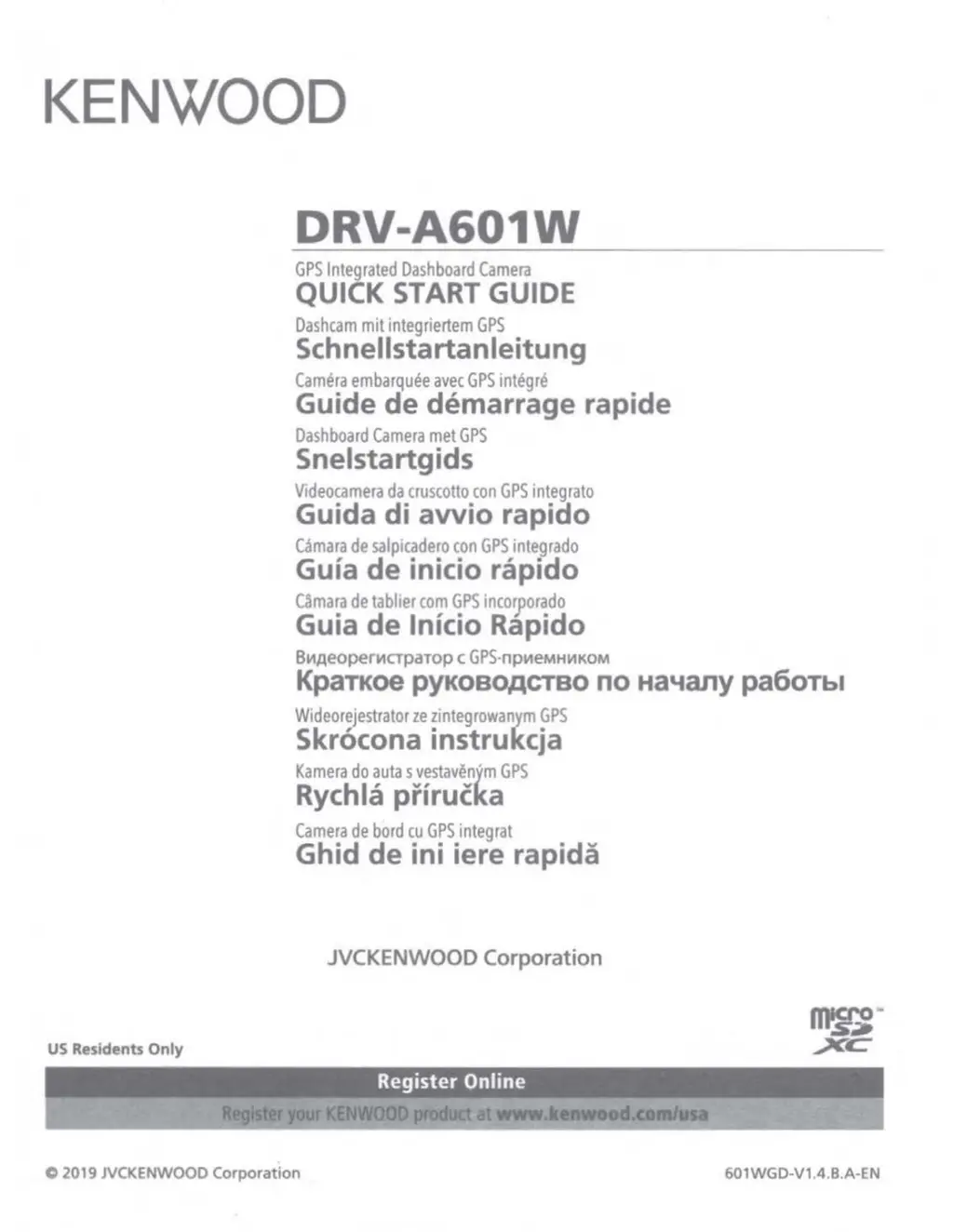
Kenwood DRV-A601W - User Manual

Kenwood DRV-A601W
87 pages
Print Icon
To Next Page IconTo Next Page
Loading...
KENWOOD
US Residents
Only
DRV-A601W
GPS
Integrated
Dashboard
Camera
QUICK
START
GUIDE
Dashcam
mit
integriertem
GPS
Schnellstartanleitung
Camera
embarquee
avec
GPS
integre
Guide de demarrage rapide
Dashboard
Camera
met
GPS
Snelstartgids
Videocamera
da
cruscotto
con
GPS
integrato
Guida
di
avvio rapido
Camara
de
salpicadero
con
GPS
integrado
Guia de inicio rapido
Camara
de
tablier
com
GPS
incorporado
Guia de lnicio Rapido
B111AeoperncrpaTop
c
GPS-np111eMHIIIKOM
KpaTKoe
PYKOBO.QCTBO
no
Ha~any
pa60Tbl
Wideorejestrator
ze
zintegrowanym
GPS
Skr6cona instrukcja
Kamera
do
auta
s
vestavenjm
GPS
Rychla
prirucka
Camera
de
bord
cu
GPS
integrat
Ghid de
ini
iere rapida
JVCKENWOOD
Co
rporation
Register
Online
.
...
.
,.
- .
...
'-
. ' -
..
,,
C 2019 JVCKENWOOD
Corporation
601WGD-V1.4.B.A-EN

Other manuals for Kenwood DRV-A601W

Questions and Answers

  • M
    Mrs. Donna RobertsSep 14, 2025
    How to fix blurred image (video) on Kenwood Dash Cameras?
    • A
      allenfisherSep 14, 2025
      If your Kenwood Dash Cameras image is blurred, make sure to remove the protective lens cover from the camera lens. Wipe the lens with a soft cloth to remove any debris or stains. Also, clean your vehicle's windshield where the camera is placed.
  • A
    Ashley BautistaAug 25, 2025
    Why is my SD card not letting me view my files on Kenwood Dash Cameras?
    • M
      Mrs. Ann FritzAug 25, 2025
      If your SD card isn't letting you view files on your Kenwood Dash Cameras device, try using different card readers and computers to see if any of them can access the files. If none of them work, the files may be damaged. You can format the memory card using your device, but be aware that this will erase all saved files. It's recommended to use branded memory cards with UHS type 3. Also, remember to format the SD card with the device before using it for the first time.
  • L
    Linda GriffinAug 25, 2025
    Why is the video recording time so short on my Kenwood DRV-A601W?
    • J
      James BishopAug 26, 2025
      If the total video recording time is only a few minutes long on your Kenwood Dash Cameras device, it might be due to limited available space on your SD card. To fix this, back up all the files you need from the SD card. After backing up your files, format the SD card using the device.
  • G
    Gary RichardAug 26, 2025
    What does 'Card Error' mean on Kenwood Dash Cameras and how to fix it?
    • C
      Christine DominguezAug 27, 2025
      If a “Card Error” message appears on your Kenwood Dash Cameras device, it means the SD card isn't properly formatted for your device. To fix this, remove any files you want to keep and save them to your computer. Then, format the SD card using the “Format SD Card” option on your device to ensure it functions correctly.
  • M
    Michelle RiddleSep 15, 2025
    What to do if I cannot save my video files to my computer through the USB storage feature for Kenwood Dash Cameras?
    • J
      Jessica HendricksSep 15, 2025
      If you can’t save your video files to your computer through the USB storage feature on Kenwood Dash Cameras, reboot your computers. The functions are optimized for Windows and Mac computers. Make sure the device is connected properly.
  • B
    brandy04Sep 23, 2025
    What to do if I cannot delete the file on the device Kenwood DRV-A601W?
    • B
      brenda23Sep 23, 2025
      Be sure the file you are trying to delete on Kenwood Dash Cameras is unprotected. If the file is protected, please follow the instruction on page 29 to unprotect the file first, and then delete the file.
  • S
    Sean PrattSep 7, 2025
    What to do if a “Card Full” message appears on Kenwood DRV-A601W Dash Cameras?
    • E
      Edward ElliottSep 7, 2025
      When a “Card Full” message appears on your Kenwood Dash Cameras device, it means your SD card has reached its maximum storage capacity. If you have protected files, it can limit the memory card usage. Try deleting unnecessary files to make the most of your memory card.
  • P
    Pamela MoralesSep 8, 2025
    Why does the message “Please Format SD Card” appear on my Kenwood Dash Cameras?
    • C
      Courtney MontoyaSep 8, 2025
      If you see the message “Please Format SD Card” on your Kenwood Dash Cameras screen, it means the device needs you to format the SD card, especially if it's the first time you're using the card with the device. You can format the SD card in the SETUP menu.
  • R
    Richard SmithSep 2, 2025
    Why can't I save Kenwood Dash Cameras video files to my computer via USB?
    • V
      vwoodsSep 2, 2025
      If you cannot save video files to your computer via USB from your Kenwood Dash Cameras, reboot your computers. Ensure the device is properly connected, as the functions are optimized for both Windows and Mac computers.
  • J
    Jonathan FullerAug 31, 2025
    Why is my Kenwood DRV-A601W not charging?
    • J
      jennifer00Aug 31, 2025
      If your Kenwood Dash Cameras device isn't charging, ensure the power cord is properly connected. When charging, the blue LED indicator should light up.

Summary

Product Overview and Setup

Device Components and Controls

Identifies and explains the function of each button, port, and indicator on the device.

Key Product Features

Highlights main capabilities like LCD screen, G-sensor, GPS, and Parking Mode.

First-Time Setup Guide

Guides users through initial configuration of language, time, and country.

System Configuration Settings

Covers speed units, Wireless Link password, and other system preferences.

Installation Guide

General Installation Steps

Details the process of inserting the SD card, mounting, and connecting power.

Safe Installation Guidelines

Advises on optimal placement to avoid driver obstruction and interference.

Connecting Accessories

Instructions for installing the polarizer filter and magnetic mount.

Power and Angle Adjustment

Details connecting the power cable and adjusting the device angle.

Operation Modes and File Management

Video Mode Interface and Icons

Explains the icons and status indicators during video recording.

Video Settings Configuration

Covers resolution, video length, exposure, and parking mode sensor settings.

Photo Mode Interface and Settings

Explains icons and settings for taking still photographs.

Reviewing Recorded Files

Guides on navigating playback modes and file directories.

File Operations (Protect, Delete, Download)

Procedures for managing files: protecting, unprotecting, deleting, and downloading.

Software and Connectivity

Connecting to Computer

Explains how to connect the device to a PC via USB for data transfer.

KENWOOD VIDEO PLAYER Software

Details installation and playback controls for the desktop software.

KENWOOD DASH CAM MANAGER App

Covers app installation and system requirements for mobile use.

Connecting and Using the App

Steps for pairing the device and navigating the app's main screen.

Safety, Troubleshooting, and Specifications

Safety Warnings and Device Care

Important safety notices for driving and general device handling.

Solving Operational Problems

Addresses common issues like image quality, SD card errors, and file playback.

Addressing Device Behavior Issues

Provides solutions for problems like auto shutdown, charging, and card errors.

SD Card Usage Precautions

Important advice and warnings for formatting and using SD cards.

Technical Specifications Summary

Lists key technical details like resolution, screen size, and dimensions.

Rear Camera (KCA-R200) Installation

Recommended Installation Position

Guidance on optimal placement for the rear camera in the vehicle.

Connecting Camera Components

Steps for connecting the rear camera to the mount and cable connector.

Final Camera Connection

Instructions for inserting the CAM-IN connector and selecting position.

Rear Camera Technical Specifications

Lists technical details of the rear camera, such as sensor and resolution.

Kenwood DRV-A601W Specifications

General IconGeneral
Wi-FiYes
Bluetooth-
Display diagonal3 \
Product colorBlack
Languages supportCZE, DEU, DUT, ENG, ESP, FRE, ITA, POL, POR, RUM, RUS
Main camera sensorCMOS
Maximum frame rate30 fps
Main camera resolution3840 x 2160 pixels
Main camera sensor size1/1.8 \
Video compression formatsH.264, MOV
Main camera sensor resolution8.3 MP
Built-in storage mediaNo
Compatible memory cardsMicroSDHC, MicroSDXC
Maximum memory card size256 GB
Cables includedDC, USB
Memory card includedMicroSD
Included memory card size64 GB
Image formats supportedJPEG
Operating voltage5 V
Power source typeDC
Weight and Dimensions IconWeight and Dimensions
Depth50.5 mm
Width106 mm
Height40.5 mm
Weight108 g

Related product manuals