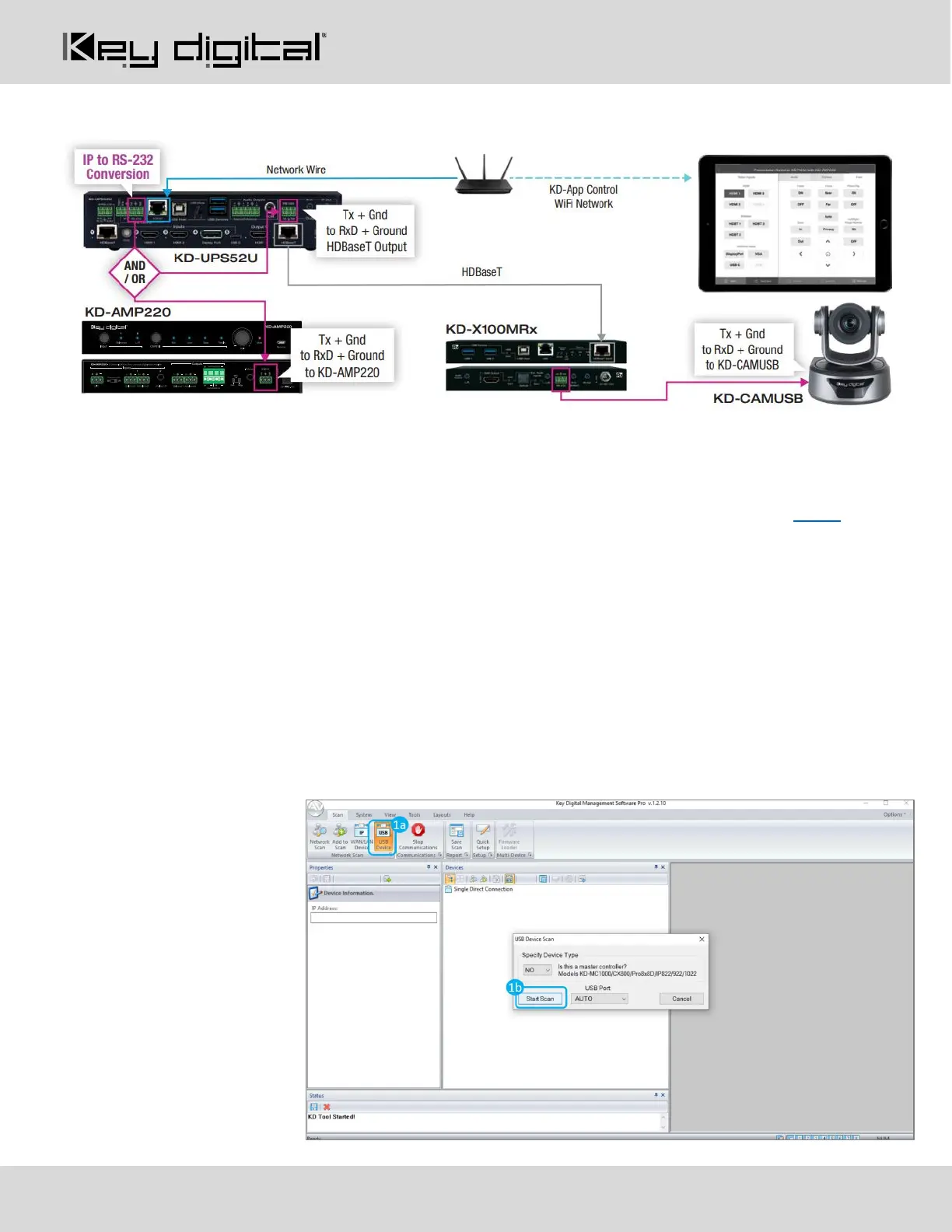
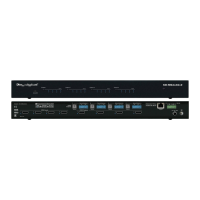
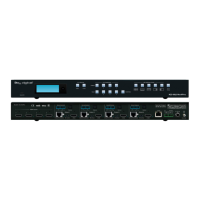
Integrated Systems Wiring: KD-UPS52U with KD-Amp220 and KD-CamUSB
Configure
Configure KD-UPS52U with Key Digital Management Software Pro (KDMS Pro). Download HERE
1. Connect to KD-UPS52U from your PC using the USB micro port on the face of the unit
2. Open the KDMS Pro software and perform a USB scan (fig. 1a). Choose “NO” and Start Scan when the
USB Device Scan prompt appears (fig. 1b
3. Choose the detected device from the Devices window (fig. 2a)
4. Set the desired Device Name in the KD-UPS52U Information window (fig. 2b)
5. In the Network Settings section of the Properties window, enter the desired IP settings (fig. 2c)
a. IP Address (default is 192.168.1.239)
b. Subnet Mask (default is 255.255.255.0)
c. Gateway (default is 192.168.1.1)
d. Port (default is 23)
e. Note: If using
KD-App,
please do not
change the
port number.
6. Save (fig. 2d)



 To Next Page