8 9
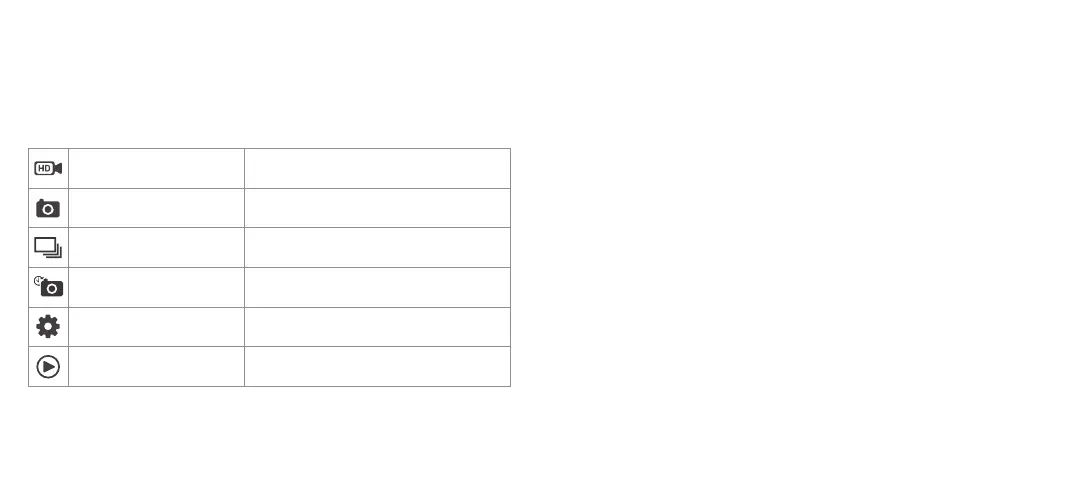
Video Mode For recording video clips
Photo Mode For taking still photos
Burst Mode Takes a series of 3 / 5 / 10 photos
Timer / Time Lapse Mode Takes a photo at set intervals until deactivated
Settings Mode Forviewingcapturedles
Playback Mode Forviewingcapturedles
Changing the mode of the camera
Thecamerahas6dierentmodes:VideoMode,PhotoMode,BurstMode,
Time Lapse Mode, Settings Mode, and Playback Mode.
1. Press the Power/Mode Button (3) repeatedly to select between these modes.
[continued...]
Using Video Mode
By selecting Video mode you can capture high quality, full HD videos with
your Explore 1080 Action Camera. In the Settings mode you can change the
Resolution, Exposure and add Date Stamps to your video recordings.
1. Turn on the camera and it will start in Video mode automatically. If in another
mode, press the Power/Mode button (3) until the camera enters Video mode.
2. Use the LCD Display (9) to view your shot, then press the Shutter/Ok Button
(1) to start recording.
3. WhenrecordingtheTopOperationIndicator(2)willash,theLCD(9)will
show a red video icon in the top left corner and a timer will display how long
it has been recording for. There is a timer counting down which is displaying
the remaining recording time left on the SD card.
4. Press the Shutter/Ok Button (1) again to stop recording.
Note: If the camera has entered the screen saver mode you will need to press
any button to resume normal state before you can start/stop the recording.
Note: The camera will stop recording and save automatically when the memory
capacity is full or it has run out of battery power.



 To Next Page