35
AURA 80, CLASS 90, AURA 120, REA 100 PELLET-BURNING STOVE
10. At this point the device you have purchased is connected to the Internet.
Now open the browser on the device you are using (computer / tablet / smartphone), and write the following address
in the address bar: https://appwifi.klover.it/it/login/.
This opens the page dedicated to the “My Klover” Web App, click on “Register” in the main menu.
Once you have registered, you will receive a confirmation email.
You can also register using the “My Klover” App, which you can download onto your tablet or computer from the
various App stores: Apple, Android, etc..
11. Go back to the main page of the “My Klover” Web App and access your account by entering the details (email address
and password) you entered during registration. You can now enter a new device by clicking on “Add stove” in the main
menu.
During this procedure you will need the:
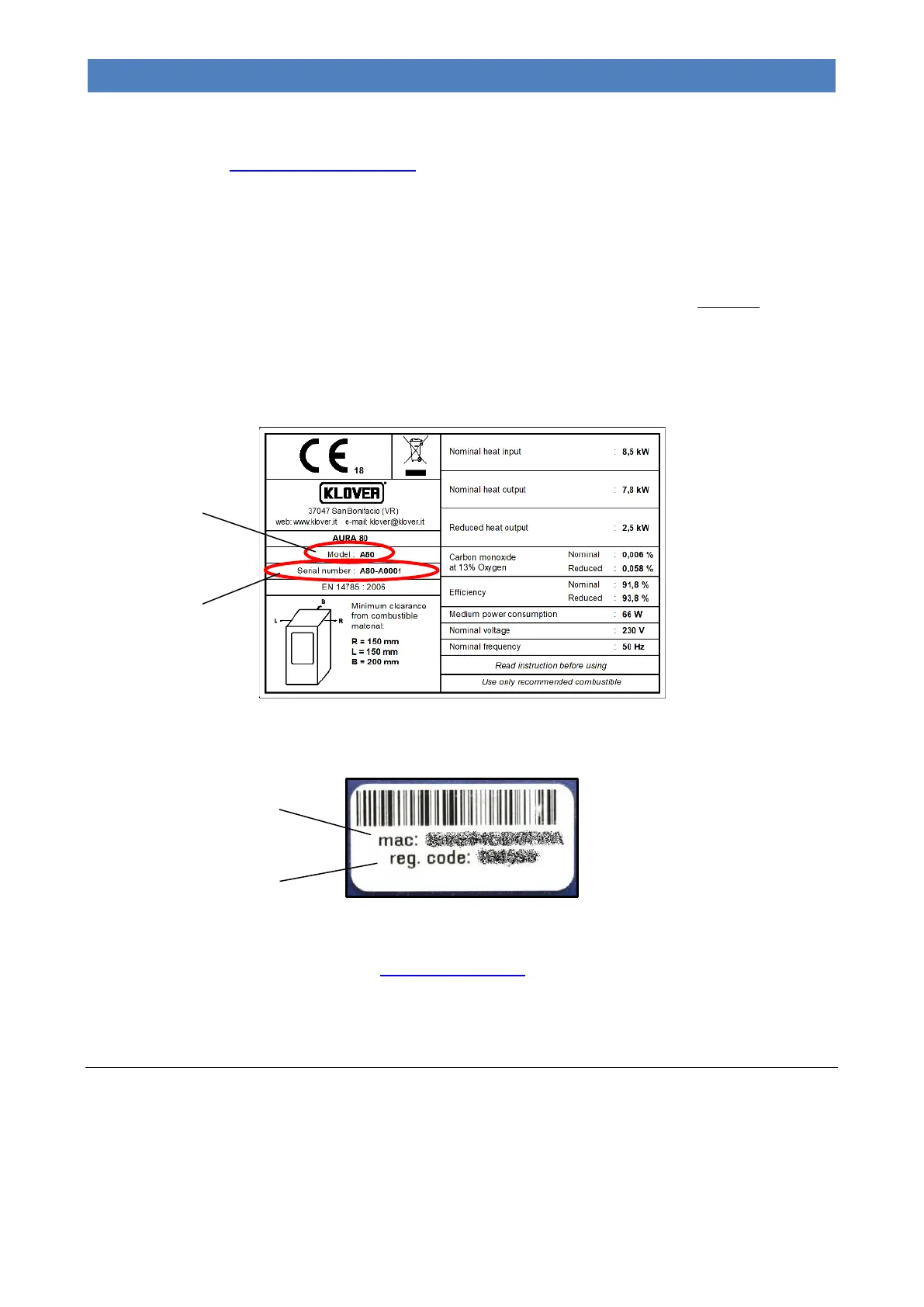
- ITEM CODE (Model) and SERIAL NUMBER for your appliance, shown on the CE label attached to the appliance.
- MAC ADDRESS and REGISTRATION CODE shown on the label attached near the “Support panel” on the
appliance (see“Components of the appliance”).
12. At this point the appliance has been added and it is now possible to control it via the Web App from any device
(computer / tablet / smartphone) connected to the Internet.
Access can be made from the address http://appwifi.klover.it/it/ or via the “My KLOVER” App which can be
downloaded from the various App stores: Apple, Android, etc.
INITIAL START-UP
First start-up
Perform the following operations:
- Connect the appliance to the electrical system by using the provided cable;
- Set the “power ON/OFF switch” on the rear side of the appliance to “׀” (on);


 To Next Page