The Knobula Chord Pilot is a MIDI chord explorer and arpeggiator designed for music creators of all skill levels. It offers a novel way to discover, generate, and reproduce chords, moving beyond traditional music theory to encourage experimentation and "happy accidents." The device is built around the concept of manipulating an imaginary pair of hands on a virtual keyboard to create unique chord stacks and arpeggios that might be difficult to achieve with conventional methods or human hands.
Function Description:
The Chord Pilot is a MIDI controller that generates chords and arpeggios. It does not rely on traditional music theory concepts like key signatures, major/Dorian/7th diminished chords, or inversions. Instead, it focuses on an experimental approach, allowing users to discover unique sonic combinations. These generated chords can be stored as presets, played as single chords, chord progressions, arpeggiated MIDI sequences, or rhythmic stabs. The device can also dump chords into polyphonic synth modules for later use.
Important Technical Specifications:
- Power: Connects to a standard Eurorack +/- 12V power supply using the provided ribbon cable.
- MIDI: Features MIDI In/Thru and MIDI Out. By default, chords are output on MIDI channel one. A stereo TRS to TRS cable is provided for connecting to Knobula synth modules (e.g., Poly Cinematic) or other TRS-A standard synths. MIDI CC messages can be received for remote control of parameters. The MIDI In also serves as an input for loading memory backups.
- CV/Gate Connections:
- Gate Input: Accepts a gate signal to trigger the Chord Pilot, automating chord playback.
- Buttons Input: Accepts a control voltage to select different chord presets, modal settings, or circle settings.
- Bias Input: Accepts a control voltage for creating variations of chords.
- Preset Storage: Can store a total of 192 unique chords in memory presets. These are organized into 3 sets of 64 chords, with each set containing 8 banks of 8 chords.
Usage Features:
Knobs:
All knob settings (except Strum) are saved as part of a preset.
- Interval: Sets the distance between each "finger" in the chord. Lower values (1, 2, or 3) tend to produce more manageable results.
- Bias: Adjusts the evenness of note distribution within the chord. Turning right spreads fingers towards the top, turning left spreads them towards the lower end. Centered, notes are evenly spaced.
- Note Count: Determines the number of notes in a chord (up to 8). 3 or 4 notes are recommended for beginners; higher counts can create more "epic" but potentially discordant sounds.
- Bass Note: "Steals" a note from the chord and places it an octave below. The knob selects which note is moved. Fully left, it has no effect.
- Modal: Shifts the entire chord shape up or down the virtual keyboard. This differs from simple transposition as pitch relationships are modified by a "scale," and notes can wrap around octaves to keep them bunched. Modal settings are also accessible live via the preset buttons.
- Circle: Transposes the chord up or down by a fifth or a customizable amount. Circle variations are accessible live via the preset buttons.
- Conform: Adapts the created chord shape to a "scale" of notes. Turning right creates more pleasant-sounding major scales, left creates darker/minor sounds, and towards the center makes notes progressively straighter and more harmonious. Conforming notes to a restricted scale may result in duplicated notes (disregarded by the algorithm) or notes being pushed an octave up/down as the algorithm automatically inverts the chord.
- Strum: Controls the speed of the strumming function, which can emulate a harp or guitar. Its function varies based on the Gate Switch setting:
- Chord: Strum Speed (Off - 4Hz).
- Orbit: Sequence Length (1-8 chords in progression).
- Arpeggio (Internal Clock): Arpeggio Tempo.
- Arpeggio (External Gate In): Selects Arpeggio Type (up & down, up only, down only, random1, random2, random3, random4).
Toggle Switches:
- Gate Switch: Determines how the Gate input and Audition/Preset buttons behave.
- Chord: Buttons play chords as long as pressed. Gate signal plays the last chord.
- Orbit: Plays each chord button in a sequence (clockwise from the pressed button) according to internal clock speed (Arpeggio mode) or on each gate signal. Strum knob adjusts sequence length (1-8). Gate input triggers chords only when a signal is detected; pressing a button resets the sequence.
- Arpeggio: Preset buttons play chords as arpeggios, with speed set by the Strum knob. Gate input steps through each note of the arpeggio. Strum knob selects arpeggio styles when an external gate is connected.
- Buttons Switch: Determines the function of the preset buttons and the Buttons Input CV control.
- Modal: Preset buttons represent different modal positions (as on the Modal knob). CV at Buttons input selects modal positions.
- Circle: Preset buttons represent different transpositions (as on the Circle knob). CV at Buttons input selects Circle values.
- Preset: Illuminated buttons play stored presets. CV at Buttons input selects different presets when a Gate signal is detected. CV at Buttons input selects different chord banks.
- Bank Set Switch (A|B|C): Selects between 3 sets of 64 chords (total 192 presets).
- Preset Buttons 1-8: 8 illuminated buttons orbiting the Audition button. Used for instant recall of stored presets or modal/circle variations. Can also be selected via CV through the Buttons input.
- Audition (Save): Central button.
- Audition: Press to preview a chord based on current knob/switch settings. Holding it down updates the chord as parameters are changed.
- Save: Hold down Audition and press a Preset Button to save the current chord to that destination.
- Bank Button:
- Change Active Bank: Hold down Bank and press a Preset Button (1-8) to select one of the 8 banks within the current Bank Set.
- MIDI Bank Dump: To transfer the current bank of 8 chords to a Knobula synthesizer (e.g., Poly Cinematic), press and hold the Bank button while also pressing Audition (Save) until all Preset Buttons flash. All 8 chords in the selected bank will be transferred via a single MIDI system exclusive message.
Edit Mode:
- Enter Edit Mode: Hold down a Preset Button and press the Circle encoder button.
- Editing Parameters of a Saved Chord Preset:
- Enter edit mode for the desired preset. Preset buttons will flash, with active notes illuminated.
- Press active buttons to hear individual notes; press Audition to hear all notes.
- Turn any knob slightly to reactivate its control and change the chord structure.
- Save by holding Audition (Save) and pressing a preset button destination.
- Editing Individual Notes:
- In edit mode, Preset Buttons represent individual notes in the chord.
- Hold down a relevant Button and turn the Circle encoder to select a different note's pitch.
- Edited notes are "frozen" and unaffected by other parameter changes.
- To unfreeze an edited note, hold its button and press the encoder again.
- Exit Edit Mode: Press the encoder again (without saving). To save, press Audition (Save) and select a destination.
Preferences:
- Enter Preferences Mode: Press and hold the Bank button and press the Circle encoder knob. Preset buttons will flash in sequence.
- Select/Change Preference: Press a Preset Button to enter that preference. Turn the Circle encoder to change the value. Press the encoder again to store the value and exit Preferences mode.
- Value Display: Values 1-8 are shown by illuminating buttons 1-8. Values 9-16 are shown by illuminating all buttons except one (e.g., 9 is button 1 darkened, 10 is button 2 darkened).
- Circle Transpose (Preset Button 1): Use the encoder to adjust the step value for Circle increments (default: 7, a musical fifth).
- MIDI Channel (Preset Button 2): Selects the MIDI channel for transmitting and receiving all MIDI data (default: 1).
- MIDI In Mode (Preset Button 3): Chooses MIDI functionality when using an external MIDI controller/keyboard.
- Chord Control Input (default): Keys C2-C4 play the last chord, transposed (C3 is original pitch). Other channels act as MIDI thru. White notes A1-B2 represent Audition and the 8 Preset Buttons.
- MIDI Thru Only: MIDI thru on all channels.
- Button Hold (Preset Button 4): Sets the operating style of Audition and Preset buttons.
- Off (default): Plays when pressed, stops when released.
- On: Plays continuously until another button is pressed. If a patch cable is connected to the Gate input with Button Hold On, buttons only "silently" select a preset, which is then triggered by a Gate signal.
- Knob Edit Activation (Preset Button 6): Sets how knobs activate when recalling presets.
- Movement: Knob becomes active and its value is read when movement is detected.
- Matching: Knob activates only when its position matches the stored preset value.
Maintenance Features:
- Backup and Restore (Preset Button 5):
- Back Up: Saves all 192 chords and current Preferences as MIDI system exclusive data. Press the Bank button to initiate.
- Restore: Loads all 192 chords and Preferences via MIDI In. Pressing button 5 prepares Chord Pilot to receive restored data via the MIDI In socket.

 Need help?
 General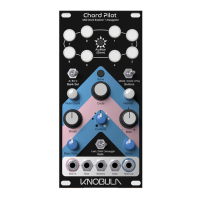

 To Next Page