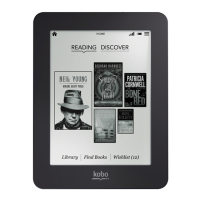
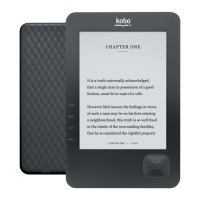
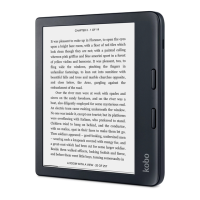
the top button pages backward, and the bottom button
pages forward.
Inverting the page turn buttons: You can also invert the
direction of the page turn buttons so that the top button
pages forward, and the bottom button pages backwards. To
do this, go to your Home screen and tap the Menu icon
at the top of the screen. Tap Settings, then tap Reading
Settings. Under 'Button Controls', tap Inverted.
Quick page turn: To rapidly skip pages, press and hold
either of the page turn buttons. This can be useful when you
want to skim through the book.
Locking the screen orientation on your eReader
Your eReader's screen can automatically rotate the page to
portrait or landscape mode.
When the screen is on auto-rotate mode, you'll see the
auto-rotate icon at the top of the screen. When the auto-
rotate feature is turned off, you'll see the or locked
rotation icon.
1. While reading, tap the middle of the screen. The
Reading Menu will appear.


 To Next Page