Doing more with your frame
www.kodak.com/go/support
23
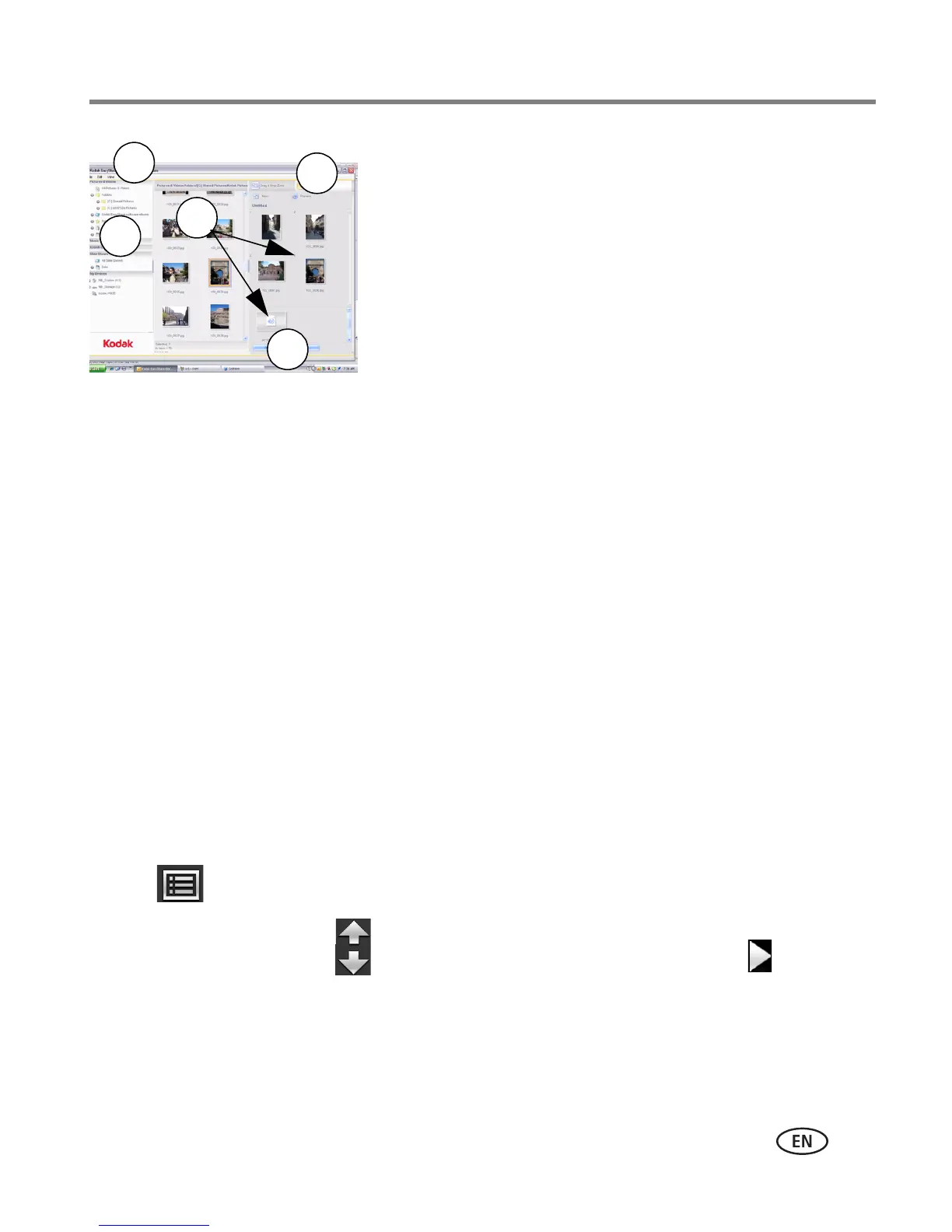
2 Click the Slide Show Editor tab.
3 In Picture & Videos, click the folder or location that
contains the picture files you want to add to the
slide show.
4 In the Viewer pane, select the pictures, then drag
and drop them to the Slide Show Editor.
Drag pictures in the Editor to change the order.
5 Click Save.
6 For more details on creating multimedia slide
shows, click Help.
Copying a multimedia slide show to your frame
On your computer, use Digital Display Software to copy your multimedia slide shows
to a memory card or USB flash; then, copy the slide shows to your frame. Here’s how:
1 In the navigation pane under Slide Shows, click a multimedia slide show.
2 Drag the slide show to a connected card or USB drive in the Drag & Drop Zone.
For more details on copying from Digital Display Software to a connected device,
click the Help button in the software.
3 Insert the card or USB drive into your frame. To copy the slide show to your frame,
follow the directions in Copying on your frame, page 20.
Playing a multimedia slide show on your frame
1 Tap (Menu), then tap Slide Shows.
2 Tap an up/down arrow to highlight a slide show icon, then tap (Play).
The slide show begins playing.
To play a multimedia slide show on your frame, see Viewing your pictures, page 11.












 To Next Page