EasyManua.ls Logo

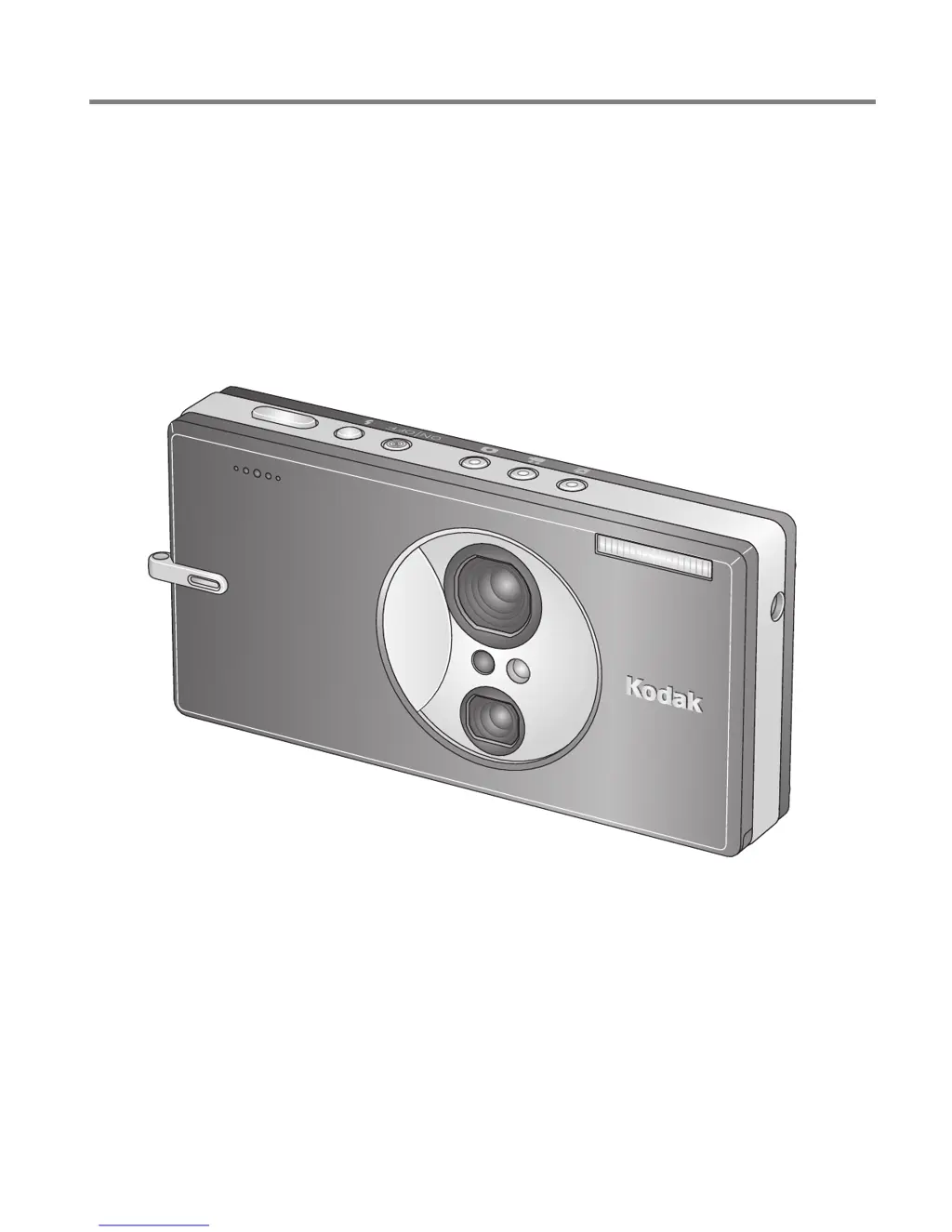
Kodak EasyShare V610 - User Manual

Kodak EasyShare V610
87 pages
Print Icon
To Next Page IconTo Next Page
Loading...
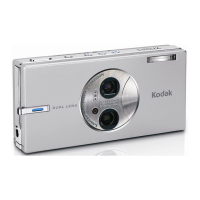
Kodak EasyShare V610
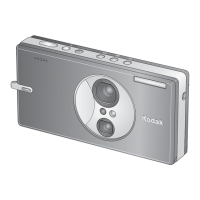
dual lens digital camera
User’s guide
www.kodak.com
For interactive tutorials, www.kodak.com/go/howto
For help with your camera, www.kodak.com/go/v610support

Table of Contents

Questions and Answers

  • C
    Cynthia SnyderJul 25, 2025
    What to do if Kodak EasyShare V610 won't connect to computer?
    • M
      Mark LeeJul 26, 2025
      If your computer is not communicating with the Kodak Digital Camera, insert a charged battery. Turn on the camera. Ensure the USB cable model U-8 is correctly connected to both the camera and the computer. If you're using an EasyShare dock, check all cable connections and ensure the camera is properly seated on the dock. Also, confirm that the EasyShare software is installed.
  • M
    Michael GardnerJul 29, 2025
    Why are my Kodak EasyShare V610 pictures too dark?
    • J
      Jamie Sullivan IIJul 29, 2025
      If your Kodak Digital Camera pictures are coming out too dark, try these solutions: Reposition the camera to get more light. Use Fill flash or change your position so the light isn't behind the subject. Ensure you're within the flash's effective range. Press the Shutter button halfway to set exposure and focus, and then fully depress it when the Ready light is green.
  • K
    Katelyn TateAug 3, 2025
    How to fix a blurry picture on Kodak EasyShare V610 Digital Camera?
    • C
      Christopher EdwardsAug 3, 2025
      If your Kodak Digital Camera is not taking clear pictures, try these steps: Press the Shutter button halfway to automatically set the exposure and focus, and then fully depress it when the Ready light is green. Clean the lens. Ensure the camera is not in Close-up mode if you're more than 27.6 inches (70 cm) from your subject. Use a flat, steady surface or a tripod, especially with high zoom or in low light.
  • J
    James ClarkeAug 8, 2025
    What to do if my Kodak Digital Camera won't take a picture?
    • A
      Ashley WhiteAug 8, 2025
      If you cannot take a picture with your Kodak Digital Camera, try the following: Turn the camera off and then on again, ensuring it's not in Favorites mode. Depress the Shutter button all the way down. Make sure you have a charged battery inserted. Wait for the Ready light to turn green before attempting another picture. If the memory is full, transfer pictures to your computer, delete some pictures, change the image storage location, or insert another memory card.
  • B
    Brittany KnightAug 11, 2025
    Why are my Kodak Digital Camera photos too light?
    • V
      valeriejonesAug 11, 2025
      If your Kodak Digital Camera pictures are too light, try the following: Reposition the camera to reduce the amount of light. Turn off the flash. Make sure the distance between you and the subject is within the effective flash range. Press the Shutter button halfway to automatically set exposure and focus, then fully depress the shutter button when the ready light is green. In Auto and Scene-Custom modes, adjust the Exposure Compensation.
  • B
    barbara32Aug 16, 2025
    What to do if error message appears on Kodak Digital Camera LCD?
    • L
      Leonard MccarthyAug 16, 2025
      If an error message appears on the LCD of your Kodak Digital Camera, try turning the camera off and then on again. If that doesn't work, remove the memory card and/or the battery, and wipe the battery contacts with a clean, dry cloth. Insert a new or charged battery.
  • M
    Morgan RodriguezAug 20, 2025
    Why Kodak Digital Camera slide show doesn't run on external device?
    • K
      Kevin NortonAug 20, 2025
      If the slide show on your Kodak Digital Camera does not run on an external video device, adjust the camera's Video Out setting (NTSC or PAL). Also, verify that the external device settings are correct.

Summary

Setting Up Your Camera

Loading the Battery

Step-by-step guide for inserting the KLIC-7001 battery into the camera.

Charging the Battery

Explains how to charge the camera battery using the AC adapter or dock.

Turning On the Camera

Instructions on how to power on the Kodak EasyShare V610 digital camera.

Storing Pictures on SD;MMC Card

Instructions on using and formatting SD/MMC cards for picture storage.

Taking Pictures and Videos

Taking a Picture

Step-by-step process for capturing still images using the camera.

Taking a Video

Instructions for recording video clips with the camera.

Using the Flash

Explanation of different flash modes (Auto, Fill, Red Eye, Off).

Using Different Camera Modes

Overview of various shooting modes like Auto, Video, Favorites, Scene, Landscape, Macro.

Using Scene Modes

Details on using specific scene modes like Portrait, Sport, Landscape, etc.

Working with Pictures and Videos

Reviewing Pictures and Videos

How to access and browse stored photos and videos.

Deleting Pictures and Videos

Steps to remove unwanted photos and videos from the camera.

Doing More With Your Camera

Using the Menu to Change Settings

Guide to accessing and modifying camera settings via the menu system.

Image Storage Settings

Selecting where pictures and videos are saved (internal memory or card).

Setup Menu Access

Accessing the main menu for camera customization.

Customizing Your Camera

Detailed guide to personalizing camera settings through the Setup menu.

Bluetooth Settings

Configuring Bluetooth settings like passcode, security, and name.

Format Memory Card;Internal Memory

Instructions for formatting memory cards or internal memory.

Adjusting Picture Brightness

How to manually adjust picture brightness before taking a photo.

Transferring and Printing Pictures

Installing the Kodak EasyShare Software

Instructions for installing the Kodak EasyShare software on a computer.

Transferring Pictures and Videos

Methods for transferring photos and videos using USB cable or dock.

Printing Pictures

Information on printing photos via EasyShare printer dock or direct PictBridge printing.

Connecting to a PictBridge Enabled Printer

Steps to connect the camera directly to a PictBridge printer.

Using Bluetooth Wireless Technology Features

Setting Up Bluetooth Feature

Configuring Bluetooth settings like passcode, security, and name.

Sending Pictures to a Device

Instructions for wirelessly sending photos from the camera to another device.

Receiving Pictures from a Device

How to receive photos wirelessly from another Bluetooth device.

Sending Pictures to a Printer

Wirelessly printing photos from the camera to a Bluetooth printer.

Sending Pictures to a Computer

Wirelessly transferring photos from the camera to a computer.

Troubleshooting Camera Issues

Common Camera Problems

Lists common camera issues and their possible solutions.

Battery Life Problems

Solutions for short battery life.

Cannot Take a Picture

Troubleshooting steps when unable to capture photos.

LCD Error Messages

How to handle error messages displayed on the camera screen.

Memory Card Issues

Solutions for issues with memory card recognition or camera freezing.

Computer;Connectivity Problems

Troubleshooting issues related to computer connection and data transfer.

Bluetooth Connection Problems

Diagnosing and resolving Bluetooth connectivity issues.

Picture Quality Problems

Solutions for issues like unclear, too dark, or too light pictures.

Direct Printing (PictBridge) Problems

Troubleshooting common issues with PictBridge direct printing.

Getting Help and Support

Camera Support Resources

Resources for camera support, including contact info and FAQs.

Appendix: Camera Specifications

Important Safety Instructions

Critical safety precautions for using and handling the product.

Battery Replacement and Life

Information on replacing the battery and expected battery life.

Extending Battery Life

Tips and methods to maximize battery performance and longevity.

Product Warranty Information

Details of the product's limited warranty and coverage.

Kodak EasyShare V610 Specifications

General IconGeneral
Optical Sensor Resolution6.1 MP
Optical Zoom10x
Digital Zoom5x
Sensor TypeCCD
LCD Screen Resolution230, 000 pixels
Camera TypeCompact
Screen Size2.8 inches
Image Sensor Size1/2.5 inches
Shutter Speed8 - 1/1400 sec
Storage MediaSD Card
Video RecordingYes, 640 x 480
Battery TypeLithium-ion rechargeable

Related product manuals