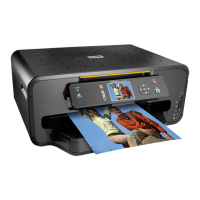
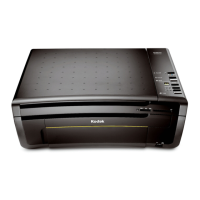
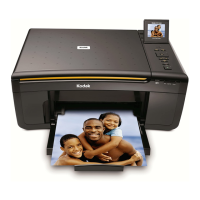
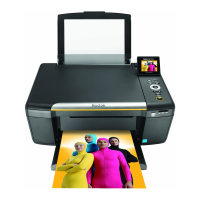
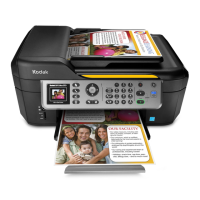
Printer Overview
16 Kodak ESP 9 Printer User Guide
Using the All-in-One printer menus
Use the menus on the LCD display to select stand-alone tasks (that is, tasks that can be
performed without your computer), such as copying documents or photos;, printing photos
stored on memory cards, USB drives, Kodak Bluetooth adapter (“dongle”), or digital
cameras plugged into the printer; or sending a fax.
Using the appropriate menu, you can also initiate tasks that will be completed on a
computer connected to the printer, such as transferring photos from a compatible device
connected to the printer (such as a memory card, digital camera, or USB drive to the
computer.
Your printer updates the content of the menu dynamically, according to the tasks you
perform.
Menu layout
A description of how the menus are displayed in the printer control panel is shown in the
illustration and the legend below.
Number Description
1
The Menu Title displays at the top of the menu. It names the category of available
options; for example, Copy Document Options, Print Photo Options, etc.
2
The text displayed in the Quick instruction section, when displayed below the Menu
Title, describes how to activate the selected menu option. For example, “Press OK to
continue”; etc.
3
Any option in a row with a white background has not been selected., To use the
option in a white row, you must navigate to it by pressing either the
or the
button on the control panel. See “Using the 4-way navigation buttons” on page 12.



 To Next Page
 Loading...