EasyManua.ls Logo

Kodak ESP Office 6150 - All-in-one Printer - User Manual

Kodak ESP Office 6150 - All-in-one Printer
94 pages
Print Icon
To Next Page IconTo Next Page
Loading...
KODAK ESP Office 6100 Series
All-in-One Printer
Extended User Guide

Table of Contents

Questions and Answers

  • R
    Richard ConradJul 26, 2025
    What to do if my Kodak ESP Office 6150 - All-in-one Printer has problems with ink cartridge?
    • M
      Monique WallaceJul 26, 2025
      If you are experiencing issues with the ink cartridge in your Kodak All in One Printer, check that KODAK Ink Cartridge(s) are installed. Do not use non-Kodak brand or refilled ink cartridges. Try removing and reinstalling the cartridges, ensuring they click into place.
  • C
    Catherine CalhounJul 30, 2025
    How to improve print quality on Kodak ESP Office 6150 - All-in-one Printer All in One Printer?
    • K
      kathypayneJul 30, 2025
      To improve the print quality of your Kodak All in One Printer, use KODAK Paper or paper with the COLORLOK Technology logo. Also, make sure the paper is loaded correctly.
  • K
    Kelsey HowardAug 3, 2025
    What to do if my Kodak ESP Office 6150 - All-in-one Printer All in One Printer is not detected?
    • M
      Margaret HernandezAug 3, 2025
      If your Kodak All in One Printer is not detected, ensure it's plugged in and turned on. If using a USB cable, verify you have a USB 2.0 cable connected to both the printer and computer. For wireless connections, confirm the printer is connected to your network (check the Wi-Fi LED and SSID), your router is transmitting data, and your firewall (excluding Windows Firewall) allows the necessary printer services.
  • B
    Billy GonzalezAug 7, 2025
    What to do if my Kodak ESP Office 6150 - All-in-one Printer All in One Printer has a paper jam?
    • F
      friceAug 7, 2025
      If your Kodak All in One Printer has a paper jam: * Check for paper behind the duplexer in the rear-access cleanout area. * Remove the duplexer and gently remove any paper from inside the printer. * Make sure the paper in the tray is free of tears or creases. * Ensure you do not overload the paper tray.
  • J
    James RichardsAug 12, 2025
    Why my Kodak ESP Office 6150 - All-in-one Printer does not power on?
    • N
      Nathan GonzalezAug 12, 2025
      If your Kodak All in One Printer doesn't power on: * Make sure you're using the power cord that came with the printer. * Ensure the power cord is connected to the AC adapter and plugged into an outlet or power strip. * If the USB 2.0 cable was disconnected and reconnected, or if the printer's power was interrupted, restart your computer.
  • J
    Joyce SotoAug 16, 2025
    How to fix Kodak ESP Office 6150 - All-in-one Printer when it cannot send or receive a fax?
    • M
      Melissa JohnsonAug 16, 2025
      If your Kodak All in One Printer cannot send or receive a fax: * Make sure the wall phone line is plugged into the Line in port. * Verify the wall jack works by plugging in a phone and checking for a dial tone. * Verify that the Region is set to the correct country: * Press Home. * Select Printer Settings, then press OK. * Select Country/Region, then press OK. * Select your country, then press OK. * If connected to a DSL phone line, ensure a DSL filter is connected to the phone jack.
  • J
    johnsonparkerAug 21, 2025
    What to do if my Kodak ESP Office 6150 - All-in-one Printer All in One Printer has a printhead carriage jam?
    • T
      travis85Aug 21, 2025
      If your Kodak All in One Printer has a printhead carriage jam, open the printer access door and clear any obstructions. Also, check that the printhead and ink cartridges are installed correctly.

Summary

Printer Overview

Components

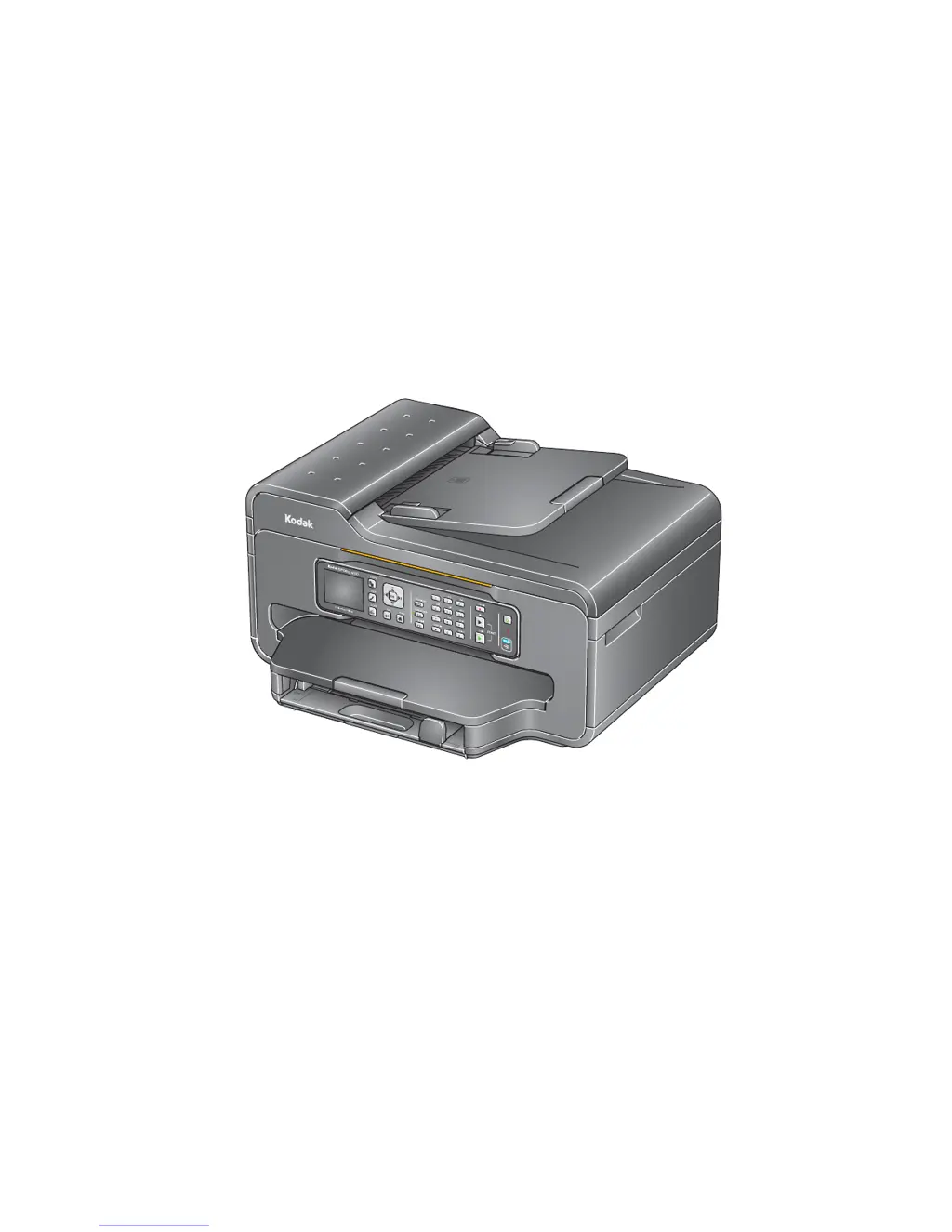
Identifies and labels all physical parts of the Kodak ESP Office 6100 printer.

Control Panel

Details the function of each button and display element on the printer's control panel.

Home Center Software

Explains the features and uses of the Kodak Home Center Software for managing the printer.

Configuring Printer Settings

Guides users on how to set or change basic printer settings like date, time, language, and sounds.

Networking Your Printer

Connecting to a Wireless Network

Instructions for connecting the printer to an 802.11 wireless (Wi-Fi) network.

Connecting to an Ethernet Network

Steps to establish a wired network connection using an Ethernet cable.

Adding Network Connection to USB Computer

How to change a USB-connected printer to a network connection.

Handling Paper

Paper Types

Lists the supported types of paper for printing with the Kodak printer.

Paper Sizes

Specifies the various paper sizes the printer can accept for printing.

Loading Paper

General instructions for loading paper into the printer's paper tray.

Loading Originals

Guidance on placing documents for copying, scanning, or faxing on the scanner glass or ADF.

Printing

Printing Documents

Steps for printing standard documents from a computer.

Printing Two-Sided Documents

Instructions for printing on both sides of the paper, automatically or manually.

Printing Pictures

Guidance on printing photographs using various software and devices.

Copying

Copying a Document

Procedures for copying documents, including default and adjusted settings.

Copying a Photograph

Steps for copying photographs, covering default and adjusted settings.

Scanning

Scanning from the Computer

How to initiate scanning operations from a connected computer.

Scanning from the Control Panel

Instructions for scanning documents or pictures directly from the printer's control panel.

Faxing

Connecting the Printer for Faxing

Steps to connect the printer to a phone line and set up faxing.

Setting Fax Options

Configuration of various fax settings like sender information and rings to answer.

Working with the Phonebook

Managing fax numbers, including adding, editing, and deleting entries.

Sending a Fax

Methods for sending faxes using the phonebook, quick dial, or keypad.

Receiving a Fax

Procedures for receiving faxes automatically or manually.

Maintaining Your Printer

General Care and Cleaning

Guidelines for routine cleaning and maintenance of the printer.

Replacing Ink Cartridges

Step-by-step instructions for replacing the black and color ink cartridges.

Replacing the Printhead

Procedure for replacing the printer's printhead if necessary.

Updating Software and Firmware

Instructions for updating the printer's software and firmware for optimal performance.

Troubleshooting

Basic Troubleshooting

Common problems and solutions, including power cycling the printer.

Status Lights

Explanation of the printer's power and Wi-Fi status lights.

Product and Safety Specifications

Features and Specifications

Overview of the printer's technical features and performance capabilities.

System Requirements

Details the computer hardware and software needed to operate the printer.

Safety Information

Important safety warnings and precautions for using the printer.

Warranty Information

Details the limited warranty coverage and terms for Kodak products.

Declaration of Conformity

Statements regarding the printer's compliance with various industry standards and regulations.

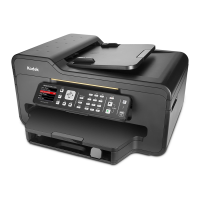
Kodak ESP Office 6150 - All-in-one Printer Specifications

General IconGeneral
Print TechnologyInkjet
FunctionsPrint, Copy, Scan, Fax
Print Speed BlackUp to 32 ppm
Print ResolutionUp to 4800 x 1200 dpi
Fax Speed33.6 Kbps
Paper Handling Input250 sheets
ConnectivityUSB, Wi-Fi, Ethernet
Display2.4-inch Color LCD
Supported Operating SystemsWindows, Mac
Scan ResolutionUp to 1200 dpi
Copy ResolutionUp to 600 x 600 dpi
Maximum Paper Size8.5 x 14 inches
Automatic Document FeederYes
Paper HandlingOutput tray

Related product manuals