EasyManua.ls Logo

Kodak ESP C315 - User Manual

Kodak ESP C315
95 pages
Print Icon
To Next Page IconTo Next Page
Loading...
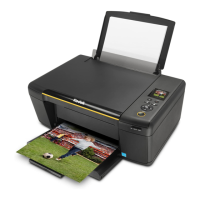
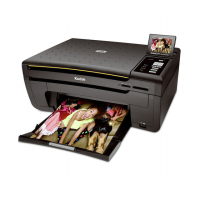
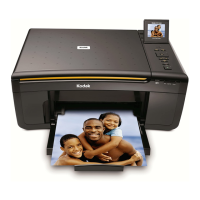
KODAK ESP C315
All-in-One Printer
Extended User Guide

Table of Contents

Other manuals for Kodak ESP C315

Questions and Answers

  • J
    jason98Aug 14, 2025
    Why is my Kodak All in One Printer not detected?
    • C
      Christopher GrayAug 14, 2025
      If your Kodak All in One Printer is not being detected, here are a few things to check: * Ensure the printer is plugged in and turned on. * If using a USB cable: * Verify it's a USB 2.0 high-speed cable. * Confirm it's properly connected to both the printer and your computer. * Restart your computer if the USB cable was reconnected or if the printer lost power. * If using a wireless connection: * Check that the Wi-Fi connectivity LED on the printer is steadily glowing. * Ensure the printer is connected to your wireless network. * Verify your router is transmitting data. * Make sure your firewall (excluding WINDOWS Firewall) is allowing the necessary services for your printer.
  • J
    Jorge SmithAug 18, 2025
    How to improve print quality on Kodak ESP C315?
    • M
      Melissa PowellAug 18, 2025
      If you are experiencing poor print quality with your Kodak All in One Printer, consider the following: * For optimal results, use paper with the COLORLOK Technology logo. * Ensure the paper is loaded correctly. * Clean the printhead by pressing Home, selecting Maintenance, then Clean Printhead. * Calibrate the printer by pressing Home, selecting Maintenance, then Calibrate Printer.
  • J
    Jennifer HernandezAug 21, 2025
    Why Kodak ESP C315 All in One Printer does not recognize ink cartridge?
    • R
      Ricky TannerAug 21, 2025
      If you're having issues with the ink cartridge in your Kodak All in One Printer: * Verify that Kodak Ink Cartridge(s) are installed. * Avoid using non-Kodak brand or refilled ink cartridges. * Try removing and reinstalling the cartridges. * Ensure the cartridges click into place.
  • J
    Jason BruceAug 25, 2025
    What to do if Kodak ESP C315 says ink cartridge error?
    • L
      Lauren WangAug 25, 2025
      If your Kodak All in One Printer shows an ink cartridge error, check that KODAK Ink Cartridge(s) are installed. Do not use non-Kodak brand or refilled ink cartridges. Remove, then reinstall the cartridges again, making sure they click into place.
  • M
    Michael EdwardsAug 28, 2025
    What to do if my Kodak All in One Printer has a paper jam?
    • A
      Adam PearsonAug 28, 2025
      To resolve a paper jam in your Kodak All in One Printer: * Open the access door. * Gently remove the paper from the front, reaching through the opening above the paper output tray. * If you cannot access the paper from the front, gently pull the jammed paper up from the paper input tray. * Ensure the paper in the input tray is free of tears or creases. * Avoid overloading the paper input tray.
  • S
    smithedwardAug 31, 2025
    What to do if Kodak ESP C315 does not power on?
    • B
      Beverly RasmussenAug 31, 2025
      If your Kodak All in One Printer does not power on: * Ensure you are using the power cord that came with your printer. * Make sure the power cord is connected to the AC adapter, the power cord is plugged into an outlet or power strip, and the LED on the AC adapter is lit.
  • A
    Anna MosesSep 3, 2025
    How to fix carriage jam on Kodak All in One Printer?
    • M
      Matthew SpenceSep 3, 2025
      If you have a carriage jam in your Kodak All in One Printer: * Open the printer access door and clear any obstructions. * Check that the printhead and ink cartridges are installed correctly.
  • M
    matthew37Sep 7, 2025
    What to do if my Kodak ESP C315 All in One Printer won't power on?
    • C
      Charles ClarkSep 7, 2025
      If your Kodak All in One Printer isn't powering on, ensure you're using the power cord that came with the printer. Also, make sure the power cord is connected to the AC adapter, plugged into an outlet or power strip, and that the LED on the AC adapter is lit.
  • P
    Patricia LozanoSep 9, 2025
    How to fix carriage jam in Kodak ESP C315?
    • W
      wongscottSep 10, 2025
      To fix a carriage jam in your Kodak All in One Printer, open the printer access door and clear any obstructions. Also, check that the printhead and ink cartridges are installed correctly, ensuring they click into place.

Summary

Printer Overview

Printer Components

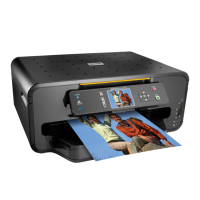
Identifies and lists the physical parts of the KODAK ESP C315 All-in-One printer.

Control Panel Features

Details the functions of the LCD screen and buttons on the printer's control panel.

Networking Your Printer

Connecting to a Wireless Network

Provides instructions for connecting the printer to a wireless (Wi-Fi) network.

Online Printer Management Tool

Setting Up Cloud Printing

Instructions for registering the printer with Google Cloud Print.

KODAK Email Print Service

Details on registering the printer for KODAK Email Print Service.

Printing

Printing Documents

Guides on how to print documents from a computer.

Printing Pictures

Covers printing pictures from memory cards and computers.

Mobile Printing

Printing via Google Cloud Print

Instructions for printing from devices using Google Cloud Print.

Printing via KODAK Email Service

Details on sending print jobs to the printer via email.

Printing from Mobile Devices

Guides for printing pictures from iPhone, iPad, Blackberry, and Android devices.

Copying

Copying a Document

Instructions for copying documents using default or adjusted settings.

Copying a Photograph

Instructions for copying photographs using default or adjusted settings.

Scanning

Scanning from Computer

Instructions for scanning documents and pictures using computer software.

Maintaining Your Printer

Replacing Ink Cartridges

Detailed guide on how to replace the black and color ink cartridges.

Kodak ESP C315 Specifications

General IconGeneral
FunctionsPrint, Copy, Scan
Print Resolution (Black)1200 x 1200 dpi
Scanner TypeFlatbed
Max Scan Resolution1200 x 2400 dpi
Paper Input Capacity100 sheets
Paper Output Capacity50 sheets
Weight11.5 lbs
Print TechnologyInkjet
Copy Resolution600 dpi
ConnectivityUSB 2.0
Supported Paper SizesLetter, Legal, 4 x 6", 5 x 7", 8 x 10"
DisplayLCD
Ink Cartridges2 (1 black, 1 color)

Related product manuals