EasyManua.ls Logo

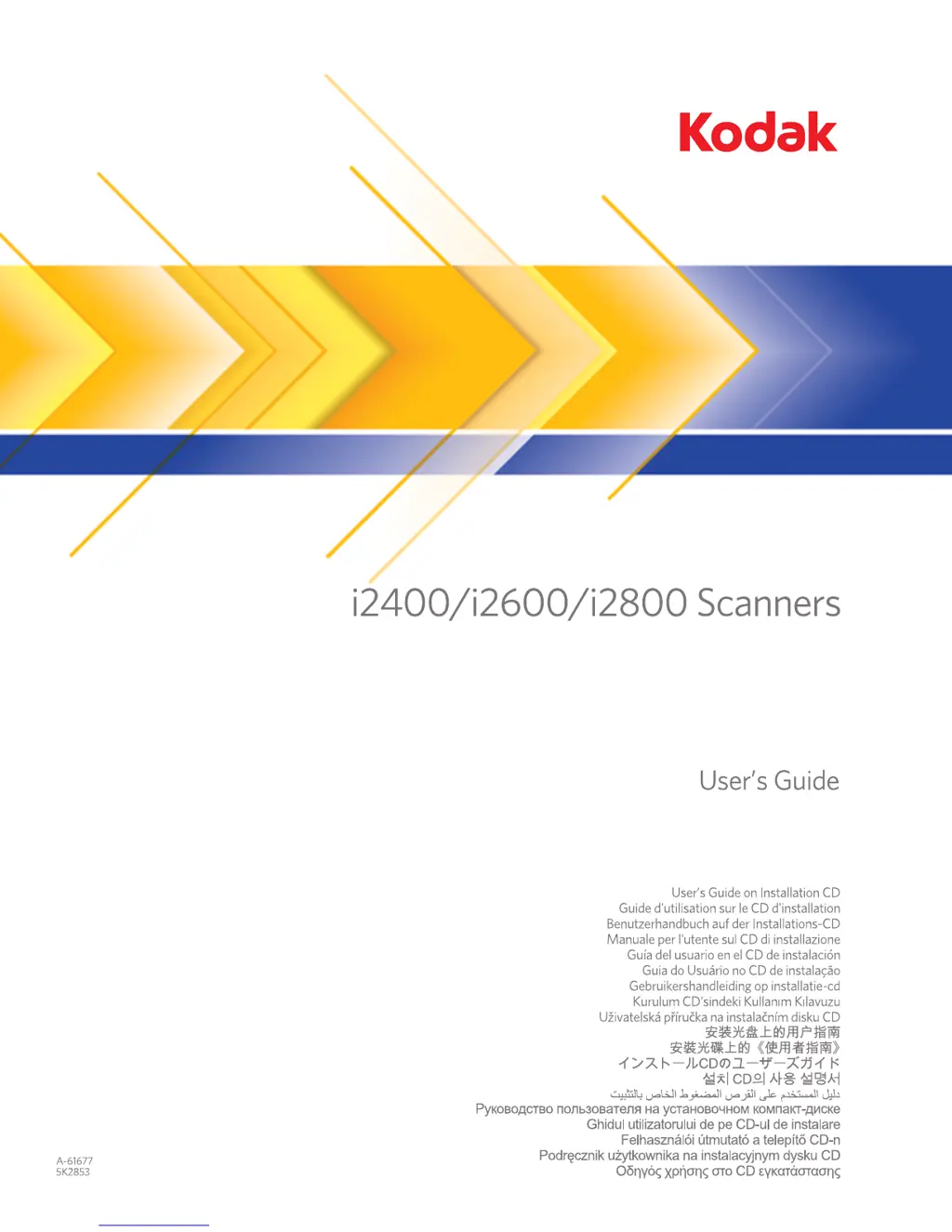
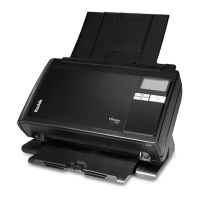
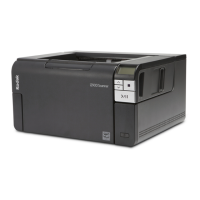
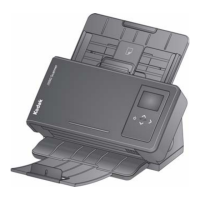
Kodak i2400 - User Manual

Kodak i2400
40 pages
Print Icon
To Next Page IconTo Next Page
Loading...

Other manuals for Kodak i2400

Questions and Answers

  • W
    William GallagherAug 13, 2025
    What to do if images are not being cropped correctly by Kodak scanner?
    • J
      johnsonmatthewAug 13, 2025
      If the cropping options are enabled, Automatically Detect and Straighten or Automatically Detect, and your images are not being cropped correctly by Kodak scanner, clean the imaging area.
  • T
    Thomas RoblesAug 16, 2025
    What to do if my Kodak scanner will not scan or feed documents?
    • R
      Robin DunnAug 17, 2025
      If your Kodak scanner isn't scanning or feeding documents, ensure that: the power cord is securely plugged into both the scanner and the wall outlet; the power supply's green LED is lit; the power switch is turned on; the wall outlet isn't defective; the PC was restarted after software installation; and the document(s) are making contact with the feed rollers.
  • R
    ryancampbellAug 20, 2025
    How to fix documents jamming or multiple documents feeding in Kodak i2400?
    • C
      Cindy FosterAug 20, 2025
      To resolve documents jamming or multiple documents feeding in your Kodak scanner, make sure that: the side guides are adjusted to the width of your documents; the output tray is adjusted to the length of the documents; all documents meet the size, weight, and type specifications; the scanner and tires are clean; the spring on the pre-separation module is properly adjusted; and the feed and pre-separation modules are correctly installed. To remove a jammed document: Open the scanner cover and carefully remove any jammed documents from inside the scanner. Then, close the cover and resume scanning.
  • L
    Laura CollinsAug 25, 2025
    Why is my Kodak i2400 Scanner running slow?
    • E
      Erica EdwardsAug 25, 2025
      Your Kodak scanner might be running slowly because your PC doesn't meet the minimum system requirements. Also, while the scanner is designed for USB 2.0, it can function in a USB 1.1 port, but updating to USB 2.0 can improve performance.
  • L
    Linda McdonaldAug 28, 2025
    How to fix black background bleed-through on images from Kodak i2400 Scanner?
    • T
      terrihardinAug 28, 2025
      When scanning translucent documents with your Kodak scanner, black bleed-through may appear. To minimize this, adjust the Contrast value or select Draft (Fixed) in TWAIN or Fixed Processing in ISIS to improve the image or use the Kodak White Background Accessory.
  • T
    Tara ArnoldAug 31, 2025
    How to remove roller marks on documents after scanning with Kodak i2400 Scanner?
    • W
      William CherryAug 31, 2025
      To remove roller marks appearing on documents after scanning with your Kodak scanner, clean the rollers.
  • B
    bryanhollandSep 4, 2025
    Why are there red, green, or blue streaks in color photos scanned with my Kodak i2400?
    • C
      Christopher McculloughSep 4, 2025
      If you see red, green, or blue streaks running through a color photo scanned with your Kodak scanner, it indicates that the scanner is dirty and needs to be cleaned.
  • C
    Christopher VanceSep 8, 2025
    How to scan using Microsoft Office Document Imaging 2007 with Kodak scanner?
    • D
      dennismikeSep 8, 2025
      To scan using Microsoft Office Document Imaging 2007 with your Kodak scanner, select the scanner named: KODAK Scanner: i2000 from the Scanner drop-down list.

Kodak i2400 Specifications

General IconGeneral
Scanner TypeSheetfed
Optical Resolution600 dpi
ADF Capacity50 sheets
ConnectivityUSB 2.0
Duplex ScanningYes
Color Depth24-bit
Grayscale Depth8-bit
Scan Speed30 ppm / 60 ipm
Output ResolutionUp to 1200 dpi
Supported Document SizesA4, A5, A6, B5, B6
Daily Duty Cycle3000 pages
Image SensorCIS
Supported Operating SystemsWindows
Dimensions330 mm x 246 mm x 162 mm

Related product manuals