EasyManua.ls Logo

Kodak S3000 Series - User Manual

Kodak S3000 Series
82 pages
Print Icon
To Next Page IconTo Next Page
Loading...
A-61981
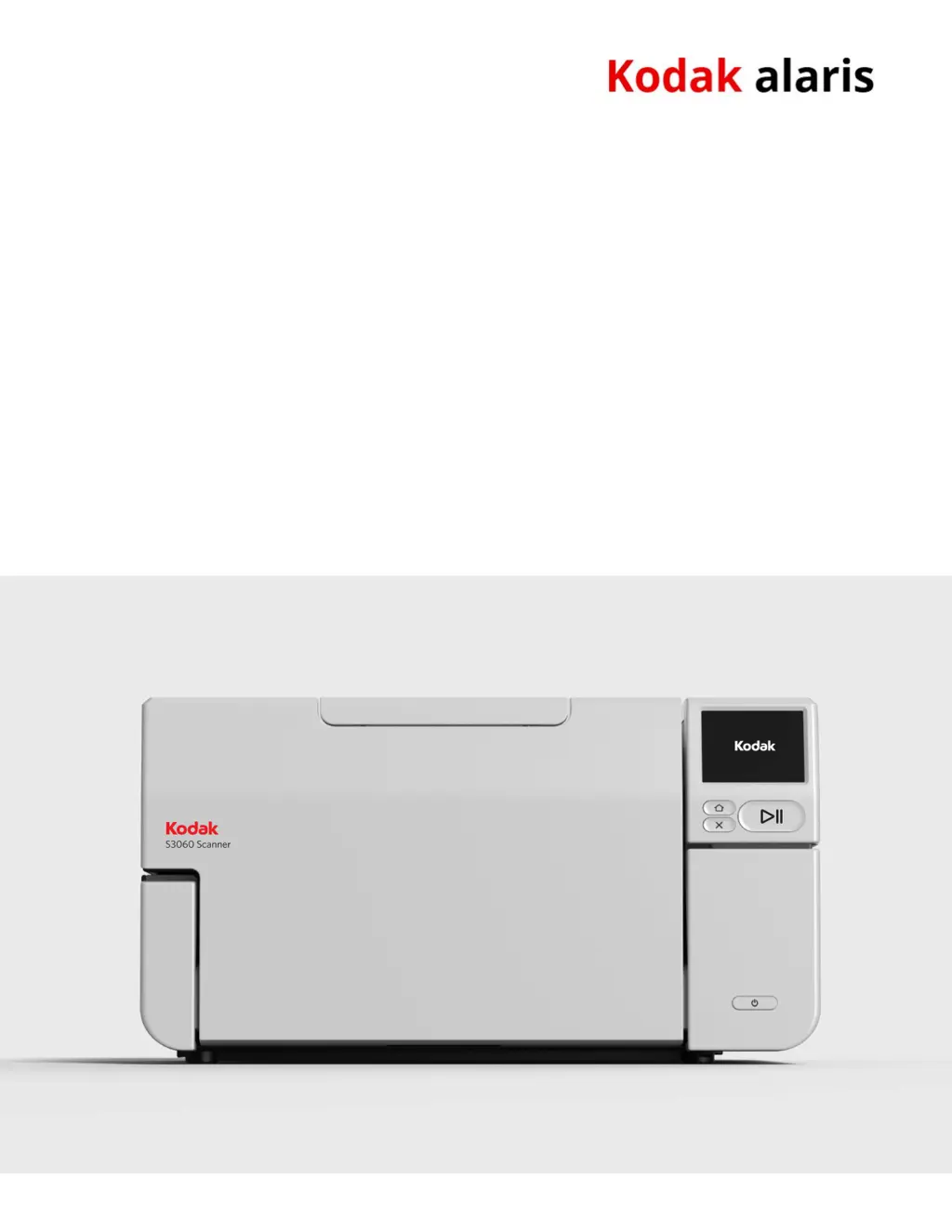
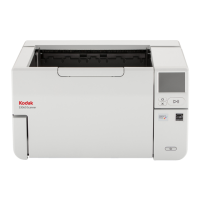
KODAK S2085f Scanner
KODAK S3060 Scanner
KODAK S3060f Scanner
User's Guide
KODAK S3100 Scanner
KODAK S3100f Scanner
KODAK S3120 Scanner
KODAK S3120
Max
Scanner
KODAK S3140 Max Scanner
Kodak S2000f/S3000 Series Scanners

Table of Contents

Questions and Answers

  • K
    Kevin OdonnellAug 19, 2025
    What to do if documents are jamming in my Kodak Scanner?
    • D
      David HornAug 20, 2025
      To address documents jamming or multiple documents feeding in your Kodak scanner, ensure all documents meet the size, weight, and type specifications detailed in Appendix A. Remove all staples and paper clips. Clean all rollers and tires, and ensure the separation roller and feed module are properly installed. To remove a document jam, remove any documents from the feeder area, open the scanner cover, locate and remove the jammed document(s), then close the scanner cover and resume scanning.
  • F
    fuentessusanAug 21, 2025
    Why is my Kodak Scanner not feeding documents?
    • G
      garciavictoriaAug 21, 2025
      If your Kodak scanner won't scan or feed documents, check the following: Ensure the power cord is plugged in and the power is on, with the green LED lit. Verify the scanner cover is completely closed and documents are making contact with the feed module and covering the paper present sensor. Confirm documents meet the required size, weight, and type specifications. For thicker documents, turn the gap release dial vertically. For curled, wrinkled, perforated, or slippery documents, engage the feeder adjustment tab. Check the feed module and separation roller for wear and replace if necessary. Power cycling the scanner may also help.
  • G
    garciakentAug 23, 2025
    How to fix a paper jam in Kodak S3000?
    • T
      Tiffany Young DDSAug 23, 2025
      If your Kodak scanner is experiencing a paper jam, open the scanner cover and carefully remove the jammed pages.
  • A
    Amy AllenAug 26, 2025
    What to do if my Kodak S3000 Scanner is multifeeding?
    • K
      Kimberly Allen MDAug 26, 2025
      If your Kodak scanner is experiencing a multifeed, open the scanner cover and remove the pages that were fed together. Choose one of the options presented on the scanner screen to proceed.
  • S
    Susan NguyenAug 27, 2025
    What to do if long documents jam in Kodak Scanner?
    • C
      Chelsea FisherAug 27, 2025
      If 11 inches / 27.94 cm or longer documents are not feeding or are jamming in your Kodak scanner, make sure the input and output tray extenders are pulled out to provide support for long documents.
  • T
    Theresa CollierAug 29, 2025
    Why is my Kodak S3000 Scanner running so slow?
    • A
      April BradshawAug 30, 2025
      If your Kodak scanner is running slowly, your PC may not meet the minimum requirements. Try disabling any anti-virus or security suite software. Some image processing functions can reduce scanner speed. The resolution (dpi) setting may be too high. Ensure you are scanning to a local drive.
  • I
    ingramamyAug 31, 2025
    How to fix skewed scanning on Kodak Scanner?
    • C
      Cindy RiceAug 31, 2025
      To correct skewed documents during scanning with your Kodak scanner, ensure the input tray side guides are adjusted to fit the documents, and that documents are fed perpendicular to the feed module. Remove all staples and paper clips. Clean the feed module, separation roller, and drive rollers. Make sure the scanner cover is firmly closed.
  • K
    Kristen GlennSep 2, 2025
    How to remove vertical lines from Kodak S3000 images?
    • C
      Christopher MercadoSep 2, 2025
      If vertical lines appear on the image when using your Kodak scanner, clean the CIS Imagers. Alternatively, enable the Streak Filter option or increase its aggressiveness.
  • J
    Jeremy RamirezSep 4, 2025
    Why is my Kodak Scanner multifeeding documents?
    • G
      ggarciaSep 4, 2025
      To prevent documents from multifeeding in your Kodak scanner, ensure the leading edges of all batched documents are centered in the feeder. Verify that the feed module and separation roller are clean and not worn. Feed documents with an unusual texture or surface manually. Ensure the gap release is not in the vertical position.
  • S
    Stephen HerreraSep 6, 2025
    Why does my Kodak Scanner pause so much during scanning?
    • W
      williamsonmarissaSep 6, 2025
      If your Kodak scanner pauses excessively during scanning, ensure the host computer meets the minimum requirements. Verify there is enough free space on the hard disk drive and close all other applications. Use a USB 2.0 (or higher) connection. You can also try changing the scanning options (compression, etc.) in your scanning application.

Summary

Safety Precautions and Warnings

User Precautions and Battery Information

General safety guidelines for scanner operation, placement, and details about the product's lithium battery.

2 Installation and First Scan

Installation Steps and Preparation

Lists overall installation steps, covers unboxing, and preparing documents for scanning.

Scanner Setup and Network Configuration

Guides users through initial power-on, language selection, and network setup procedures.

Driver, Firmware, and Software Installation

Covers installing driver software, verifying/updating firmware, and available scanning applications.

3 Scanner Adjustments

Scanner Settings and Configuration

Accessing settings for information, maintenance, network, diagnostics, and easy setup.

6 Troubleshooting

Self-Help Resources and Software Updates

Provides links to troubleshooting pages and guidance on upgrading scanner software and firmware.

Contacting Service Support

Information on how to contact Kodak Alaris for technical assistance, including required details.

Appendix B Warranty - US and Canada

Kodak S3000 Series Specifications

General IconGeneral
TypeDocument Scanner
Scanner TypeSheetfed
Optical Resolution600 dpi
Color Depth24-bit
Automatic Document Feeder (ADF)Yes
Maximum Scan Size216 x 356 mm (8.5 x 14 in.)
Maximum Document Size8.5" x 14"
Output File FormatsPDF, JPEG, TIFF, BMP, RTF, Searchable PDF

Related product manuals