EasyManua.ls Logo

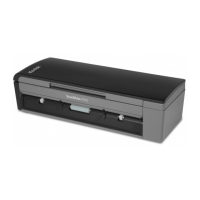
Kodak Sidekick 1400u - User Manual

Kodak Sidekick 1400u
56 pages
Print Icon
To Next Page IconTo Next Page
Loading...

Other manuals for Kodak Sidekick 1400u

Questions and Answers

  • O
    ohowardAug 6, 2025
    What to do if my Kodak Sidekick 1400u Scanner doesn't recognize the USB connection?
    • M
      Matthew WatsonAug 6, 2025
      If your computer does not recognize the Kodak scanner, check the computer to determine that the USB interface is installed properly using the Windows Device Manager. Also, ensure the scanner is not connected to a USB hub and that you are using the USB cable provided with the scanner, without a High Speed logo.
  • N
    nrileyAug 10, 2025
    How to fix skewed images on my Kodak Sidekick 1400u Scanner (ADF)?
    • B
      Bethany MorrowAug 11, 2025
      If the scanned image from your Kodak Scanner is skewed (using ADF), make sure the document guides are adjusted to the size of the documents being scanned and that the document is straight in the feeder tray. Also, if the right and left sides of the document are not the same height because of curls and folds, remove the curls or folds, reduce the number of sheets in the feeder tray, and load the document again.
  • J
    Jacqueline BrownAug 15, 2025
    What to do if the LED does not light on my Kodak Sidekick 1400u Scanner?
    • J
      Jessica SmithAug 15, 2025
      If the LED does not light when the power button is turned on for your Kodak Scanner, make sure that the power cord is securely plugged into the power outlet and into the scanner. If the issue persists, there could be a problem with the power supply. Disconnect the scanner from the power outlet and call Technical Support.
  • J
    James GomezAug 19, 2025
    What to do if my Kodak Scanner doesn't start scanning from the ADF?
    • S
      Sabrina AguilarAug 19, 2025
      If the Kodak scanner does not start scanning when a document is loaded on the feeder tray (ADF), the document might not be loaded properly. Also, if the edge of the document is curled, the sensor might not detect it. Flatten the document and load it again.
  • C
    Cynthia MorrowAug 25, 2025
    Why won't the ADF door open on my Kodak Sidekick 1400u Scanner?
    • L
      Lisa MillerAug 25, 2025
      If the ADF door does not open when the ADF door release button is pressed on your Kodak Scanner, it might be because the ADF door is not closed properly. Push the ADF door release button and lift up the ADF door, then close the ADF door securely until it is latched. Do not slam the ADF door.
  • S
    Stacy AliAug 27, 2025
    What to do if my Kodak Sidekick 1400u is double feeding or stopping during scanning (ADF)?
    • M
      Marilyn NelsonAug 28, 2025
      If your Kodak Scanner experiences double feeding or frequently stops feeding while scanning (using ADF), the rollers may be dirty or worn out. Clean the rollers and check them for wear. Also, if the document is curled or folded, flatten the document, reduce the number of sheets in the feeder tray, and load the document again.
  • J
    Joshua SuarezSep 1, 2025
    What to do if my Kodak Scanner scans a blank document (ADF)?
    • J
      Jamie BaileySep 1, 2025
      If the scanned document from your Kodak Scanner is blank (using ADF), verify that the document is positioned correctly in the feeder tray with the side you want to scan face-up.

Summary

Safety Precautions

User Precautions

Guidelines for safe operation and handling of the scanner to prevent injury or damage.

Scanner Installation

Installation Checklist

Steps to follow before and during the scanner installation process.

Making Connections

Instructions for physically connecting the scanner to a computer.

Installing the Software

Step-by-step guide for installing the scanner's software and drivers.

Scanning Operations

Document Preparation and Guidelines

Recommendations for preparing documents to ensure optimal scanning results.

Scanning Documents

Instructions on how to load and initiate the scanning of documents.

Scanner Maintenance

Cleaning Procedures

General guidelines and frequency for cleaning scanner components.

Cleaning Rollers, Sensors, and Imaging Guides

Detailed process for cleaning critical internal components affecting scan quality.

Replacing Consumables

Replacing the Paper Feed Roller Module

Procedure for replacing the paper feed roller module.

Replacing the Separation Roller Module

Procedure for replacing the separation roller module.

Replacing Sensor Rollers

Instructions for replacing the front and back sensor rollers.

User Utility Functions

Troubleshooting Scanner Issues

Clearing a Document Jam

Procedure for safely removing jammed documents from the scanner.

Problem Solving Guide

A guide to common scanner problems and their potential solutions.

User Utility Error Codes

Explanation of error codes displayed by the User Utility and their causes.

Scanner Specifications

Installing and Using the Imprinter

Kodak Sidekick 1400u Specifications

General IconGeneral
BrandKodak
ModelSidekick 1400u
CategoryScanner
LanguageEnglish

Related product manuals