EasyManua.ls Logo

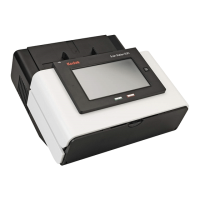
Kodak Scan Station 520EX - User Manual

Kodak Scan Station 520EX
61 pages
Print Icon
To Next Page IconTo Next Page
Loading...
Scan Station 500
& Scan Station 520EX
User’s Guide
Eastman Kodak Company
343 State Street
Rochester, NY 14650 U.S.A.
© Kodak, 2008. All rights reserved.
TM: Kodak
A-61627
8F8038A
8F8038A
CYAN
MAGENTA YELLOW BLACKCYAN
8.5 x 11” Folded
GUIDE COVER-KODAK SCANNERS
FONTS
Whitney K Family
SIZE
P/ N SWATCHES
FILE FORMAT
DESIGN/IMPLEMENTATION
DAT E
11.12.08
8F8038A
DE MEYER
4 COLOR PROCESS
ARTWORK NAME
PRINTING INFORMATION
0000-000
ECO
LANGUAGES
ILLUSTRATOR CS3
EN/FR/DE/IT/ES-IN/PT-BR/NL/TR/
CS/ZH-CN/ZH-TW/JA/KO/AR/RU
User’s Guide on Installation CD
Guides de l'utilisateur sur le CD d'installation
Benutzerhandbücher auf der Installations-CD
Guida dell’utente sul CD di installazione
Guías de usuario incluidas en el CD de instalación
Guias do usuário no CD de instalação
Gebruikershandleidingen op installatie-cd
Kurulum CD'sindeki Kullanım Kılavuzları
Uživatelská pøíruèka na instalaèním disku CD


Questions and Answers

  • E
    elizabethdominguezAug 9, 2025
    What to do if my Kodak Scan Station 520EX Scanner is flashing red?
    • K
      Kevin MccoyAug 9, 2025
      If the Kodak Scanner displays a flashing red light, it indicates an error, such as an open cover or a document jam. To resolve this, correct the error by closing the Scan Station cover or removing the jammed document. Then, continue scanning.
  • T
    Teresa HeathAug 19, 2025
    How to fix documents jamming in Kodak Scan Station 520EX?
    • D
      Dawn MorenoAug 19, 2025
      To address documents jamming or multiple documents feeding in your Kodak Scanner, ensure the side guides are adjusted to fit the document width, and the output tray is set for the document length. Verify all documents meet the size, weight, and type specifications. Clean the Scan Station and tires. Check the spring tension on the pre-separation module, and confirm the feed and separation modules are correctly installed. To remove a jam, open the Scan Station cover, remove any stuck documents, close the cover, and resume scanning.
  • D
    dawnriversAug 25, 2025
    What does constant red light mean on Kodak Scan Station 520EX?
    • M
      Monica JacobsAug 25, 2025
      If your Kodak Scanner displays a constant red light, it indicates a Scan Station failure. Turn the Scan Station off, and then turn it on again. If the error continues, service is required.
  • R
    Robert MorganAug 29, 2025
    Why won't my Kodak Scan Station scan documents?
    • Y
      yolanda39Aug 29, 2025
      If the Kodak Scan Station won't scan or feed documents, ensure the power cord is securely plugged into both the back of the Scan Station and the wall outlet. Make sure the power switch is turned on and that the wall outlet is working correctly. Also, check that the documents are making contact with the feed rollers.
  • G
    gjordanSep 2, 2025
    What to do if Kodak Scan Station 520EX has unsuccessful fax delivery?
    • H
      hjohnsonSep 3, 2025
      If you experience unsuccessful fax delivery with your Kodak device, first verify that your return email address is configured correctly. Then, ensure the fax number you are sending to is accurate and try again. If the problem persists, contact your administrator.
  • J
    Jesus WrightNov 13, 2025
    What to do if documents are jamming in my Kodak Scan Station 520EX?
    • B
      Brian FullerNov 13, 2025
      To prevent documents from jamming or multiple documents from feeding in your Kodak Scanner, ensure the side guides are adjusted to the width and the output tray to the length of your documents. Verify that all documents meet the specified size and weight requirements: maximum size is 215 x 863 mm (8.5 x 34 in.), minimum size is 50 x 63.5 mm (2 x 2.5 in.), multiple-sheet feeding is 75 x 125 mm (3 x 5 in.), and paper weight is up to 413 g/m2 (110 lb.) or ID cards up to 1.25 mm (0.05 in.) thick. Also, make sure the Scan Station and tires are clean and the spring on the pre-separation module is properly adjusted. Finally, confirm that the feed and separation modules are correctly installed. If a jam occurs, open the Scan Station cover (after opening the output tray panel), remove the jammed do...

Kodak Scan Station 520EX Specifications

General IconGeneral
Scanner TypeDocument Scanner
Optical Resolution600 dpi
DisplayTouchscreen
Duplex ScanningYes
Ultrasonic multifeed detectionYes
Color Depth24-bit
Scanning TechnologyCIS (Contact Image Sensor)
Maximum Document Size8.5 x 14 inches
Minimum Document Size2 x 2 inches
ConnectivityUSB 2.0, Ethernet
File FormatsPDF, JPEG, TIFF
InterfaceUSB, Ethernet
Supported Operating SystemsWindows, Mac

Related product manuals