EasyManua.ls Logo

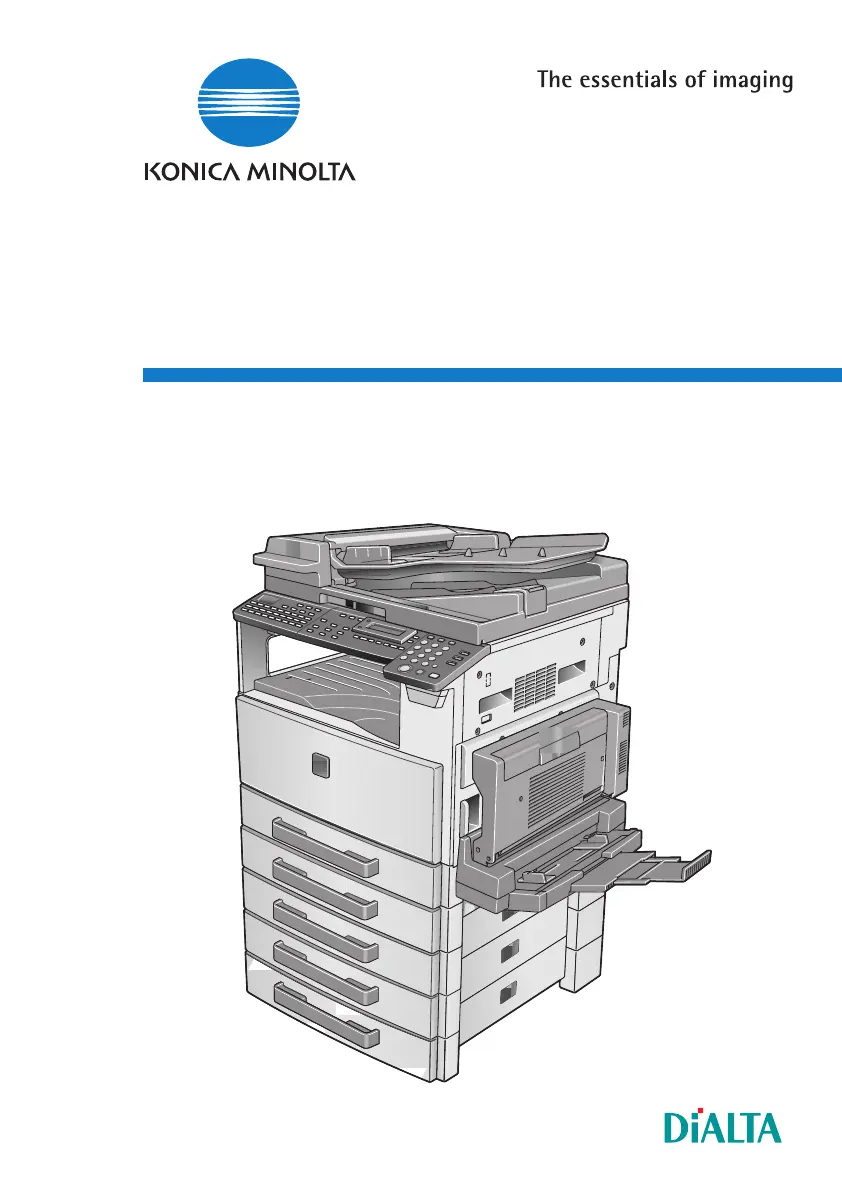
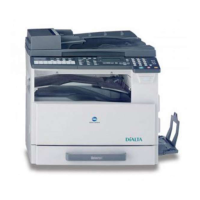
Konica Minolta Di1611 - User Manual

Konica Minolta Di1611
168 pages
Print Icon
To Next Page IconTo Next Page
Loading...
User Manual
Englisch
www.konicaminoltaeurope.com
Copyright
2004 KONICA MINOLTA BUSINESS TECHNOLOGIES, INC.
Konica Minolta Business Solutions Europe GmbH
Europaallee 17
D-30855 Langenhagen
Phone +49 (0)5 11 74 04-0
Fax +49 (0)5 11 74 10 50
Printed in Germany
*9965161100*
*9965161100*
Di1611/Di2011 Fax Unit (FX-3)
User Manual
Di1611/Di2011 Fax Unit (FX-3)

Table of Contents

Other manuals for Konica Minolta Di1611

Questions and Answers

  • J
    jaybakerAug 4, 2025
    What to do if Konica Minolta Copier has streaks through the copy?
    • S
      Samuel HollandAug 4, 2025
      If your Konica Minolta Copier is producing copies with streaks or specks, the Original Glass may be dirty. Wipe the glass with a soft dry cloth. Another cause could be a dirty document pad, in which case you should clean it with a soft cloth dampened with a mild detergent. If the original is highly translucent, place a blank sheet of paper over the document. If a thin double-sided document is being copied, use the Auto/Photo key to select a lighter density for the background. If the Imaging Unit has reached the end of its service life, contact your service representative.
  • S
    Sydney RobbinsAug 12, 2025
    Why is my Konica Minolta Copier copy too dark?
    • E
      Eric WalkerAug 12, 2025
      If copies from your Konica Minolta Copier are too dark, it may be because the copy density is set too dark; use the Auto/Photo key to select a lighter copy density. Another reason could be that the document was not pressed closely against the Original Glass. Position the document so that it is pressed closely against the Original Glass.
  • D
    David BarnettAug 19, 2025
    Why is my Konica Minolta Copier copy too light?
    • D
      Derrick WalkerAug 19, 2025
      If copies from your Konica Minolta Copier are too light, the copy density may be set too light. Use the Auto/Photo key to select a darker copy density. Alternatively, the copy paper may be damp; replace the paper.
  • K
    Keith LewisAug 27, 2025
    What to do if Konica Minolta Copier copy is blurry?
    • A
      Amanda BrownAug 27, 2025
      If your Konica Minolta Copier is producing blurry copies, the copy paper may be damp. Replace the paper. Also, ensure the document is pressed closely against the Original Glass; reposition if necessary.

Summary

Introduction

Safety Information

Provides detailed instructions for safe operation and maintenance, emphasizing manual adherence.

Faxing

Dialing Methods

Introduces G3 fax standards and various methods for dialing fax numbers.

Basic Faxing Procedures

Covers fundamental steps for sending faxes using the ADF or Original Glass.

Fax Transmission;Reception Methods

Transmission Methods

Outlines methods for sending faxes, including memory, direct, manual, and timer transmissions.

Reception Methods

Explains different ways to receive faxes, such as manual, memory, mailbox, and polling reception.

Using the Utility Mode (Fax)

Fax Registration Setup

Details setting up fax registration functions like one-touch dial, speed dial, and group dialing.

Transmission Setup

Configures transmission settings such as scan contrast, resolution, and default transmission modes.

Appendix

Error Messages and Remedies

Lists common error messages, their causes, and suggested remedies for troubleshooting.

Faxing Troubleshooting

Provides solutions for common faxing problems like scanning or clarity issues.

Konica Minolta Di1611 Specifications

General IconGeneral
Print Speed16 ppm
Copy Speed16 cpm
Print Resolution600 x 600 dpi
Multiple Copies1-99
Power Consumption1.3 kW
Duplex PrintingOptional
Paper Capacity250 sheets
ConnectivityUSB, Parallel
OriginalsBooks
Copy SizeA3
Zoom50-200%
Scanner TypeFlatbed
First Copy Time8 seconds

Related product manuals