EasyManua.ls Logo

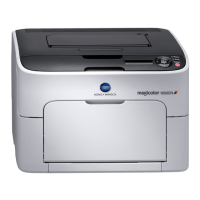
Konica Minolta magicolor 1600W - Service Manual

Konica Minolta magicolor 1600W
216 pages
Print Icon
To Next Page IconTo Next Page
Loading...
SERVICE MANUAL
2008.112008.11
Ver. 1.0Ver. 1.0
FIELD SERVICE
magicolor 1600W
magicolor 1650EN
magicolor 1600W
magicolor 1650EN

Table of Contents

Other manuals for Konica Minolta magicolor 1600W

Questions and Answers

  • L
    lrossAug 12, 2025
    Why is my Konica Minolta Printer media misfeeding?
    • D
      Debbie NelsonAug 12, 2025
      If the Konica Minolta Printer media is misfeeding, it might be due to several reasons. First, make sure the media is correctly positioned in the tray; if not, remove the media and reposition it properly. Second, check if the number of sheets exceeds the maximum allowed; if it does, remove the excess media. Third, ensure the media guides are correctly adjusted to the media size. Fourth, if you're using warped or wrinkled media, remove it, smooth it out, and reload it, and if it still misfeeds, discontinue using it. Finally, if you're using label sheets, load them according to the manufacturer’s instructions.
  • S
    Sean ColemanAug 16, 2025
    What to do if my Konica Minolta magicolor 1600W Printer power is not on?
    • K
      Kathy MartinAug 16, 2025
      If the Konica Minolta Printer power is not on, first ensure the power cord is correctly plugged into the outlet. Turn off the printer, confirm the cord is properly connected, and then turn the printer back on. If that doesn't work, plug another electrical appliance into the outlet to check if the outlet is working. Also, verify that the power switch is in the on (I) position. If none of these steps work, ensure the printer is connected to a power source that matches the printer's specifications.
  • D
    Danielle HarringtonAug 20, 2025
    Why is my Konica Minolta magicolor 1600W Printer printing blank pages or with blank spots?
    • B
      Blake SanchezAug 20, 2025
      If nothing is being printed or there are blank spots on the printed page from the Konica Minolta Printer, it could be due to several reasons. First, check the toner cartridges for any damage. Second, inspect the imaging cartridge for defects and replace it if damaged. Third, ensure the humidity for media storage is adjusted, remove the moist media, and replace it with new, dry media. Fourth, verify that the media set in the printer driver matches the media loaded in the printer. Fifth, ensure that the power source matches the printer specifications. Also, remove the media from the tray and check for static electricity. Finally, remove the media, tap it to straighten it out, return it to the tray, and realign the media guides.
  • M
    Michael WeaverAug 23, 2025
    How to fix Konica Minolta Printer printing blank pages?
    • A
      Amy SimmonsAug 23, 2025
      If the Konica Minolta Printer is printing blank pages, it could be due to defective or empty toner cartridges, so check them. Also, ensure that the media type set in the driver matches the media loaded in the printer.
  • D
    Donald MillerAug 27, 2025
    What to do if the media misfeed message stays on the Konica Minolta Printer?
    • L
      Laura WebsterAug 27, 2025
      If the media misfeed message stays on the Konica Minolta Printer, some media remains misfed in the printer. Recheck the media path and make sure that you have removed all of the misfed media.
  • Y
    youngmatthewAug 31, 2025
    Why is the media from my Konica Minolta Printer wrinkled?
    • J
      Jordan LaraAug 31, 2025
      If the media from the Konica Minolta Printer is wrinkled, it could be due to moisture from humidity or water spillage. Remove the moist media and replace it with new, dry media. It could also be that the media feed roller or fuser unit is defective, so check them for damage. Finally, ensure that you are using Konica Minolta-approved media of the correct size, thickness and type.
  • S
    Scott WebbSep 4, 2025
    What to do if several sheets go through the Konica Minolta magicolor 1600W Printer together?
    • J
      Joseph AdamsSep 4, 2025
      If several sheets go through the Konica Minolta Printer together, it might be because the front edges of the media are not even. Remove the media and even up the front edges, then reload it. Another reason could be that the media is moist from humidity, so remove the moist media and replace it with new, dry media.
  • S
    Stephanie HillSep 8, 2025
    Why is my Konica Minolta magicolor 1600W Printer printing the entire sheet in black or color?
    • T
      Tamara DanielSep 8, 2025
      If the entire sheet is printed in black or color by the Konica Minolta Printer, one or more of the toner cartridges may be defective. Remove the toner cartridges and check for damage. If it is damaged, replace it. Also, the imaging cartridge may be defective. Remove the imaging cartridge and check for damage. If it is damaged, replace it.

Summary

SAFETY AND IMPORTANT WARNING ITEMS

IMPORTANT NOTICE

Provides crucial warnings about hazards and technician qualifications.

DESCRIPTION ITEMS FOR DANGER, WARNING AND CAUTION

Defines hazard terms and symbols used in the manual for safety.

SAFETY WARNINGS

Lists prohibited actions for product safety and reliability.

POWER PLUG SELECTION

Details guidelines for selecting and connecting power cords and plugs.

CHECKPOINTS WHEN PERFORMING ON-SITE SERVICE

Outlines essential safety checks for on-site service operations.

Installation Requirements

Prohibited Installation Places

Specifies locations that are unsuitable for product installation due to fire risk.

When not Using the Product for a long time

Instructions for safely powering off and unplugging the product during extended absence.

Ventilation

Addresses ozone gas generation and the need for room ventilation.

Fixing

Advises on locking caster stoppers to prevent product movement during seismic events.

Servicing Precautions

Inspection before Servicing

Covers reading documentation, using correct tools, and disconnecting power.

Work Performed with the Product Powered On

Emphasizes care when working with live voltage and moving parts.

Safety Checkpoints

Repair and Damage Checks

Checks reports, frame integrity, and prevents foreign objects from entering the product.

Electrical System Integrity

Covers wiring, toner remnants, high-voltage cables, and electrode units for safety.

Material Handling Safety

Handling of Consumables

Details safe handling of toner and developer, avoiding inhalation and eye contact.

Handling of Service Materials

Provides safety guidelines for handling cleaning solvents like alcohol and acetone.

Component Safety

Fuse Precautions

Notes on fuse types and replacement for safety.

Used Batteries Precautions

Instructions for safe handling and disposal of used batteries to prevent explosion.

LASER SAFETY

Internal Laser Radiation Information

Describes laser classification and specifications for internal laser radiation.

Print Head Unit Serviceability Warning

States that the print head unit is not field serviceable and should not be opened.

SAFETY INFORMATION

IMPORTANT NOTICE

Provides information on laser product compliance with US regulations.

Machine Warnings

Warning Label Locations

Highlights warning labels and their locations on the machine for safety.

ACCIDENT RESPONSE PROCEDURES

Emergency Measures and Reporting

Outlines immediate actions for accidents and notification procedures.

Service Manual Composition

Composition of the service manual

Explains the organization and content of the service manual.

Service Manual Notation

Notation of the service manual

Describes conventions used for product names and feeding direction.

OUTLINE

System configuration

Illustrates the main components of the magicolor 1600W and 1650EN.

Product specifications

Details technical specifications like type, printing system, and media handling.

MAINTENANCE

Periodical check

Describes routine checks and maintenance items for periodic replacement.

Service tool

Lists necessary tools and materials for service operations.

Firmware upgrade

Procedure for updating the printer's firmware.

Other Maintenance Topics

Covers miscellaneous maintenance topics and prohibited disassembly items.

ADJUSTMENT;SETTING

How to use the adjustment section

Guidance on navigating and using the adjustment/setting features.

Control Panel Operations (1600 W)

Explains the control panel layout and LED indicators for the 1600W.

Remote panel utility (1600 W)

Details the remote panel utility for printer management.

Control Panel Operations (1650 EN)

Explains the control panel layout and functions for the 1650EN model.

Control Panel Messages (1650 EN)

Lists and explains control panel messages for the 1650EN.

MENU Navigation (1650 EN)

Provides a detailed breakdown of the menu structure and functions.

USER SERVICE MENU (1650 EN)

Procedure to enter and list functions in the user service menu.

Service mode entry (1600 W)

Procedure to enter the service mode for the 1600W model.

SERVICE MENU Access (1650 EN)

Procedure to enter and list functions in the service menu for the 1650EN.

TROUBLESHOOTING

Jam display

Information on displaying and resetting paper jam errors.

Malfunction code lookup

Lists error codes, their detection timing, and solutions.

Power Supply Errors

Troubleshooting steps for power supply related issues.

Image Quality Problems

Diagnosing and resolving issues related to print quality.

APPENDIX

Parts layout drawing

Illustrations showing the location of various parts within the main body.

Connector layout drawing

Diagrams showing the layout of electrical connectors on the main body.

Timing chart

Illustrates the timing sequence of various printer operations.

Konica Minolta magicolor 1600W Specifications

Print Specifications IconPrint Specifications
print speed monochrome20 ppm
print speed colour5 ppm
first page out monochrome13 seconds
first page out colour22 seconds
warm-up time30 seconds
max resolution1200 x 600 dpi
monthly print volume300 pages per month
Hardware and Software IconHardware and Software
memory16 MB
interface supportUSB 2.0
operating system compatibilityWindows 2000, Server 2003 (32/64), XP (32/64), Vista (32/64)
Paper Handling IconPaper Handling
standard paper input200 sheet multi manual tray
standard paper output100 sheet face down output tray
printable areaApprox. 4 mm from all edges
media sizes supportedA4, A5, letter, legal, envelope C6, envelope DL, B5, custom size 92 – 216 x 184 – 356 mm
paper weightsPlain paper (60 – 90 gsm), recycled paper (60 – 90 gsm), thick paper 1 (91–163 gsm), thick paper 2 (164 – 209 gsm)
Power IconPower
power consumption colour printing400 W or less
power consumption monochrome printing440 W or less
power consumption stand by140 W or less
power consumption energy save mode14 W or less
input voltage range220 ~ 240 V ([+]– 10 %)
frequency50 ~ 60 Hz ([+]– 3 %)
Operating Environment IconOperating Environment
temperature10 ~ 35 °C
humidity15 ~ 85 % RH
noise levels operating colour49 dB or less
noise levels operating monochrome50 dB or less
noise levels stand by29 dB or less
Consumables IconConsumables
pre-installed toner yieldup to 500 pages
imaging unit monochrome yieldup to 45, 000 pages
imaging unit colour yieldup to 11, 250 pages
standard toner yieldCyan, magenta and yellow toner yield up to 1, 500 pages
high capacity toner yieldCyan, magenta, yellow and black toner yield up to 2, 500 pages
Weight and Dimensions IconWeight and Dimensions
dimensions396 mm x 380 mm x 275 mm
weight14.4 kg

Related product manuals