EasyManua.ls Logo

Konica Minolta Magicolor 1650EN - User Manual

Konica Minolta Magicolor 1650EN
191 pages
Print Icon
To Next Page IconTo Next Page
Loading...
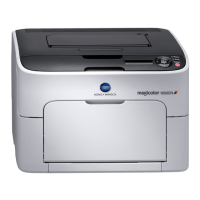
magicolor 1650EN
User’s Guide
A034-9571-03A

Table of Contents

Other manuals for Konica Minolta Magicolor 1650EN

Questions and Answers

  • D
    Dr. Christopher Stevens Jr.Sep 8, 2025
    What to do if I can’t print the configuration page on Konica Minolta Magicolor 1650EN?
    • D
      Daniel PatelSep 9, 2025
      If you can't print the configuration page on your Konica Minolta Printer, check that Tray 1 is loaded with media, is in place, and is secure. Also, clear any media misfeeds.
  • J
    Joshua Manning DVMAug 23, 2025
    Why does my Konica Minolta Magicolor 1650EN reset or turn off frequently?
    • P
      pkrauseAug 23, 2025
      If your Konica Minolta Printer frequently resets or turns off, ensure the power cord is correctly plugged into the outlet. Turn off the printer, confirm the connection, and then turn the printer back on. If the issue continues, contact Technical Support with the error information.
  • E
    Earl FinleyAug 25, 2025
    What to do if my Konica Minolta Magicolor 1650EN power is not on?
    • G
      Gregory OlsonAug 25, 2025
      If your Konica Minolta printer isn't powering on, try these steps: 1. Ensure the power cord is correctly plugged into the outlet. Turn off the printer before checking, then turn it back on. 2. Test the outlet with another device to confirm it's working. 3. Make sure the power switch is in the 'on' (I) position; try toggling it off (O) and then back on (I). 4. Verify the printer is connected to a power source matching its specifications.
  • A
    Alexander OlsonAug 26, 2025
    Why is my Konica Minolta Magicolor 1650EN misfeeding?
    • K
      Kelly MorganAug 27, 2025
      If your Konica Minolta Printer is misfeeding media, it could be due to several reasons. First, ensure the media is correctly positioned in the tray. If the tray is overloaded, remove the excess media to the allowed amount. Also, check if the media guides are properly adjusted to the media size. Avoid using warped or wrinkled media; replace it with smooth media. High humidity can also cause misfeeding, so use dry media. Remember that special media should only be loaded in Tray 1. Ensure that label sheets and envelopes are loaded correctly, following the manufacturer's instructions and with flaps facing down, respectively. Finally, make sure you are using KONICA MINOLTA-approved media.
  • J
    James Mills DDSAug 27, 2025
    Why does my Konica Minolta Magicolor 1650EN take so long to print?
    • E
      Elizabeth GreenAug 27, 2025
      If printing with your Konica Minolta Printer is taking longer than expected, it could be due to a few reasons. Printing with special media types, such as thick stock, can slow down the process. Also, the printer may be in power-saving mode, which adds a delay at the start of printing. If you are using regular paper, ensure that the media type is correctly set in the driver. For very complex jobs, simply allow the printer more time to complete the task. Lastly, make sure you are using a KONICA MINOLTA toner cartridge approved for your printer.
  • D
    Dorothy HayesSep 22, 2025
    Why are pages not centered when printing 2 pages on one sheet of paper with a Konica Minolta Printer?
    • J
      Jared MurphySep 22, 2025
      When printing two pages on a single sheet of paper with your Konica Minolta Printer, the pages might not be centered for Legal, Letter Plus, Foolscap, Government Legal, Statement, and Folio paper sizes, depending on your operating system.
  • A
    Ana PooleSep 16, 2025
    Why does the duplex option misfeed on my Konica Minolta Magicolor 1650EN Printer?
    • D
      Derrick WrightSep 16, 2025
      Duplex misfeeds on your Konica Minolta printer may occur if you are using unsupported media. Use KONICA MINOLTA-approved media. Also, make sure you have not mixed media types in Tray 1. Do not duplex envelopes, labels, thick stock, postcard, or letterheads.
  • M
    Michelle ParkerSep 18, 2025
    How to stop my Konica Minolta Magicolor 1650EN from pulling multiple sheets at once?
    • J
      Jonathan RiggsSep 18, 2025
      If your Konica Minolta printer is feeding multiple sheets, it could be due to uneven media edges. Remove the media, even up the front edges, and reload. Alternatively, the media may be moist. Replace it with new, dry media.
  • C
    Cynthia JohnsonSep 7, 2025
    Why does Konica Minolta Printer pull several sheets at once?
    • S
      Sarah CarrilloSep 7, 2025
      If several sheets are going through your Konica Minolta Printer together, it might be because the front edges of the media are uneven. Remove the media, even up the front edges, and then reload it. Also, the media might be moist from humidity. In that case, remove the moist media and replace it with new, dry media.
  • T
    timothy39Sep 4, 2025
    Why is the duplex option mis-feeding on my Konica Minolta Printer?
    • G
      gamblekeithSep 4, 2025
      If the duplex option on your Konica Minolta Printer is misfeeding, ensure you are using KONICA MINOLTA-approved media. Make sure you're using only Letter/A4 plain paper and recycled paper for auto-duplexing, and that the media type is set correctly in the driver. Avoid mixing media types in Tray 1 and do not duplex envelopes, labels, thick stock, postcards, or letterheads.

Summary

Introduction

Getting Acquainted with Your Printer

Introduces printer components and physical layout.

Printer Driver CD;DVD

Details printer driver contents on CD/DVD for various OS.

Utilities and Documentation CD;DVD

Lists utilities and documentation available on CD/DVD for printer management.

System Requirements

Outlines hardware/software specs needed to operate the printer.

Using the Printer Driver

Selecting Driver Options;Defaults (for Windows)

Guides on configuring default printer driver settings for Windows.

Uninstalling the Printer Driver (for Windows)

Provides steps to remove the printer driver from Windows systems.

Displaying Printer Driver Settings (for Windows)

Explains how to view current printer driver settings in Windows.

Using the Postscript and PCL Printer Driver

Details common buttons and tabs within Postscript and PCL printer drivers.

Using the Status Monitor (Windows Only)

Working with the Status Monitor

Instructions on how to open, use, and interpret the printer status monitor.

Printer Control Panel and Configuration Menu

About the Control Panel

Introduces the printer's control panel, indicators, and keys.

Toner Supply Indicators

Explains the indicators for toner levels in the printer's control panel.

PAPER MENU

Details settings related to paper handling, trays, and media types.

QUALITY MENU

Covers settings for print quality adjustments like toner and image refresh.

INTERFACE MENU

Describes network and connection interface settings for the printer.

SYSTEM DEFAULT

Explains how to configure printer operational defaults and security settings.

LANGUAGE MENU

Allows changing the display language for the printer's message window.

Media Handling

Print Media

Lists supported media types, sizes, and their specifications for printing.

Media Types

Describes various media types (plain paper, thick stock, envelopes, labels) and their usage.

Printable Area

Details the printable margins and limitations on different media sizes.

Loading Media

Step-by-step instructions for loading various media types into printer trays.

Replacing Consumables

Replacing Consumables

General notes and information about toner cartridges and their handling.

Replacing a Toner Cartridge

Detailed procedure for removing and installing toner cartridges.

Removing All Toner Cartridges

Instructions for using the "REMOVE ALL" mode to remove all toner cartridges.

Replacing the Imaging Cartridge

Guide on how to replace the printer's imaging cartridge.

Replacing the Fuser Unit

Steps for safely replacing the fuser unit, noting hot components.

Maintaining the Printer

Maintaining the Printer

General guidelines for printer care, cleaning, and handling precautions.

Cleaning the Printer

Instructions for cleaning the exterior and interior parts of the printer.

Cleaning the Media Feed Roller

Steps to clean the media feed rollers to prevent misfeeds.

Cleaning the Print Head Window

Procedure for cleaning the print head window for optimal print quality.

Cleaning the Media Feed Rollers for Tray 2

Specific instructions for cleaning media feed rollers in Tray 2.

Cleaning the Media Feed Rollers for the attachment

Instructions for cleaning media feed rollers when using an attachment.

Cleaning the Duplex Feed Rollers

Guide on cleaning the rollers within the duplex unit.

Troubleshooting

Introduction

Overview of troubleshooting and how to resolve common printer issues.

Printing a Configuration Page

Steps to print a configuration page to verify printer settings.

Preventing Media Misfeeds

Advice on avoiding paper jams and ensuring proper media handling.

Understanding the Media Path

Illustrates the printer's media path to help locate misfeeds.

Clearing Media Misfeeds

Procedures for clearing paper jams from different printer locations.

Solving Problems with Media Misfeeds

Common symptoms, causes, and solutions for media misfeed issues.

Solving Other Problems

Troubleshooting steps for issues like power, connectivity, and job errors.

Solving Problems with Printing Quality

Solutions for common printing quality issues like blank spots or poor density.

Status, Error, and Service Messages

Explains status, error, and service messages displayed on the control panel.

Installing Accessories

Introduction

Introduces accessories like Tray 2 and Duplex Option, and installation prerequisites.

Tray 2

Instructions for installing the optional 500-sheet Tray 2.

Duplex Option

Details on installing the duplex option for automatic double-sided printing.

Appendix

Technical Specifications

Provides detailed technical data and specifications for the printer.

Consumable Life Expectancy Chart

Lists the expected lifespan of printer consumables.

Our Concern for Environmental Protection

Information on the printer's compliance with environmental standards like ENERGY STAR.

Konica Minolta Magicolor 1650EN Specifications

magicolor 1650EN

Printing IconPrinting
print speed monochromeup to 20 ppm
print speed colourup to 5 ppm
first page out monochrome13 seconds
first page out colour22 seconds
max resolutionPhotoART 9600 (600 dpi x 600 dpi x 4 bit)
Power IconPower
input voltage range220 ~ 240 V ( [+]– 10 %)
frequency50 ~ 60 Hz ( [+]– 3 %)
power consumption colour printing470 W or less
power consumption monochrome printing510 W or less
power consumption stand by200 W or less
power consumption energy save mode22 W or less
Environmental IconEnvironmental
temperature10 ~ 35 °C
humidity15 ~ 85 % RH
noise levels operating colour49 dB or less
noise levels operating monochrome50 dB or less
noise levels stand by29 dB or less
Consumables IconConsumables
pre-installed toner yield cyan, magenta, yellowup to 500 pages
pre-installed toner yield blackup to 1, 000 pages
replacement toner yield standard cyan, magenta, yellowup to 1, 500 pages
replacement toner yield high capacity cyan, magenta, yellow, blackup to 2, 500 pages
imaging unit black yieldup to 45, 000 pages
imaging unit cyan, magenta, yellow yieldup to 11, 250 pages
Weight and Dimensions IconWeight and Dimensions
weight15.1 kg
dimensions396 mm x 380 mm x 275 mm

magicolor 1650EN-d

Weight and Dimensions IconWeight and Dimensions
weight19.3 kg
dimensions396 mm x 435 mm x 337 mm

magicolor 1650EN-dt

Weight and Dimensions IconWeight and Dimensions
weight22 kg
dimensions396 mm x 565 mm x 392 mm

Related product manuals