55
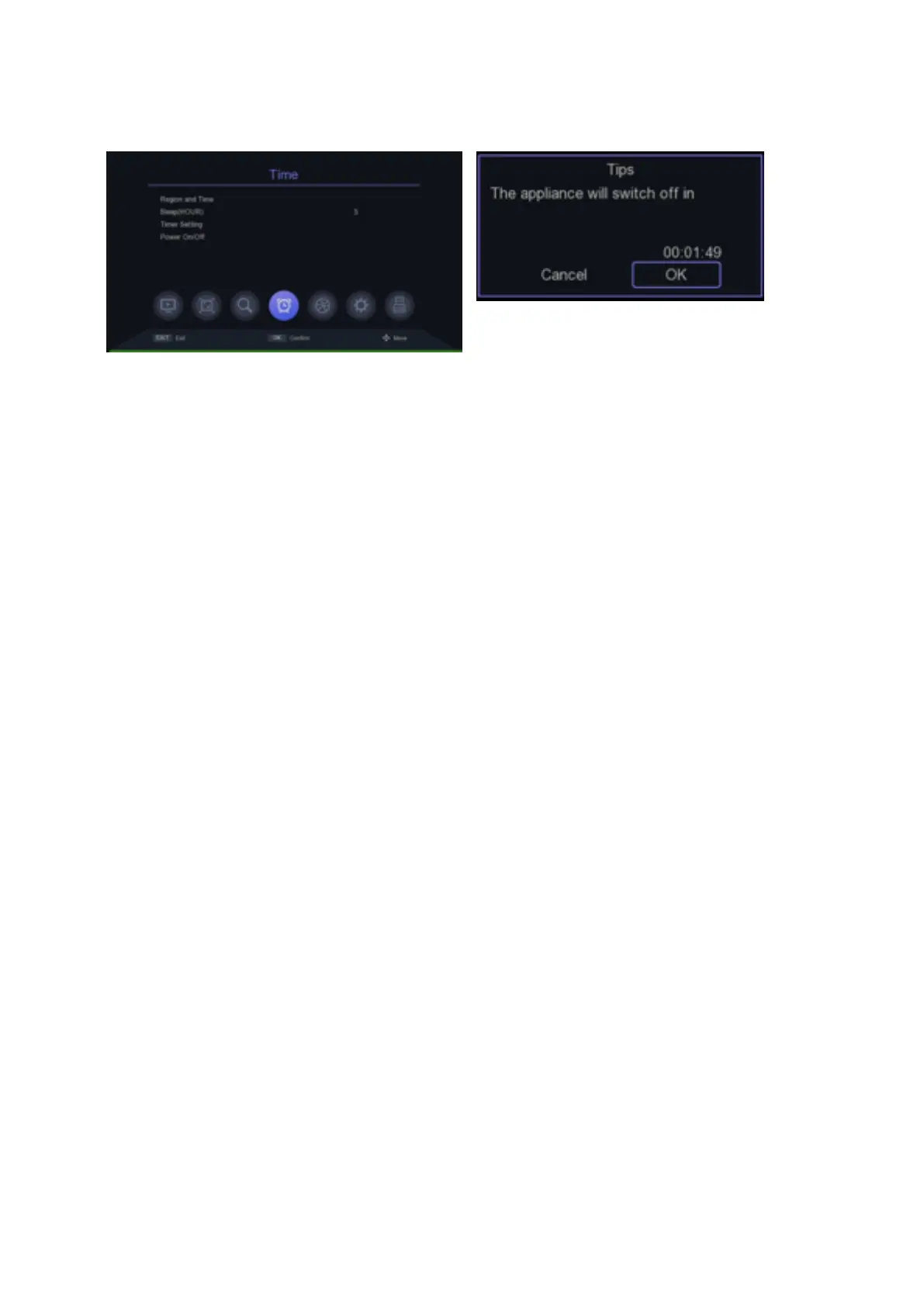
from automatically switching to Standby (OFF) or extend the period of inacti-
vity up to 12 hours (from 1 hour, in 60 minutes steps).
Network App
If the device is connected to the internet via the network cable, it is possible
to access some applications. The decoder directly accesses the contents
and shows various options which are quite intuitive. The News application
has some preloaded English- language sites to draw from, but you can add
other links. The Weather application shows the weather forecast in the sur-
roundings.
To access the network applications, enter the USB menu and select INTER-
NET and you will enter the submenu like the one in the figure, where you can
select the application you are looking for.
Remote control programming
The supplied remote control can also be used to control another device
equipped with an infrared remote control (for example the television).
To make the remote control communicate with the TV you need to follow
these steps:
1. Position the two remote controls of decoder and TV facing each other so
that the two emitters look at each other without being obstructed
2. Press the SET button for 3 seconds on the remote control until the red
LED lights up and stays on.
3. Press the key to be associated on the decoder remote control within 10
seconds.
4. Press the button to be associated on the TV remote control within 3 se-
conds. If the signal is received by the remote control, the red LED will flash 3
times and then remain on.
5. Press SET to confirm.
6. Repeat these steps for each button on the remote you want to configure


 To Next Page