EasyManua.ls Logo

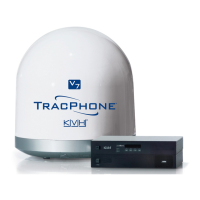
KVH Industries V7 - User Manual

KVH Industries V7
87 pages
Print Icon
To Next Page IconTo Next Page
Loading...
User's Guide
TracPhone
®
V7
(3-axis Version)

Questions and Answers

  • M
    Monique BrownAug 19, 2025
    Why is my KVH Industries V7 continuously searching for a satellite?
    • D
      David PerezAug 19, 2025
      If your KVH Industries Antenna is continuously searching for a satellite, first check the surrounding area for obstructions such as buildings, bridges, mountains, or onboard equipment. The antenna requires a clear view of the sky to properly receive satellite signals. If no blockages are present, you may be outside of the mini-VSAT Broadband service coverage area.
  • S
    Selena FergusonAug 21, 2025
    What to do if the control unit of KVH Industries V7 Antenna has stopped supplying antenna and BUC power because of high temperature?
    • R
      Rebecca OrtizAug 21, 2025
      If the control unit of your KVH Industries Antenna has stopped supplying power to the antenna and BUC because its temperature has risen above 85ºC, turn off the system and allow it to cool down. Relocate the unit to an area that provides better ventilation.
  • S
    Sean WrightAug 23, 2025
    What to do if I am unable to connect to the Internet via wireless network using KVH Industries V7 Antenna?
    • A
      allison88Aug 25, 2025
      To troubleshoot the inability to connect to the Internet via a wireless network with your KVH Industries Antenna, connect your computer directly to the switch using a straight-through Ethernet cable (not a crossover cable), and then restart your computer. If you can access the Internet, the problem lies with your wireless network.
  • B
    Brady AllenAug 26, 2025
    What to do if KVH Industries V7 Antenna is disabled because of high temperature?
    • E
      Elizabeth NunezAug 26, 2025
      If your KVH Industries Antenna is disabled because its temperature has risen above 85ºC, turn off the system and allow it to cool down.
  • M
    Mark RodriguezAug 28, 2025
    What to do if the GPS is not communicating with the KVH Industries V7 control unit?
    • G
      gerald49Aug 28, 2025
      If the GPS is not communicating with the control unit of your KVH Industries Antenna, try turning the control unit off and then back on. Also, check the terminal strip wiring at the control unit’s rear panel.
  • K
    Kristopher YangAug 30, 2025
    What to do if the modem is not providing satellite signal strength data to the KVH Industries V7 Antenna control unit?
    • A
      Angela RiveraAug 30, 2025
      If the modem of your KVH Industries Antenna is not providing satellite signal strength data to the control unit, try turning the modem off and then back on. If the error persists, contact KVH Technical Support.
  • C
    carrolllisaSep 1, 2025
    What to do if KVH Industries V7 control unit has lost communications with the antenna?
    • E
      Eugene JacksonSep 2, 2025
      If the control unit of your KVH Industries Antenna has lost communications with the antenna, check the wiring and try turning the control unit and modem off, then back on. If the error persists, contact KVH Technical Support.
  • M
    Matthew NavarroSep 4, 2025
    What to do if the modem is not online and logged into the mini-VSAT Broadband service for KVH Industries V7?
    • J
      johnsonrobertSep 4, 2025
      If the modem of your KVH Industries Antenna is not online and logged into the mini-VSAT Broadband service, check the modem's operational status and ensure it is properly powered.
  • L
    Laura GomezSep 6, 2025
    What to do if KVH Industries Antenna control unit is powered off or has no power input?
    • H
      hjonesSep 6, 2025
      If the control unit of your KVH Industries Antenna is powered off or has no power input, ensure that power is applied to all system components, including the modem, control unit, switch, and MTA.
  • C
    Christopher DennisSep 9, 2025
    What to do if one of the KVH Industries V7’s gyros is out of calibration?
    • M
      Mr. Mark Jones Jr.Sep 9, 2025
      If one of the gyros of your KVH Industries Antenna is out of calibration, try recalibrating the gyros. If a gyro fails to calibrate, contact KVH Technical Support because the gyro might need to be replaced.

Summary

Introduction to TracPhone V7 System

Using the TracPhone V7 User Manual

Guide on how to effectively use this manual for operation, configuration, and troubleshooting.

Important Safety Information for TracPhone V7

Crucial safety notices regarding electric shock and RF radiation hazards associated with the system.

TracPhone V7 System Overview

A high-level description of the TracPhone V7 system components and network diagram.

Operation of the TracPhone V7 System

Satellite Communication Basics Explained

Explanation of Ku-band satellite positioning and factors affecting signal reception.

Turning On and Starting the TracPhone V7

Step-by-step instructions for powering on the TracPhone V7 system components.

TracPhone V7 System Startup Screens

Description of various screens displayed by the control unit during system startup.

Using the mini-VSAT Broadband Service

Details on performing internet tasks like email and browsing via the mini-VSAT service.

KVH Enhanced Voice Service Functions

Guide to using the MTA for voice and fax calls via the mini-VSAT Broadband service.

Configuration Settings for TracPhone V7

Adjusting Control Unit Display Brightness

Procedure to change the brightness level of the TracPhone V7 control unit display.

Configuring RF Radiation Hazard Zones

How to configure up to two RF radiation hazard zones to prevent exposure.

Resetting TracPhone V7 to Factory Defaults

Steps to restore the system to its original factory configuration settings.

Computer Configuration for mini-VSAT Broadband

Instructions for configuring Windows and Mac computers for Ethernet connection.

Requesting Static IP Addressing for TracPhone V7

Process for enabling static IP addressing for direct shore access to onboard computers.

Troubleshooting TracPhone V7 Issues

Five Simple Checks for Common Problems

Basic troubleshooting steps to quickly identify and resolve common system issues.

Control Unit Status Light Indicators

Explanation of the status lights on the control unit and their meaning.

Modem Status Light Interpretation

Understanding the status light on the modem for diagnosing operational issues.

TracPhone V7 Error Message Reference

A comprehensive list of error messages and their descriptions for system faults.

Resolving Voice Service Problems

Steps to troubleshoot and fix issues related to making or receiving voice calls.

Viewing System Status via Web Browser

Accessing detailed system status information through the modem's web interface.

Viewing Status on the Control Unit Display

How to view modem and antenna status information directly on the control unit.

Calibrating TracPhone V7 Antenna Gyros

Procedure for recalibrating antenna gyros after component replacement.

Contacting KVH Technical Support

Information on how to get technical assistance and contact KVH support.

Appendix A: TracPhone V7 Wiring Diagram

Detailed Wiring Diagram for TracPhone V7

Schematic illustrating the connections between system components like antenna, control unit, and modem.

Appendix B: TracPhone V7 Menus Quick Reference

TracPhone V7 Control Unit Menu Navigation

A visual guide to navigating the control unit's menus and options.

Appendix C: Glossary of TracPhone V7 Terms

Technical Terms and Definitions

Definitions of technical terms used throughout the TracPhone V7 user manual.

KVH Industries V7 Specifications

General IconGeneral
Frequency BandKu-band
Stabilization3-axis
TrackingAutomatic satellite tracking
TypeMarine VSAT
Antenna Diameter0.6 meters
Operating Temperature-15°C to +55°C
HumidityUp to 100%, condensing
Wind Survival100 knots
Wind Operational50 knots

Related product manuals