M102
9
For Video Playback:
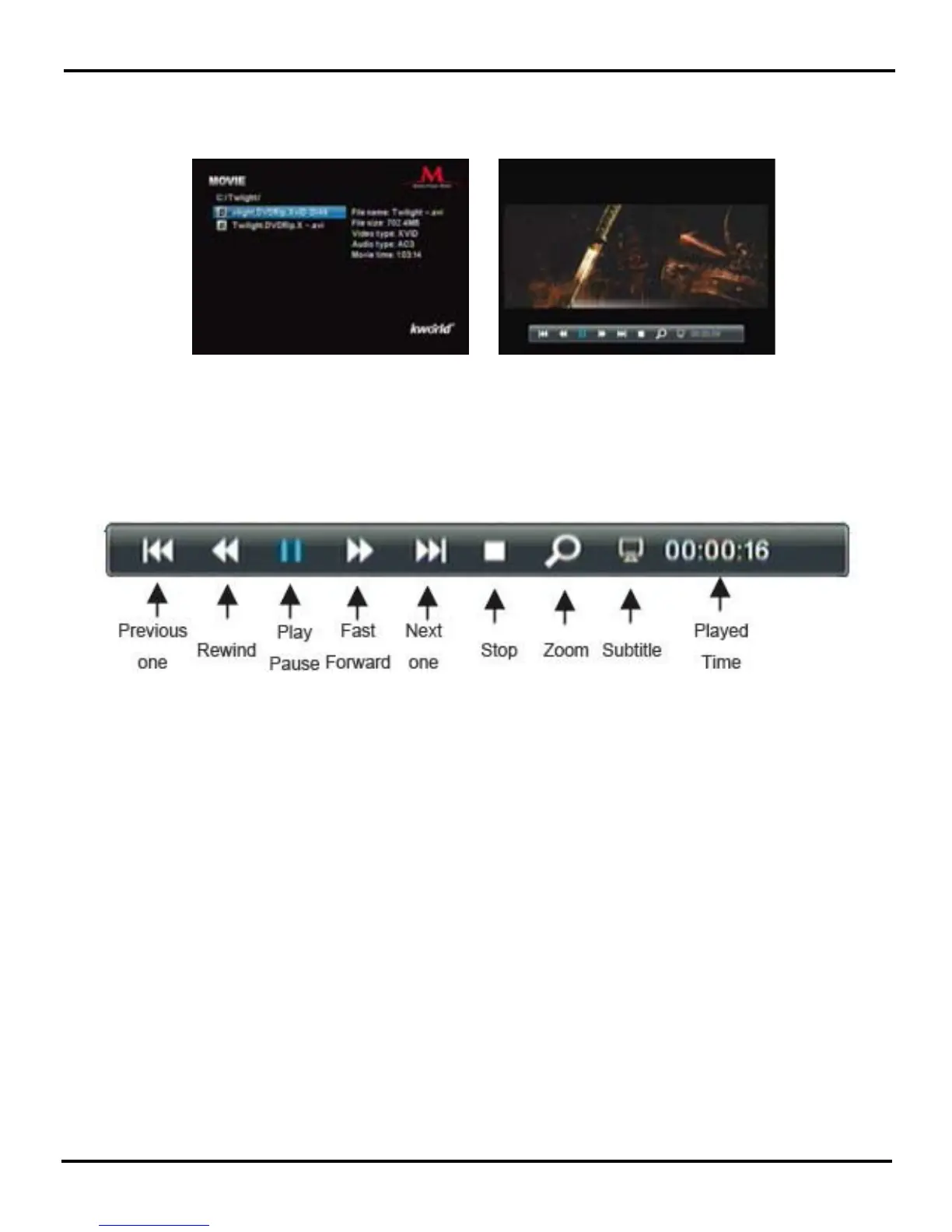
Use the “▼/▲” key on the Remote to select the video le and press “OK” to play or press the
“Exit” key to return to the previous page and back to the le listing. In full screen mode, press
the “OK” key on the Remote to enable the Video Control Bar. Use the “◄/►” key to select the
icon and press “OK” to conrm.
1.Movie: Please select the Movie icon on the Main Menu and press “OK” key to enter the
video le list. Choose a video le, and proceed to the full screen play mode.
Note: If you want to exit the current video playing or return to the previous menu, just press the
“Exit” key on the Remote or select Stop on the Video Control Bar.
Subtitle: The subtitle is only available when you watch the video in AVI format. You may press
the “OK” key on the Remote and select the Subtitle icon on the Video Control Bar to turn on or
off the subtitle. Please note this function is not available in other video formats.
Notes on the Subtitle Function:
A.Subtitle Format: supported only by ANSI encoding format. Please refer to FAQ-7 on
how to make a subtitle le with ANSI encoding format.
B.When naming the subtitle file, it should correspond with the video file name. For
example, if the video le name is “A.avi”, then the Subtitle le name must be “A.srt”.
C.The corresponding video and subtitle les must be stored in the same folder.
D.The timing of the corresponding video playback and subtitle display must be exact.
Otherwise, the subtitle would be ahead or delayed.



 To Next Page